 from an individual bench applications to enable remote access.
 Configure remote access for a mobile device. BenchVue Mobile is a mobile app that you can install on an Android or Apple iOS device to control some BenchVue bench applications running on your Windows computer. For more information on installing and using BenchVue Mobile, see Using BenchVue Mobile.
To use BenchVue Mobile, you must set a mobile password from the BenchVue application on your computer. This password will be required to remotely access your computer from BenchVue Mobile. Your password must contain at least six characters.
When checked, remote access from a mobile device is enabled. You can also click the Mobile button from an individual bench applications to enable remote access.
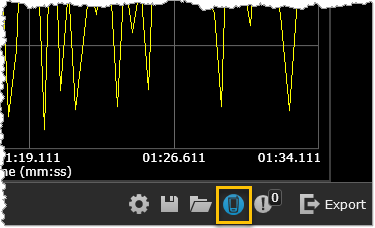
When checked, remote access from a mobile device will be automatically enabled when a bench application is launched on your computer.
In order to control bench applications running on your computer from a mobile device, you must know the computer's Internet Protocol (IP) address. This information is required to remotely access your computer from BenchVue Mobile. In addition, your mobile device and computer must be connected on the same local network or intranet (behind the same corporate firewall).
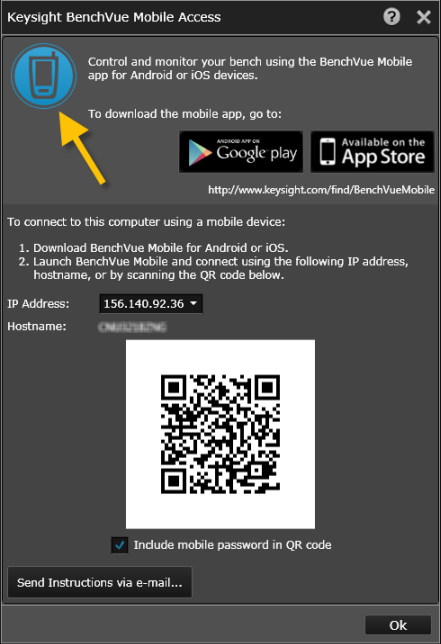
 - Click on this button (at the top of the above dialog) to enable or disable mobile access for the entire bench.
Download Mobile Apps - The BenchVue Mobile app is available for download from Google Play and the Apple App Store. Click on the corresponding link below to download the app to your mobile device.
IP Address - This non-editable field displays your computer's Internet Protocol (IP) address. Select the desired IP address from the drop-down list.
Hostname - This non-editable field displays your computer's hostname, which is used to identify your computer on your network.
QR Code - The QR code displayed is encoded with your computer's IP address. From the BenchVue Mobile connection screen on your mobile device, tap "Scan" to scan the code directly from your computer monitor. Note: For proper scanning of the QR code using an iOS device, operating system version iOS 7 or later is required.
Include Mobile Password - Check here to include your BenchVue mobile password in the displayed QR code. When selected, the QR code is encoded with your computer's IP address and your mobile password and you will not be prompted to enter the password.
Send Computer Connection Information via E-mail - Send your computer's connection information to an e-mail address using your default e-mail program.