Connecting to an Instrument
When you use Interactive IO, the first thing you have to do is connect to an instrument.
There are two ways to connect:
-

-
Manually entering the Resource Name.
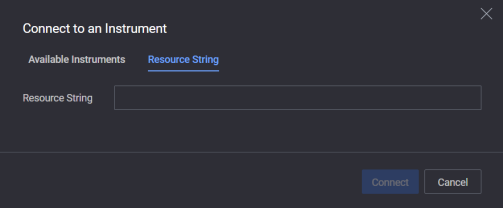

When you add or remove an instrument in Connection Expert, the Available Instruments list in Interactive IO does not update automatically. To see the changes, right-click and select Refresh.
Connection Strings (Resource Names)
The Resource String acts as a unique address to locate an instrument on the network. When configuring an instrument's connection details using Connection Expert, you'll see a generated VISA address, which includes all the necessary information to locate the instrument on a specific I/O interface.
A connection string consists of the interface name and number, address, and optionally "INSTR." Here are some examples:
-
GPIB[board]::primary address[::secondary address][::INSTR]
-
ASRL[board]::[INSTR]
-
TCPIP[board]::host address[::LAN device name]::[INSTR]
If you're connecting to a serial instrument, start Connection Expert, ensure the port is recognized, adjust settings as needed, close Connection Expert, and restart Interactive IO.
Other examples of connection strings (Resource Names) include:
-
GPIB0::22
-
TCPIP0::jetscrm3::gpib0,22::INSTR (E5810A LAN/GPIB Gateway)
-
TCPIP::portal6::hpib,10 (E2050 LAN/HP-IB Gateway)
-
USB0::2391::1031::0000000123::0::INSTR
As you can see, USB connection strings can be quite long, but you can simplify this by using Connection Expert to assign aliases to your instruments.