
The logging capability of TME allows Keysight support people to assist users with issues that may arise while running TME calibration applications.
This section discusses the following log files:
TME logging is accessed through the Options dialog box.
The logging dialog allows browsing for log files and turning on or off I/O logging. Using the Browse button, an administrator can browse to the folder that contains any of the log files produced by TME. These include I/O log files, TME failure incident log files, and general logging from calibration applications. All log files are simple text files and can be opened with any common text editor. Periodically, administrators will want to browse to the log folder and perform cleanup by archiving or removing old log files.
Most TME calibration applications support the ability to store to a file the IO communications to the UUT as well as communication with external equipment during test runs. This capability is not enabled by default.
|
|
Enabling IO logging could potentially extend the time it takes to run tests in TME. It is recommended that you enable IO logging only during troubleshooting sessions. |
Go the Logging panel of the Options dialog and select Enable IO Logging to enable the recording of IO information to the IO log file during the running of tests. Be sure to check the box.
To view an IO log:
In the Options menu, select Logging and click on the Browse button.
IO logging filenames are in the form of:
TraceInfo_yyyy-MM-dd HH_mm_ss_Legacy.log
Open the file that has the date and time the log was captured.
The error logging capability is meant as a tool for the Keysight support team to help troubleshoot problems that may occur during testing of the calibration applications. Each time TME encounters an error condition, a failure incident log file is created.
To view a TME failure incident log:
In the Options menu, select Logging and click on the Browse button.
TME failure logging filenames are in the form of:
TME_Failure_Log_yyyy-MM-dd HH_mm_ss.log
Open the file that has the date and time that corresponds with when the error occurred.
General application error-logging may occur when applications are run. Calibration applications will log errors to a single text file. The filename may differ between calibration applications. A common name used for application logging is ErrorLog.txt.
To view an application error log:
In the Options menu, select Logging and click on the Browse button.
Application error log filenames are .txt format and may differ between applications. A common name used is:
ErrorLog.txt
Open the file that has the date and time that corresponds with when the error occurred.
Sending certain log files will enable the Keysight TME Support Team to assess your problem. These files can be found in the TME Options menu. Select Logging and click on the Browse button. Or, go to C:\Program Data\Agilent Technologies\Test Management Environment\Output.
Since there are usually many files in this folder, and since it's important to send the files that correctly match the date & time of your issue, sort the files by Date Modified to easily find the appropriate files. The files can then be selected and sent as a single zipped file.
Below are the files to send to the TME support team:
ErrorLog.txt
TraceInfo_yyyy-MM-dd HH_mm_ss_Legacy.log
TME_SpecialTrace_yyyy-MM-dd HH_mm_ss.log
TME_Failure_Log_yyyy-MM-dd HH_mm_ss.log
The Keysight TME support team can be contacted by email: tmen7800asupport@keysight.com
When contacting the TME support team, include the following information:
Description of the issue
TME report from the UUT showing model and serial numbers
In addition to the log files listed above, also send the Install.log file located at: C:\Program Data\Agilent Technologies\Test Management Environment\Output
A user may encounter trouble with TME and will need to seek assistance from a TME support engineer. It may be necessary for the user to send the support engineer an error report. When instructed by the TME support engineer, launch the TME Report Error Tool from the Windows Start menu.
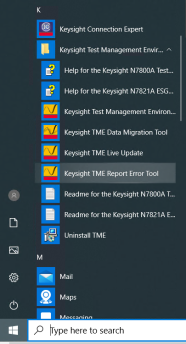
Clicking Run in the dialog box will start the process. When the report is generated, the user will see the window to enter their information and either use the tool to send the report as an email, or exit the tool and manually send the error file to the support engineer as an email attachment.


