Open topic with navigation
Importing and Exporting Results
You can import and export the following measurement results using the Result tab.
After the import /export, you can view the status of these import/export operations in the Results > Import / Export section.
To export measurement results
-
In the Result tab, access the appropriate tab that has the measurement results that you want to export.
-
Click Export.
-
Select the measurement result row from the displayed list of results and then click Export Selected.
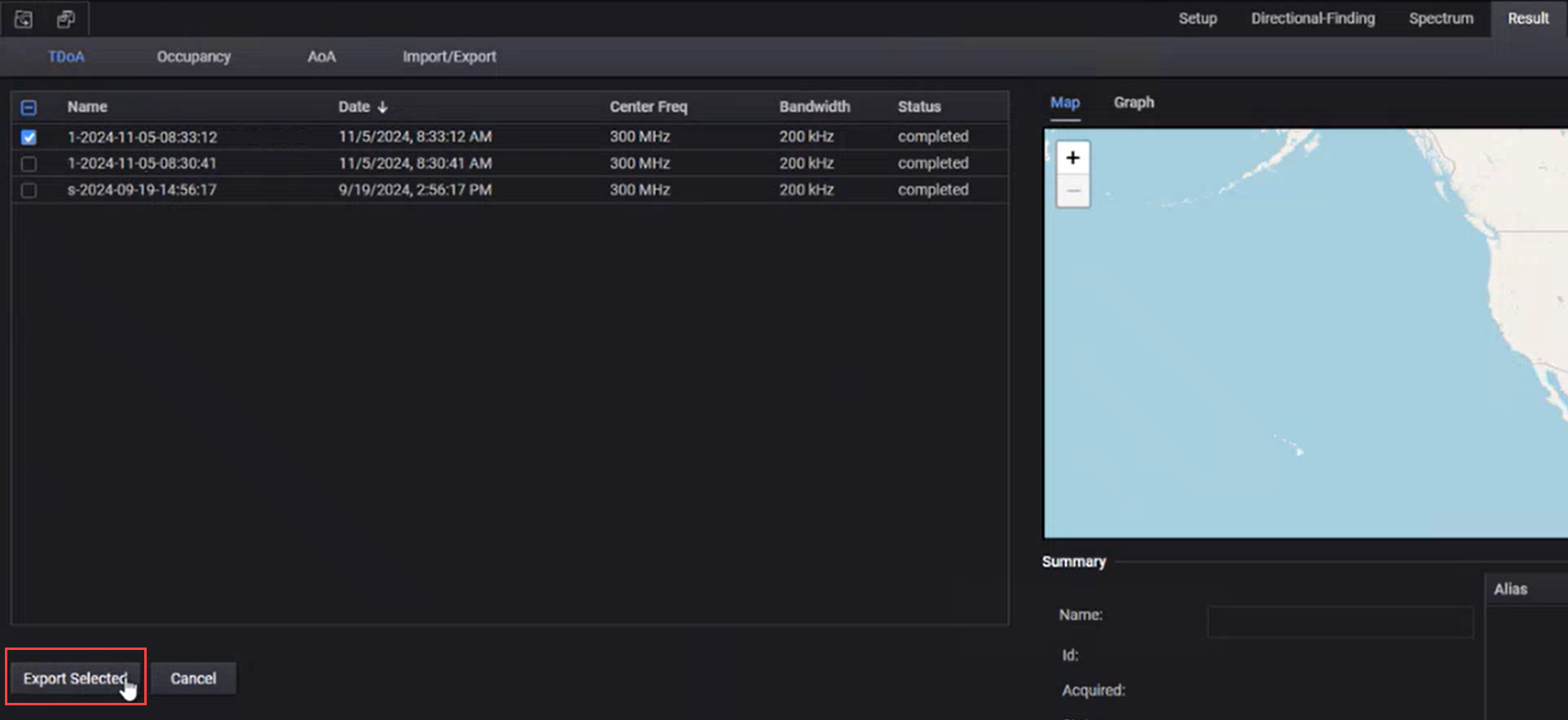
Exported Result files are always stored in the location: C:\ProgramData\Keysight\KSMS\ExportedResults.
-
View the status of the export in the Result > Import/Export > Export tab. See Export Measurement Results Status - Example.
To export spectrum recordings
-
In the Spectrum > Monitoring > Recordings section, click Export.
-
Select the recording from the displayed list of recordings that you want to export and then click Export Selected.
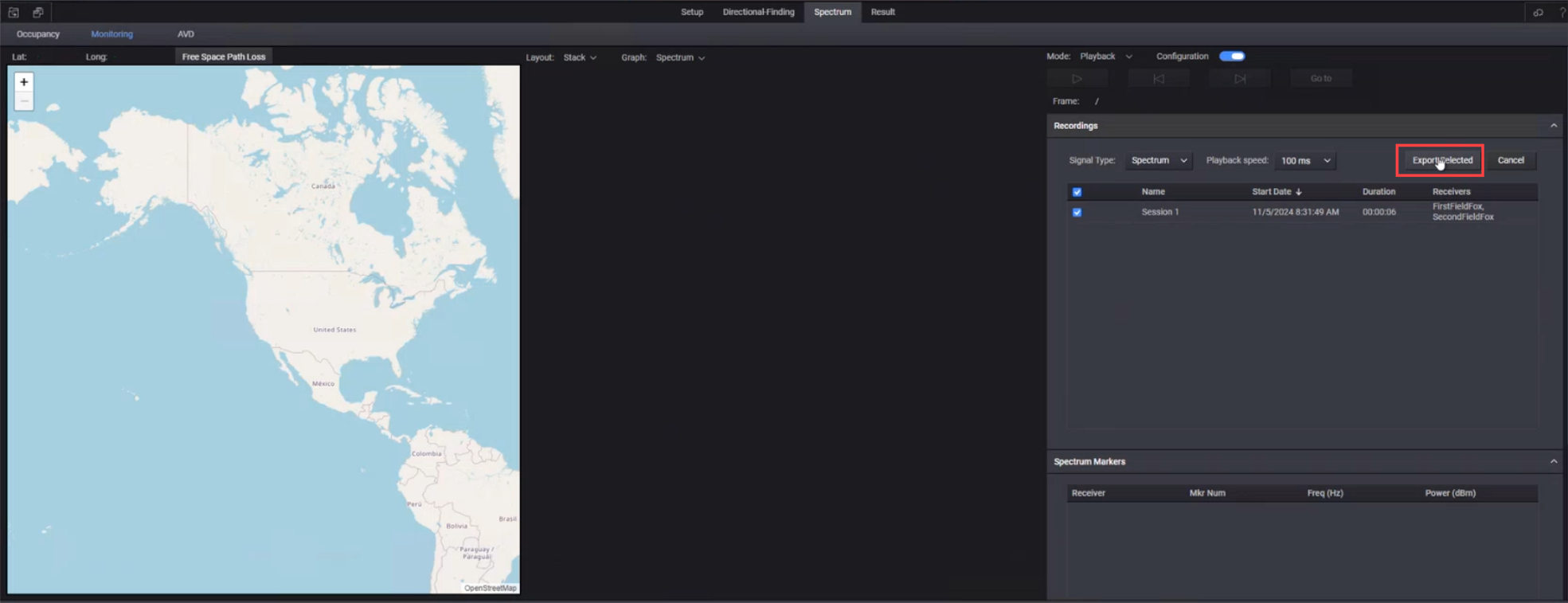
Exported Recording files are always stored in the location: C:\ProgramData\Keysight\KSMS\ExportedResults.
-
View the status of the export in the Result > Import/Export > Export tab. See Export Recordings Results Status - Example.
To import measurement results and recordings
-
In the Result > Import/Export tab, click Import.
-
Click Add.
-
In the Open dialog, browse to the location where the file to be imported is located and then click Open.
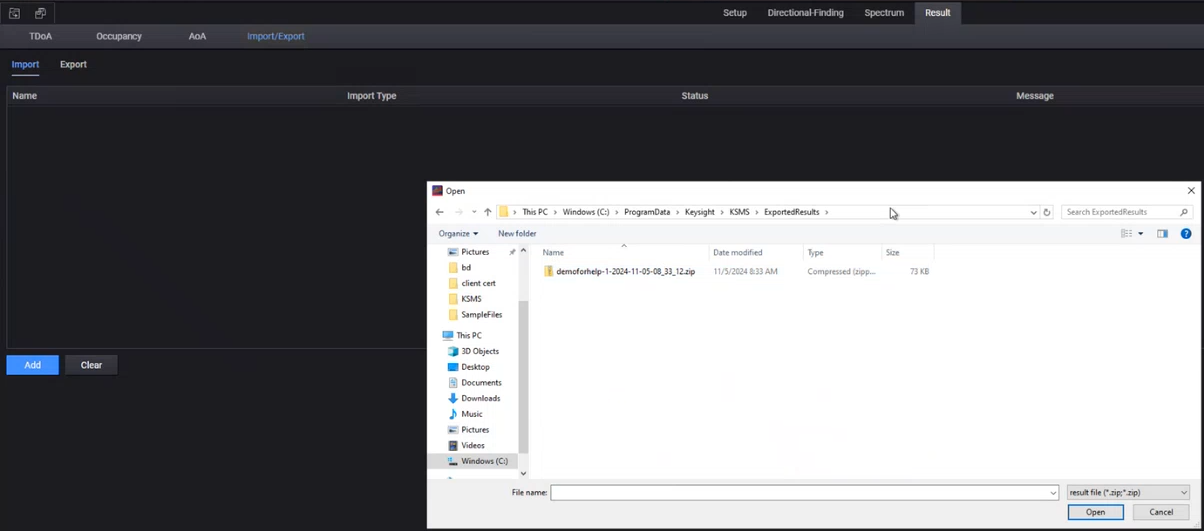
The status of the import is displayed in the Result > Import/Export > Import tab. See Import Measurement Results Status - Example.
To view the Import/Export results
In the Result > Import/Export tab, all import/export operations are listed with the status (success/failed).
Import Measurement Results Status - Example

Export Measurement Results Status - Example

Export Recordings Results Status - Example
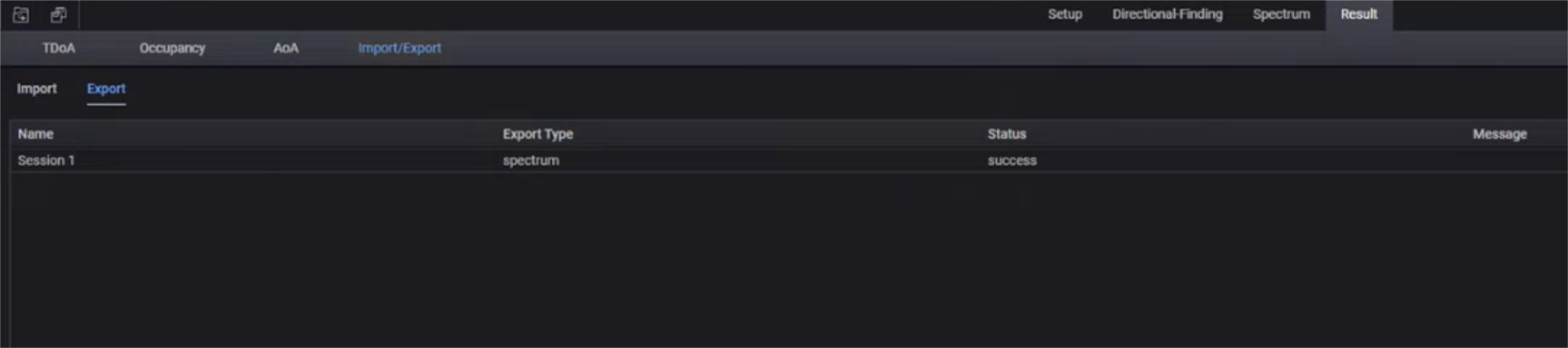
Clicking the Clear button in the Import/Export tab clears the list of Import / Export operations status displayed in the Import/Export tab. It does not delete any imported/exported files.