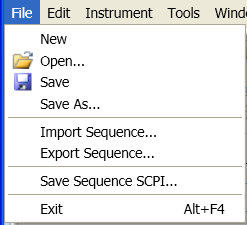
Select New to start a new sequence (any current sequence is discarded).
Select Open to open a sequence file (<filename>.seq). Selecting this menu pick brings up a window which can be used to navigate to the folder containing the sequence file you wish to open.
Select Save or Save As to save the current sequence to a file (<filename>.seq). If the current sequence has not yet been saved to a file, either of these menu items brings up a window which can be used to navigate to the folder where you wish to save the sequence. If the current sequence has already been saved to a file, selecting Save will simply save the sequence to that file without opening the window.
Note: An EXT sequence file (with the filename extension ".seq") is unrelated to a waveform sequence file (which has the same extension). The latter type of file is a composite waveform file, which can be loaded into the ARB memory of the source in the EXT test set.
Select Import Sequence to import a sequence which has been saved as a text file (typically this kind of sequence file would be generated from a spreadsheet of sequence parameter values).
Select Export Sequence to export a sequence as a text file (typically this kind of sequence file would be generated from a spreadsheet of sequence parameter values).
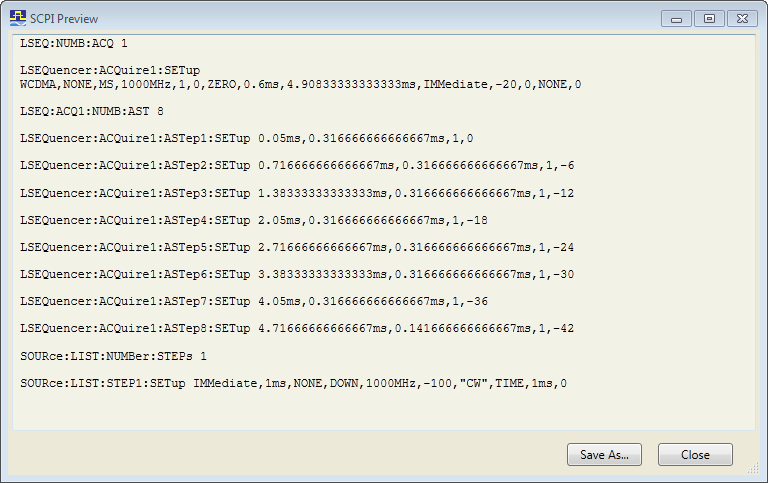
Use Save Sequence SCPI at any time to open a preview window showing the SCPI command equivalent of the current Analyzer and Source sequences (that is, sending these commands, in order, to the test set would be equivalent in effect to pressing Download Analyzer Seq and Download Source Seq). Click the Save As button in the window to save the SCPI commands to a text file, or the Close button to exit the preview window without saving its content.