A transportable license for Sequence Studio can be moved from one PC to another up to 10 times per month, but it can only be used on one PC at a time. Two methods of moving a transportable license between PCs are described below.
(1) Make sure that the source PC (the one currently licensed) and the target PC (the one to be licensed) are connected to a Local Area Network, with internet access.
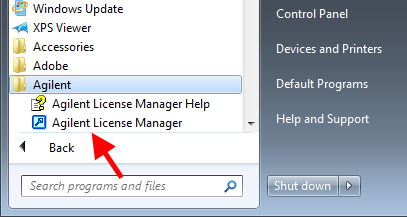
(2) Launch Agilent License Manager on the source PC (it is accessible from the All Programs menu in Windows, under Agilent).
(3) Agilent License Manager identifies the source PC as "localhost" and shows the licenses installed on it.
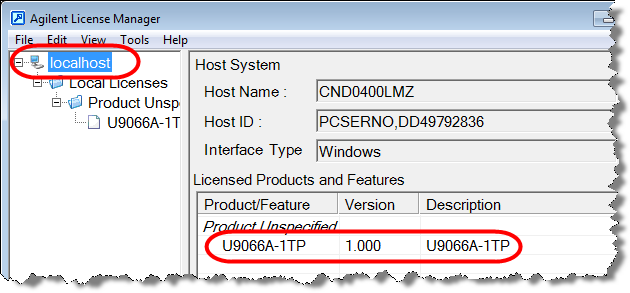
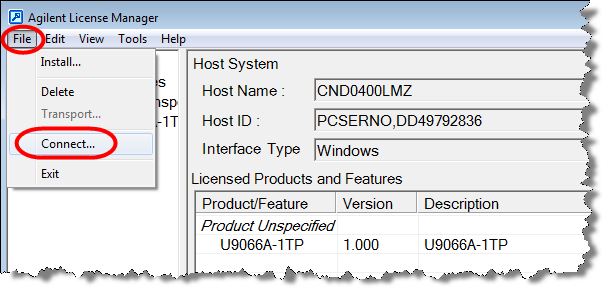
(4) Select File > Connect...
(5) Enter the hostname or IP address of the target PC.
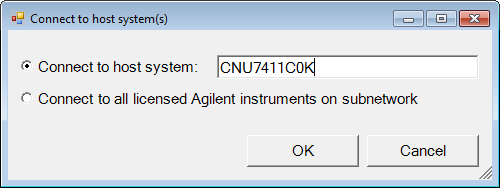
(6) After Agilent License Manager has added the target PC in the left pane, drag and drop the U9066A-1TP license to the hostname/address node of the target PC. This transports the license.
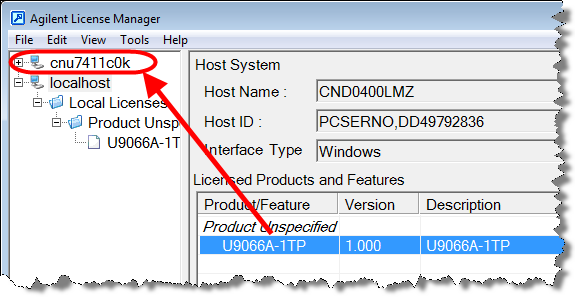
(1) Launch Agilent License Manager on the source PC, as described above,
(2) Right-click on the U9066A-1TP license displayed in the table, and select Delete from the right-click menu.
(3) In the Transport License dialog box which appears, save the license contents to a file with a .url extension.
(4) If you don't save the license contents at this time, you can retrieve the information later. In the Windows Control Panel, under System and Security/Aministrative Tools, open the Event Viewer and go to the Applications section. Browse through the entries for "Agilent License Service" at the time when the license was removed, until you locate the event file which includes the information illustrated below:
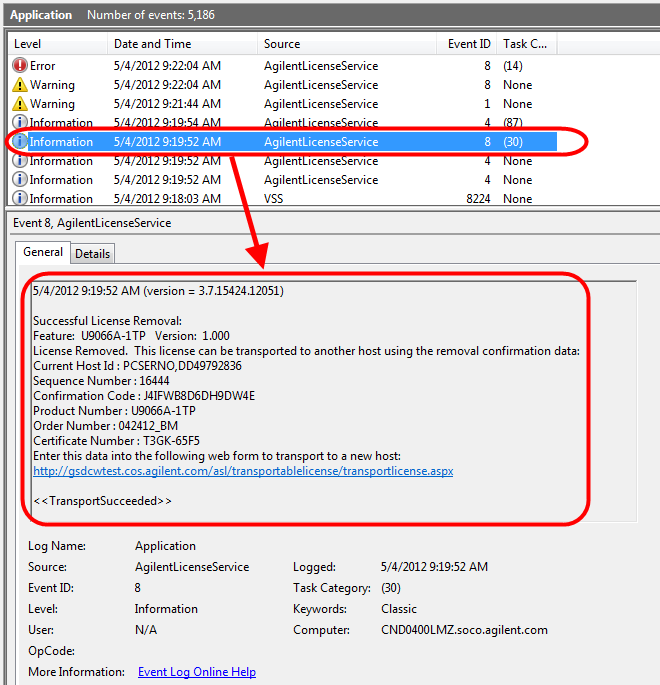
(5) If the source PC is not connected to the internet, copy the .url file that you created in Step 3 to a portable mass storage device, such as a USB flash drive. Connect the portable mass storage device to the target PC, which needs to be connected to the Internet.
(6) On the target PC, located and double-click on the name of the .url file that you transferred from the source PC.The .url file appears in a browser that is connected to the Agilent Software License Transportation web page, as illustrated below. The fields automatically update with the license contents. If you did not save the .url file, and must work with the information collected from the Event Viewer, enter that information manually in the form.
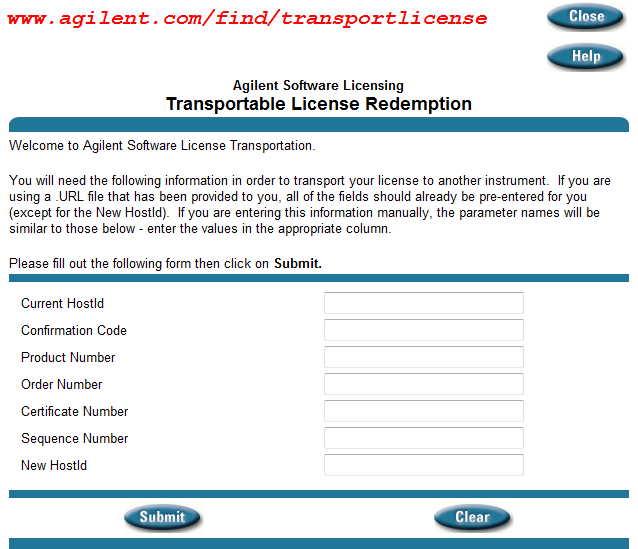
(7) Enter the target PC's HostId (model number, serial number) and then click the Submit button. A link to the re-issued license is displayed.
(8) Right-click the link and select Save Target As. Save the license file to a location on your PC (or portable mass storage device).
(9) Open Agilent License Manager on the target PC. Locate the license file and drag (or copy and paste) it into the License Manager's tree view.