
If you are using Windows XP Professional with service pack 2, you may see a Setup Launcher security warning when you install the software. Simply click Run.
Go to the Agilent Technologies website: http://www.agilent.com/find/basebandstudio.
Click the product link for the Baseband Studio application that you wish to download.
Click the Baseband Studio Installation Software link.
On the Baseband Studio Installation Software page, click the program/utility link and follow the download instructions.
|
|
If you are using Windows XP Professional with service pack 2, you may see a Setup Launcher security warning when you install the software. Simply click Run. |
While you can download Baseband Studio for viewing, you must install a license file before the software is fully functional. To purchase a license, contact Agilent Technologies.
To obtain a license file, follow the instructions on the Software Entitlement Certificatethat you receive after you place the order. You will need the following information to obtain a license file:
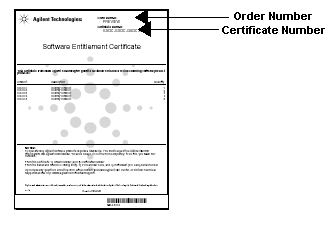
|
From the entitlement certificate: |
|
|
From the N5101A PCI card a: |
|
a Applications are licensed to a specific PCI card; you may license more than one application to a given PCI card. Refer to the PCI Card Installation Guide for the location of the bar code license number an the serial number.
If the Baseband Studio software is running, close it.
A license activates when you open the software. If you install a license with the software running, you must close and reopen the software to activate the license.
Copy the license files into the directory C:\Program Files\Agilent\Signal Generation License Files\Drop
Make a back-up copy of the license files and store them in a safe place.
Run the software.