 Setup
Setup|
GUI Location |
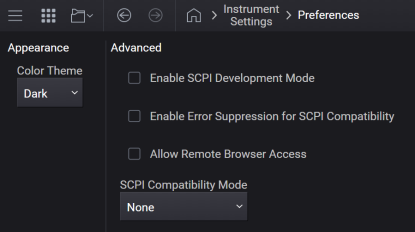
System Menu (triple bar icon) > Settings (gear icon) > Preferences |
The instrument is delivered from the factory with the Model Number, Instrument Description, and the Serial Number.
|
GUI Location |
System Menu (triple bar icon) > Settings (gear icon) > Preferences > Instrument Identification |
Remote command only.
Configures the Attenuator Compatibility Mode. When in PSG mode, the coupling among Power, Attenuation, and ALC Level works in a similar way as the PSG. With this coupling, the Power is changed when the ALC Level is changed. In the MXG, Power is not clipped when the ALC Level goes to either max or min.
|
SCPI Command |
:SYSTem:COMPatibility:POWer:ATTenuator NORMal|PSG :SYSTem:COMPatibility:POWer:ATTenuator? |
|
SCPI Example |
SYST:COMP:POW:ATT PSG SYST:COMP:POW:ATT? |
|
Notes |
The setting is enabled by this command is not affected by signal generator power-on, preset, or *RST. |
|
Preset |
This is unaffected by a Preset but is set to NORMal on a "Restore System Settings to Default Values." |
|
State Saved |
Persistent, survives preset and power cycle but not saved in the instrument state. |
The following example shows how Power, Attenuation, and ALC Level change when Attenuator Compatibility Mode is PSG.
# Set Attenuator Compatibility Mode to PSG
-> :SYSTem:COMPatibility:POWer:ATTenuator PSG
# Set up the initial condition. ALC Level is set based on
-> :POWer -10dBm
-> :POWer:ATTenuation:AUTO OFF
-> :POWer:ATTenuation?
<- 0
-> :POWer:ALC:LEVel?
<- -10
# Increasing ATTen by 10 dB decreases Power by the same amount
# -20 dBm (= ALC Level - Atten)
-> :POWer:ATTenuation 10.0 dB
-> :POWer?
<- -20
-> :POWer:ALC:LEVel?
<- -10
# Change ALC Level changes Power
-> :POWer:ALC:LEVel -9 dBm
-> :POWer?
<- -19
# When Auto Atten is on (Atten Hold off), the equation
# Power = ALC Level - Atten
# doesn't hold.
# Note that Atten 70 dB in this example isn’t the actual Atten value.
# In MXG, the actual one is set only when Auto Atten is off.
-> :POWer:ATTenuation:AUTO ON
-> :POWer?
<- -19
-> :POWer:ATTenuation?
<- 70
-> :POWer:ALC:LEVel?
<- -9
# Changing Power doesn't change Atten nor ALC Level
-> :POWer -17.0 dBm
-> :POWer:ATTenuation?
<- 70
-> :POWer:ALC:LEVel?
<- -9
# When AUTO is off again, Atten and ALC Level are set to satisfy the equation.
# Power = ALC Level - Atten
-> :POWer:ATTenuation:AUTO OFF
-> :POWer?
<- -19
-> :POWer:ATTenuation?
<- 0
-> :POWer:ALC:LEVel?
<- -19
# When Power changes by a large amount, ALC Level exceeds the limit.
# In PSG, the both the power and ALC Level are clipped.
# On the other hand, in MXG, only ALC Level is clipped.
-> :POWer -37.0 dBm
-> :POWer:ATTenuation?
<- 0
-> :POWer:ALC:LEVel?
<- -20
-> :POWer?
<- -37
-> :SYST:ERR?
<- -222,"Data out of range;ALC Level value clipped to lower limit -20 dBm."
When the instrument is in remote operation, a message box appears on the screen to notify the operator that an external program is controlling the instrument. In some situations, such as during development of SCPI programs, you may want to see the full instrument screen. This SCPI command is available to suppress the on-screen remote operation notification.
When using this command to suppress the remote operation notification, be aware that the front panel becomes responsive to touch and remote GUI operation.
|
SCPI Command |
:DISPlay:DEVelopment ON|OFF|1|0 :DISPlay:DEVelopment? |
|
SCPI Example |
DISP:DEV ON |
|
Preset |
Not affected by Preset, not a System Setting. Set to OFF upon startup of the instrument. |
|
State Saved |
No |
|
Initial S/W Revision |
A.14.00 |
For
ALC and Perform Power Search commands are not supported. These do not generate errors and do nothing.
[:SOURce][:RF<channel>]:POWer:ALC[:STATe]
[:SOURce][:RF<channel>]:POWer:ALC:SEARch
These commands do nothing. Some are command only. Some are query only and return a fixed value. Others support both the command and query, but only accept and return a fixed value.
| Commands | Support Mode | Fixed Value |
|
[:SOURce]:ROSCillator[:INTernal]:ADJust:VALue [:SOURce]:ROSCillator[:INTernal]:ADJust:VALue? |
Command and Query | 0 |
|
[:SOURce]:ROSCillator[:INTernal]:ADJust[:STATe] 0|OFF [:SOURce]:ROSCillator[:INTernal]:ADJust[:STATe]? |
Command and Query | 0|OFF |
|
[:SOURce]:CORRection:CSET:DATA:FREQuency <freq> |
Command Only | |
|
[:SOURce]:CORRection:CSET:DATA:POWer <value> |
Command Only | |
|
[:SOURce]:LIST:LEARn |
Command Only | |
|
:CALibration:FREQuency[:MEASure]? |
Query Only | 0 |
|
:CALibration:IQM:FULL? |
Query Only | 0 |
|
:CALibration:LFGenerator[:MEASure]? |
Query Only | 0 |
|
:CALibration:LFOutput[:MEASure]? |
Query Only | 0 |
|
:CALibration:VMODulation[:MEASure]? |
Query Only | 0 |
|
:DIAGnostic:BGINfo? <module> |
Query Only | Empty string |
|
:DIAGnostic:BGINfo:CATalog? |
Query Only | Empty string |
|
:DIAGnostic:MEASure:POINt? <point name> |
Query Only | Empty string |
|
:DIAGnostic:POINt:CATalog? |
Query Only | Empty string |
|
:DIAGnostic[:CPU]:INFO:SDATe? |
Query Only | Instrument date |
|
SCPI Command |
:SYSTem:COMPatibility:SERRors ON|OFF|1|0 :SYSTem:COMPatibility:SERRors? |
|
SCPI Example |
SYST:COMP:SERR ON SYST:COMP:SERR? |
|
Preset |
This is unaffected by a Preset but is set to OFF on a "Restore System Settings to Default Values." |
|
State Saved |
Persistent, survives preset and power cycle but not saved in the instrument state. |
Enables or disables access to the user interface from a remote browser. See Remote Access via Web Browser to know more.
|
GUI Location |
System Menu (triple bar icon) > Settings (gear icon) > Preferences > Allow Remote Browser Access |
|
SCPI Command |
:SYSTem:COMMunicate:BROWser ON|OFF|1|0 :SYSTem:COMMunicate:BROWser? |
|
SCPI Example |
:SYST:COMM:BROW 1 :SYST:COMM:BROW? |
|
Notes |
This control will not appear when viewing the user interface from a remote browser. |
|
Preset |
This is unaffected by a Preset but is set to ON on a "Restore System Settings to Default Values." |
| State Saved | Persistent, survives preset and power cycle but not saved in the instrument state. |
Allows you to change the password for accessing the instrument remotely via a Web browser. See Remote Access via Web Browser to know more.
The password can be changed from any logged in remote browser, or directly from the instrument’s front panel in the Settings menu, under Preferences.
Password requirements:
minimum 8 characters in length
must contain at least one lowercase letter
must contain at least one uppercase letter
|
GUI Location |
System Menu (triple bar icon) > Settings (gear icon) > Preferences > Change Password |
|
SCPI Command |
No SCPI. GUI only. |
|
Preset |
This is unaffected by Preset but is set to “Keysight” with Restore System Settings to Defaults. |
|
State Saved |
Persistent, survives preset and power cycle but not saved in the instrument state. |
Optimizes SCPI backwards compatibility with legacy products by emulating their behaviors and coercing queries to return deprecated values. Reboot is required for the compatibility mode to take effect.
E82x7D: Compatibility for E8257D, E8267D, and E8257N.
E8663D: Compatibility for E8663D.
N51xxB: Compatibility for N5166B, N5171B, N5172B, N5173B, N5181B, N5182B, and N5183B.
|
SCPI Command |
:SYSTem:COMPatibility:MODE E82X7D|E8663D|N51XXB|NONE :SYSTem:COMPatibility:MODE? |
|
SCPI Example |
:SYST:COMP:MODE N51XXB :SYST:COMP:MODE? |
|
Notes |
SCPI commands of all supported forms are accepted, but query values will be formed to the selected compatibility when present. Requires restarting the instrument application for the change to take effect. |
|
Preset |
This is unaffected by a Preset but is set to NONE on a "Restore System Settings to Default Values." |
| Range | E82x7D|E8663D|N51xxB|None |
|
State Saved |
Persistent, survives preset and power cycle but not saved in the instrument state. |
| Backwards Compatibility SCPI |
Alias SYST:COMP:MODE MXGB to SYST:COMP:MODE N51XXB Alias SYST:COMP:MODE PSGD to SYST:COMP:MODE E82X7D |
Remote command only.
Provided to allow programmatic compatibility with SMA100x signal generators. Command is accepted, but does nothing.
|
SCPI Command |
:UNIT:POWer DBM :UNIT:POWer? |
|
SCPI Example |
:UNIT:POW DBM :UNIT:POW? |
|
Preset |
DBM |
| Range |
DBM |
| Backwards Compatibility SCPI |
SMA100x: :UNIT:POWer |
|
State Saved |
Yes |
Bright Color (LIGHt) – Selects a full color palette for the display with dark text on a bright background.
Dark Color (DARK) – Selects a full color palette for the display with bright text on a dark background
|
GUI Location |
System Menu (triple bar icon) > Settings (gear icon) > Preferences > Color Theme |
|
SCPI Command |
:DISPlay:THEMe DARK|LIGHt :DISPlay:THEMe? |
|
SCPI Example |
DISP:THEM LIGH |
|
State Saved |
Persistent, survives preset and power cycle but not saved in the instrument state. |
|
Preset |
This is unaffected by a Preset but is set to DARK on a "Restore System Settings to Default Values." |
| Backwards Compatibility SCPI |
:DISPlay:CMAP:DEFault BRIGht|DARK|MONochrome |