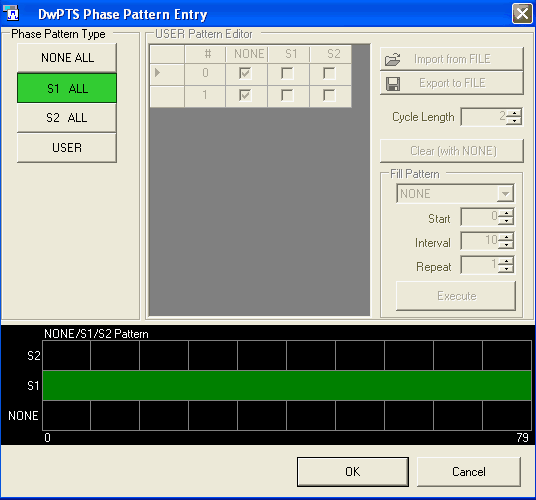
The main areas of the phase pattern data type entry window are:
User Pattern Editor that is activated when USER is selected. There are three ways to configure the phase pattern from the pattern editor:
using the pattern selection table
loading (import) a file
using the Fill Pattern fields
The graph at the bottom of the window where colors designate the response type.
This Data Type Entry window allows you to configure the phase pattern for DwPTS/DwPCH. You can select the defined pattern type or create your own pattern.
The DwPTS phase pattern consists of 80 (0–79) configurable subframes. The 2 subframes represents a SFN (system frame number) cycle. Four consecutive phases (phase quadruple) of the SYNC-DL are used to indicate the presence of the P-CCPCH in the following 4 sub-frames. In case the presence of a P-CCPCH is indicated, the next following sub-frame is the first sub-frame of the interleaving period.
- No rotation is applied.
- Always rotate as the S1 description. (S1 means there is a P-CCPCH in the next 4 sub-frames)
- Always rotate as the S2 description. (S2 means There is no P-CCPCH in the next 4 sub-frames)
- Enables the USER Pattern Editor where you configure customize the 80 subframes to None, S1 or S2 to indicate P-CCPCH exists.
The User Pattern Editor is active after the USER button is selected (green in color). Go to this area to configure and edit your own phase pattern. There are three ways to configure the USER Phase pattern from the pattern editor:
: Click  button to load a user-defined pattern (text
file) from a selected location. When this button is selected, an Open
Phase Pattern File window is displayed for navigating to and selecting
the desired ASCII file (*.txt), characterizing phase
pattern. Each line in the file is assumed to 0, 1 or 2 to representing
NONE, S1, or S2 respectively. An imported file automatically updates the
pattern selection table and the graph.
button to load a user-defined pattern (text
file) from a selected location. When this button is selected, an Open
Phase Pattern File window is displayed for navigating to and selecting
the desired ASCII file (*.txt), characterizing phase
pattern. Each line in the file is assumed to 0, 1 or 2 to representing
NONE, S1, or S2 respectively. An imported file automatically updates the
pattern selection table and the graph.
: This provides a quick method of creating a repeating phase sequence that builds upon the existing pattern shown in the pattern selection table.
This drop-down-menu lets you select the pattern type (NONE, S1 or S2) for setting up the customized pattern. NONE is the default selection, which is also the default pattern for the pattern selection table.
: Defines the starting subframe (0-20) for the selected phase pattern type.
: Defines the length of the pattern, in subframes, before it repeats.
: Defines the number of consecutive subframes within an interval that will transmit the selected type.
: Applies the Fill Pattern fields to the pattern selection table and updates the graph.
: Use the pattern selection table to set each item to NONE, S1 or S2. Use the Cycle Length field to set the length of the user data. Values may range from 1 to 20. You can also click Export to FILE button saves the current phase pattern, shown in the pattern selection table, to a text file.
For large patterns, it is easiest to set all subframes using the Fill Pattern parameters.
:
Click  button to reset each subframe with the NONE, and updates the
pattern selection table and the graph. A check mark appears in the NONE
column for each subframe. Use the Cycle Length field to set the length
of the user data. Values may range from 1 to 20.
button to reset each subframe with the NONE, and updates the
pattern selection table and the graph. A check mark appears in the NONE
column for each subframe. Use the Cycle Length field to set the length
of the user data. Values may range from 1 to 20.
The graph at the bottom of the window shows the phase pattern where colors designate the pattern type.
NONE subframes are shown in red
S1 subframes are shown in green
S2 subframes are shown in yellow
This closes the Data Type Entry window and updates the Phase Pattern for DwPTS/DwPCH.
This closes the Data Type Entry window, canceling any new settings.