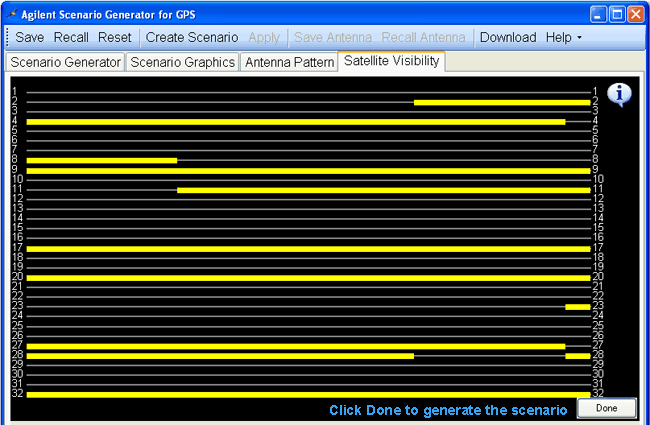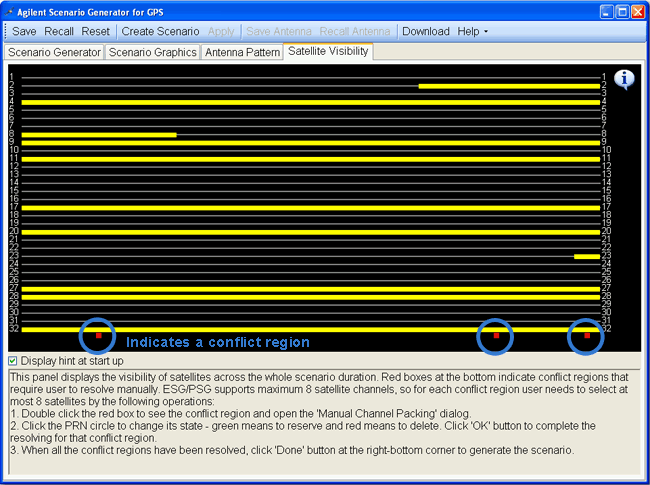
The Satellite Visibility tab is only available when creating a scenario with Manual channel packing selected and will be closed when channel packing is done. It displays the visibility of satellites across the duration of the scenario. For most scenarios, the number of visible satellites is not constant across the duration of the scenario. Since the ESG/PSG support a maximum of 8 satellite channels at the same time, the interval during which there are more than 8 visible satellites is called a conflict region. Red boxes at the bottom indicate conflict regions that must be manually resolved.
Double-click on the red box to see the information about the conflict region and to see its range on the satellite visibility graphic.
The figure below shows the Satellite Visibility tab with three conflict regions.
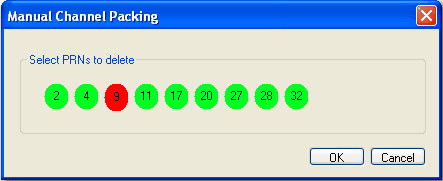
The Manual Channel Packing dialog box is displayed after double-clicking the red boxes at the bottom of the Satellite Visibility tab. The dialog box lists all the available satellites in the conflict region.
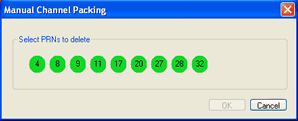
Remove some satellites from the list by clicking on the unwanted PRN to turn it red.
To restore a satellite, click it again to turn it green.
When the number of remaining satellites on the list is no more than 8, the OK button is enabled. Click OK to accept the changes.
When all conflict regions have been resolved, click Done at the right-bottom corner to generate the scenario.