Understanding The Interactive IO Display
This help topic introduces you to:
- The layout of the Windows product
- The Linux product
- Available menu commands
- Toolbar buttons
- The Command query field
- The Send Command, Read Response and Send & Read buttons
- Instrument Session History
- The status bar
The InteractiveIO Display (Windows)
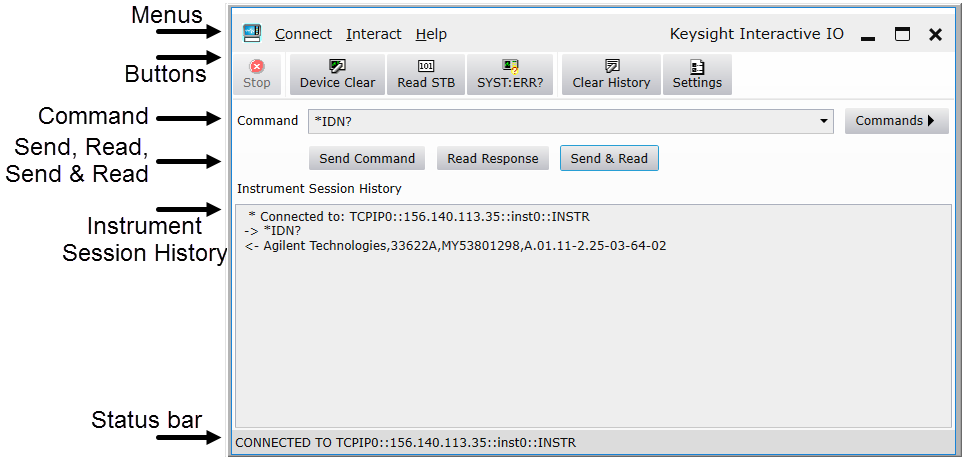
Menus
There are three available menus.
Connect
- Connect: Enter an instrument's path and choose the OK button. See Connecting to an Instrument for more information.
- Disconnect drops the connection to the current resource.
- Exit closes Interactive IO.
Interact
The Interact menu has all the same commands as IO Monitor's toolbar buttons (described below).
Help
- Help Topics opens this help file.
- About provides version information for this product.
Toolbar buttons
The toolbar buttons near the top of the screen provide shortcuts for commands on the Interact menu.
Command
The Command query field allows you to enter commands. Click here for more information on Interactive IO Commands and Shortcuts
Send Command / Read Response / Send & Read buttons
The Send Command button writes what you have entered in the Command text box to the I/O buffer.
The Read Response button reads the response the device places in the I/O buffer.
The Send & Read button writes to the I/O buffer and then reads the response from the I/O buffer.
Instrument Session History
The Instrument Session History pane shows a listing of recent activity (including errors if any occur).
Progress and Status bars
- The progress bar near the bottom of the window (just above the status bar) appears only when a command is running, and indicates the length of time that command has been running.
- The status bar at the bottom of the screen gives details of the current connection when one is established.