Troubleshooting
The following troubleshooting topics are covered in this section:
GPIB Troubleshooting
This section provides troubleshooting tips when experiencing problems related to .
First, verify that the GPIB converter hardware and the VISA IO Library are from the same manufacturer. For example, use Keysight/Agilent GPIB converter with Keysight/Agilent VISA IO Library, or use NI GPIB converter with NI VISA IO Library. Also, it is highly recommended that only one VISA IO Library is installed on the PC. If more than one is needed, then use the process in the next topic to a set a Primary VISA IO Library.
The list below shows other helpful GPIB troubleshooting tips:
-
DLL VISA errors — If you have issues with unregistered DLL VISA errors during TME testing or have changed VISA IO Libraries, run the following script:
C:\Program Files\Agilent TME\Tools\ReRegisterDlls.exe
Double click the ReRegisterDlls.exe file. (It only takes about 30 seconds to run.)
-
The Keysight 83257A USB/GPIP Interface is only compatible with Windows 2000 and XP. (Does not support Vista or Windows 7.)
-
The Keysight 83257B USB/GPIP Interface is compatible with the following Windows operating systems: 2000, XP, Vista, and 7.
-
Verify the ETE serial numbers and GPIB address are mapped correctly in the TME database (upper-case letters only).
-
When viewing the GPIB Bus with either Keysight Connection Expert or NI's Automation and Measurement software, verify the following:
-
The following can cause intermittent and usual data issues:
- an excess of long GPIB cables
- an excess of instruments connected to the GPIB bus
- a GPIB instrument “partly” pulling down the GPIB bus
- a faulty or damaged GPIB cable
When a Corrupted VISA IO Library Is Suspected
If TME will not recognize the UUT to create an order, a corrupted VISA IO Library may be the cause. The following procedure can be used after all other fixes to the VISA IO Library have failed.
-
Open TME.
-
Find the TME license and save it in a safe place.
-
Using the Export Device Data function from the Administration menu, save your test station (ETE and calibration data) to a file.
-
Close TME.
-
From Add/Remove Programs or Programs & Features depending on the OS, first uninstall the N78xxA calibration application, and then uninstall the TME N7800A application.
-
Reboot the PC.
-
Un-install the Keysight VISA IO Library or the Ni-Visa and NI-488.2 software (National Instruments Suite).
-
Verify that the above programs have been successfully uninstalled by viewing Add/Remove Programs or Programs & Features depending on the OS.
-
Reboot the PC again.
-
Install the correct VISA Library for your GPIB converter hardware.
|

|
It is very import that the VISA Library be installed first, before the TME applications.
|
-
Reboot the PC again.
-
Install the latest version of TME N7800A from the TME N7800A software website.
-
Install the TME N78xxA calibration application from the TME N7800A software website.
-
Reboot the PC again.
-
Verify that the above programs have been successfully installed by viewing Add/Remove Programs or Programs & Features depending on the OS.
-
Start the TME N7800A application.
-
In TME, go to Administration > Manage License and click Import. Navigate to the TME license from the location where it was saved in step 2.
-
Import the test station data (ETA and calibration data) from the file saved in step 3: from the Administration menu, select Import Device Data.
-
Verify that you can create an order in TME and run a test.

Repair Procedures
Follow the steps below to perform a repair on the TME application or the system instrument database.
Calibration Application Repair
-
Close TME.
-
Open the Control Panel and select Programs & Features.
-
Select the appropriate Keysight N78xxA TME calibration application.
-
Click Repair.
System Instrument Database Repair
-
Close TME.
-
Open the Control Panel and select Programs & Features.
-
Select the Keysight N7800A TME application.
-
Click Repair.
Window Sizing
Windows cut-off
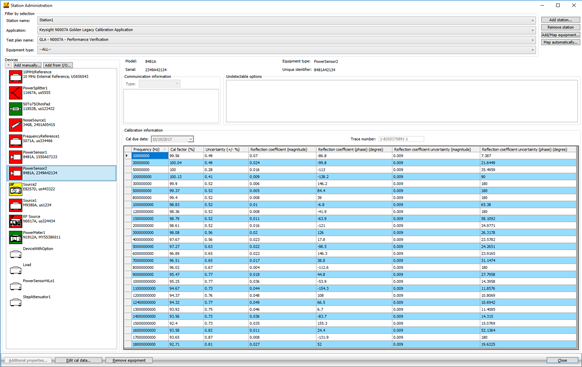
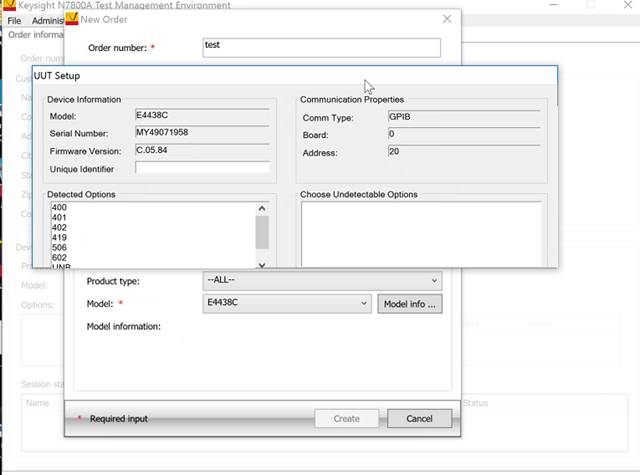
Custom scale settings may cause some windows in TME to appear as cut-off.
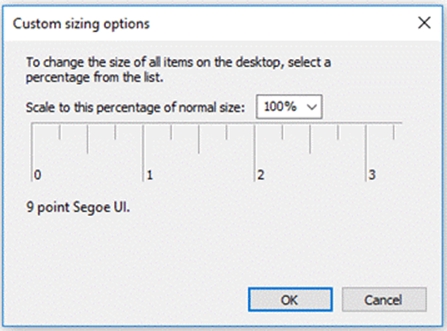
This Custom Scale Setting is usually found in the Display settings section on the Control Panel of the PC. Ensure that the scale setting is set to 100%.
Re-sizable Station Administration window
The Station Administration window is now re-sizable allowing the user to re-size the window as needed. This can be helpful when viewing information in the Calibration information section.
Previously, the user would need to scroll in both directions to see all of the data in the Calibration information section of the Station Administration window.
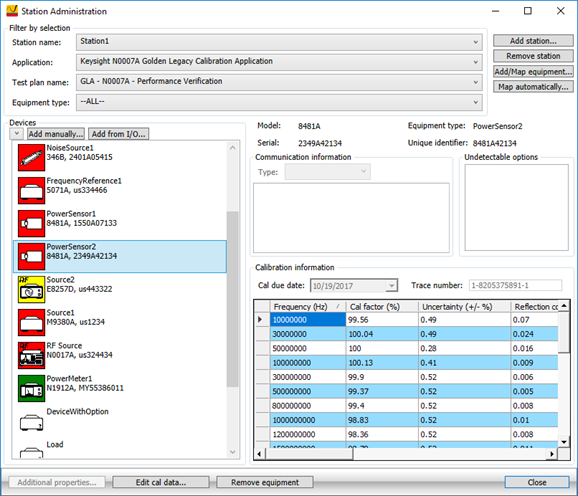
This window can now be re-sized to allow for all data to be viewable without scrolling.