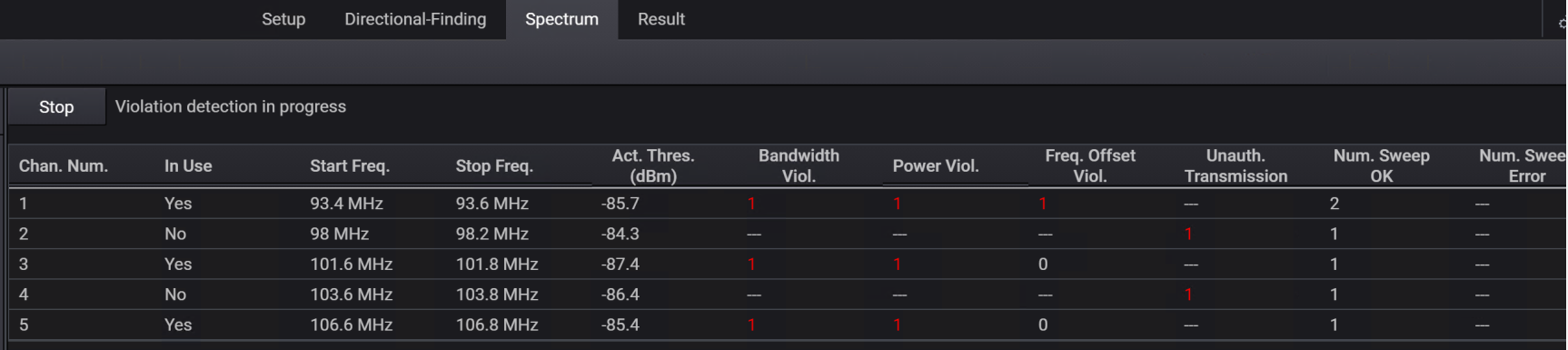
The Automatic Violation Detection (AVD) feature allows you to generate AVD measurements for a selected receiver based on the receiver settings and channels file (.csv) that you select in the AVD tab. It reports the following types of violations:
Bandwidth violations
Power violations
Frequency Offset violations
Unauthorized Transmission violations
The following sample screen shows AVD measurements generation.

This topic contains the following sections:
In Spectrum > AVD > Receiver Settings section, set the following values as per your AVD measurement requirements for the selected receiver.
From the Receiver listbox, select the receiver instrument for which you want to make the AVD measurements.
In the Measurement Name textbox, a default name (in AVD-yyyy-mm-dd format) is assigned to the current measurement. You can change this default name. This name is used to uniquely identify and list the measurement in the Result > AVD tab where the summary and details of measurements results are displayed.
In the Number of Points field, specify the number of frequency points to be used in each spectrum measurement.
Specify Attenuation to be used for AVD measurements.
Select Preamp to be On or Off. If Preamp is On, the FieldFox turns on an internal preamplifier that boosts the signal level. This is used for detecting and analyzing low level signals.
Enable or disable the Auto VBW setting.
The Video Bandwidth (VBW) smooths out the peaks and valleys of adjacent data points. Lower VBW produces more smoothing, but takes more time to compute measurements. When Auto VBW is enabled, the FieldFox automatically matches the VBW to the resolution bandwidth.
If Auto VBW is disabled, specify the VBW value.
Enable or disable the Average Enabled setting.
If Average Enabled is Off, then each measurement will be completed faster, but the measured occupied bandwidth and power results will have a wider range of variance and will be less consistent.
If Average Enabled is On, specify the Number of Averages to be used in the AVD measurements.
Specify the Power Percent to be used in the AVD measurements. The Power Percent defines what percentage of the spectrum data's inner total power should be considered as "the signal". A higher percentage means more power should be counted as "the signal", resulting in a higher computed occupied bandwidth and occupied power.
Click Select File to select the Channels File (.csv) based on which you want the software to calculate the AVD measurements. This file contains data such as start frequency, stop frequency, lower and upper guard bandwidths, and maximum allowed power etc. which are used for violation detection.
From the Stop Measurement After drop-down listbox, select when you want the AVD measurement for the receiver to stop.
Either select Number of Measurements to stop the AVD measurements after the measurements count reaches the number that you specified in the Measurement textbox.
Or select Elapsed Duration to stop the AVD measurements after the specified time has elapsed.
After configuring the Receiver Settings, you can start the AVD measurements by clicking the Start button in Spectrum > AVD tab.
You can use the Stop button to manually stop the AVD measurements before the scheduled completion.
When the AVD measurements complete as per the scheduled setting or stopped, the screen indicates the completion as shown in the following sample screen.

You can view the AVD measurement results for a particular channel in the lower left pane of the Spectrum > AVD tab. You can do this by simply selecting the channel number row from the right pane while the measurement is in progress or after its completion.
