Acquisition Tab
Use the Acquisition badge and the Acquisition tab settings in the Infiniium Scope Setup dialog box to configure the oscilloscope's acquisition settings.
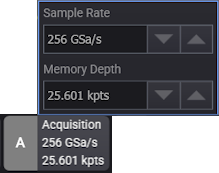
To open the Acquisition tab, select the colored portion of the Acquisition badge or choose Setup > Acquisition... from the main menu.
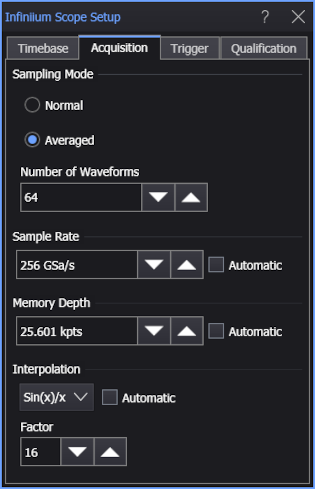
Sampling Mode
In the Normal sampling mode, individual acquisitions are displayed and measured.
In the Averaged sampling mode, acquisitions are averaged. Status information at the top of the display (just below the memory bar) shows how many waveforms have been averaged. Single (for making a single acquisition) and Run (for making continuous acquisitions) work normally. Until the specified Number of Waveforms has been acquired and averaged (also known as the terminal count), channel status and measurements on averaged waveforms are questionable.
Use acquisition averaging in the following instances:
- Use only with repetitive waveforms.
- Use to eliminate random noise.
- Use to improve vertical resolution.
- Use to improve measurement repeatability.
Do not use acquisition averaging for:
- Non-repetitive waveforms, as very inaccurate results can occur.
- Improperly triggered waveforms, as the input waveform may be asynchronous to Infiniium and will average to zero over time even though a non-zero input waveform is being measured.
When Stop when fully averaged is selected, acquisitions are made (in hardware) until the specified Number of Waveforms is reached; then, acquisitions are stopped. Measurement counts increment because the specified number of acquisitions has occurred.
After fully averaged and stopped:
-
A subsequent Single command makes an additional acquisition — creating a new set of acquisitions for the rolling average (again reaching the acquisition limit) — and increments the measurement count.
-
A subsequent Run command resets the number of waveforms acquired and averaged, acquires and averages (in hardware) another Number of Waveforms, and then stops. Because another valid number of waveforms has been acquired and averaged, the measurement count increments. Measurements based on rolling averages are not computed during the Run.
When the Stop when fully averaged option is cleared, after the Number of Waveforms is reached, each additional acquisition gives a new set of acquisitions in the rolling average and measurement counts increment.
There is also an Average math function operator that averages waveforms (see Average Operator). Use the math average operator when you want to average a function or you want to further reduce noise by applying it in addition to acquisition averaging.
For more information on how acquisition averaging works, see How Acquisition Averaging Works.
Sample Rate
Enter the waveform sample rate in samples per second (Sa/s). You can either click the down or up buttons to decrease or increase the sample rate, or you can click in the field and enter a custom rate. The Automatic option lets the sample rate automatically be determined based on the timebase and memory depth settings so that waveform data will fill the display.
Memory Depth
Enter the Memory Depth in points (pts). You can either click the down or up buttons to decrease or increase the memory depth, or you can click in the field and enter a custom depth. The Automatic option lets the memory depth automatically be determined based on the timebase and sample rate settings so that waveform data will fill the display.
Interpolation
To improve sampled waveform reconstruction and improve the accuracy of measurements, at the expense of consuming more sample memory, a sin(x)/x finite impulse response (FIR) digital filter can add interpolated points between the points that are actually sampled by the oscilloscope hardware. As long as the highest frequency in your waveform is less than the oscilloscope's sampling rate divided by four (and is less than the bandwidth of the oscilloscope), your waveform will be accurately reproduced.
When Automatic interpolation is selected: At any sample rate less than the maximum, interpolation is turned off (None). At the maximum sample rate, Sin(x)/x interpolation is automatically turned on with a Factor of 4 unless more interpolation is needed (8, 16, or 32) to fill the display or less interpolation is needed (2 or 1) because memory is full. At memory depths above 500 Mpts, Automatic interpolation is turned off (None). To change any of the automatic settings, you can clear the Automatic selection.
When Automatic Sin(x)/x interpolation is disabled, you can turn off interpolation altogether by selecting None, or you can select Sin(x)/x interpolation with a Factor of 1, 2, 4, 8, 16, or 32 points added between the actually sampled points.
Sin(x)/x interpolation is preferred when reconstructing a signal (having evenly spaced samples) that has been band limited.
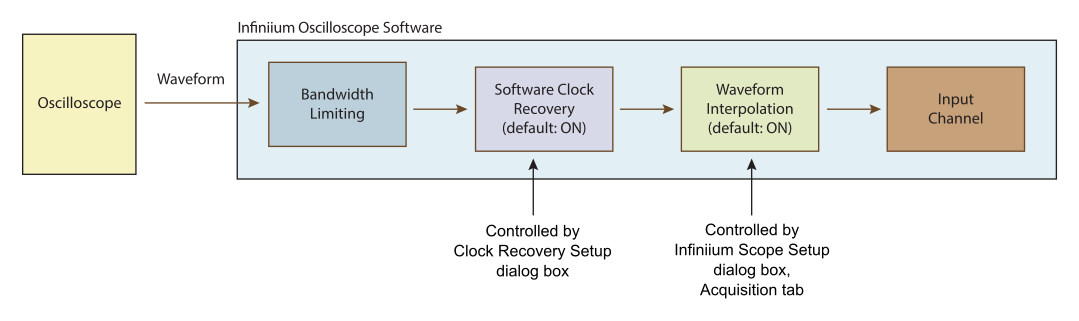
Waveform Flow from the Oscilloscope to the Displayed Input Channel