Annotations
You can add annotations to the oscilloscope's display. Annotations are useful for documentation purposes, to add notes before capturing screens.
The quickest way to add an annotation is to right-click on a graticule area and choose Place Annotation here:
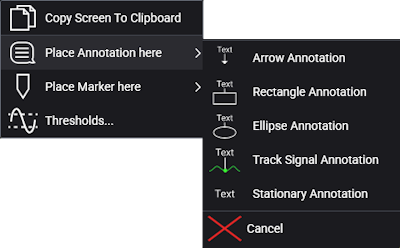
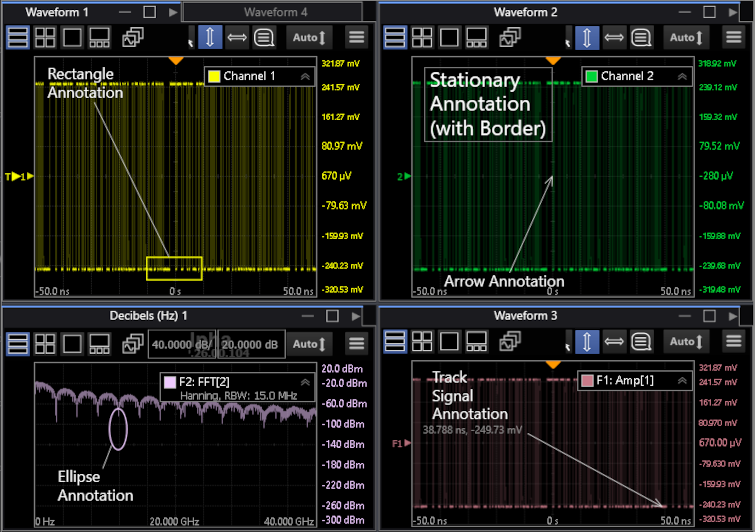
Up to 16 annotations are available, and you can select from these types:
- Arrow
- Rectangle
- Ellipse
- Track Signal
- Stationary
Annotation text and highlight locations can be positioned within a grid by dragging the mouse pointer. Rectangle and ellipse highlight sizes can be adjusted by dragging the mouse pointer. More precise positioning can be set using dialog box fields.
Annotation text can have medium, small, or large fonts, and can have borders. Annotation text can have multiple lines (by using Shift + Enter) and math symbols (by using the on-screen keyboard and switching to math keys).
Annotations can be temporarily hidden and then shown again.
To set up annotations:
-
Open the Annotations dialog box (Setup > Annotations...).
-
In the Annotations dialog box, select the tab for the annotation you want to set up.
-
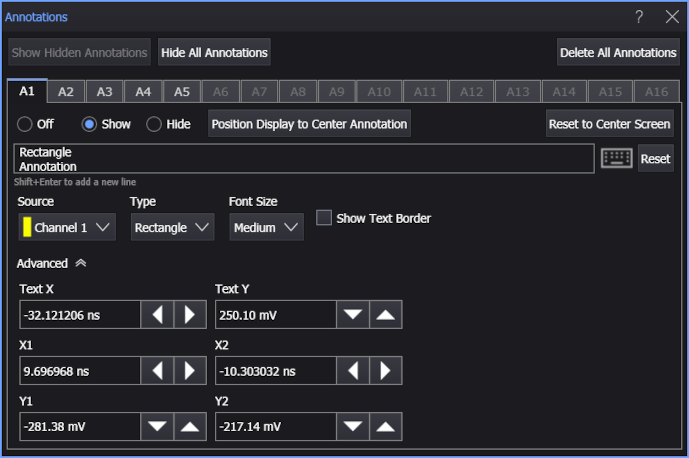
Use these controls to set up the annotation:
-
Off, Show, Hide — Display, hide, or turn off an annotation. No values are changed when an annotation is hidden, but turning off an annotation can cause some values to be reset.
-
Position Display to Center Annotation — Changes the grid's horizontal position in order to center the annotation. This can change the horizontal position in other grids as well.
-
Reset to Center Screen — Moves the annotation highlight to the center of the grid and positions the text above.
-
Annotation text field — Lets you enter the annotation text. Use Shift + Enter for multiple lines. Use the
 On Screen Keyboard to add math symbols. Select Reset to return to the default annotation text.
 -
Source — Associates the annotation with a source waveform and its window and grid.
-
Type — Selects from these types of annotations:
- Arrow
- Rectangle
- Ellipse
- Track Signal
- Stationary
-
Font Size — Selects Medium, Small, or Large annotation text font size.
-
Show Text Border — Selects whether a border is shown around the annotation text.
-
Advanced — Displays or hides access to these fields:
-
Text X, Text Y — Specify the text location in the source waveform grid.
-
Arrow X, Arrow Y — Specify the arrow point (X, Y) coordinate locations in the source waveform grid.
-
X1, X2, Y1, Y2 — Specify the rectangle or ellipse right/left and bottom/top edge locations in the source waveform grid.
-
Stationary X, Stationary Y — Specify the Stationary annotation text location in the source waveform grid as a percentage of the grid width and height.
-
-
To delete all annotations, select Delete All Annotations.