Regions
You can enable up to eight regions to restrict the data used for a measurement or gating function to a specific area of a source waveform.
For example, in the following picture, six regions are enabled and positioned in the waveform window. In the first two regions, a rise time measurement has been performed with the results shown in the Results panel. Region annotations (R1 and R2) are placed in the Results panel to identify the region assigned to a measurement.
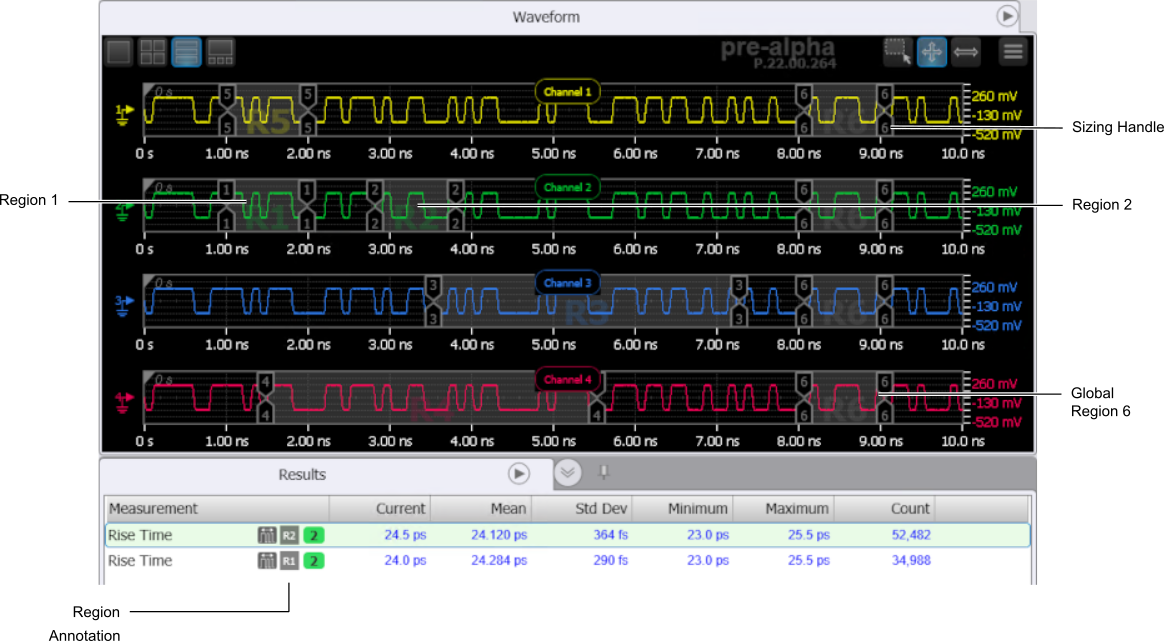
You can select  Interactive Region Adjust On/Off to enable or disable the moving and re-sizing of region boundaries using your pointing device. When enabled, you can drag the center of a region to change its position. You can drag a region's sizing handle to reduce or enlarge a region.
You can also enable or disable Interactive Region Adjust by clicking the region adjust button located in the dynamic Configure Waveform Window, as shown in the following picture.
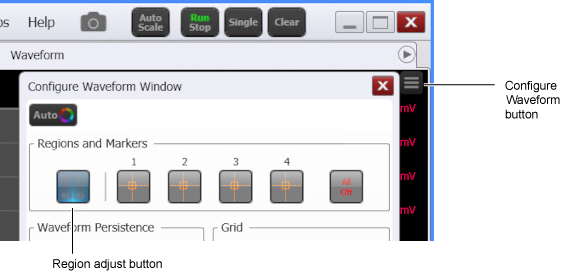
If Interactive Region Adjust is not enabled, attempting to drag a region will instead move the displayed waveform.
To automatically distribute enabled regions evenly across the entire display, click Auto Place Regions.
To disable all regions, click Clear.
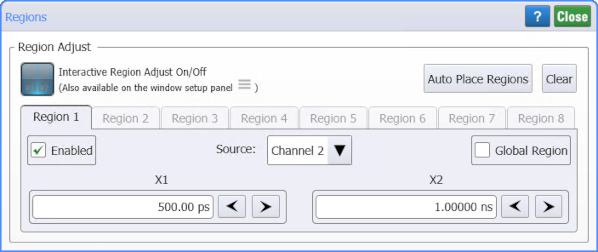
In the Regions dialog box, there are tabs for each of the eight regions. In each region's tab, you can:
- Enable the region.
- Select the waveform Source the region applies to.
- Select Global Region to make the region apply to all waveform sources.
A global region is a subsection of the display that can be applied to all waveform sources. A global region can have different starting and ending X-axis values depending on the waveform source to which it is applied. Waveform sources can have different horizontal scales due to, for example, manual scaling or gating.
- Enter precise boundary values for the region using the X1 and X2 fields.
After the regions are enabled and defined in the dialog box, you can assign them to a measurement. Simply click on a measurement in the Measurement toolbar. Then, in the Select Measurement Source, Region dialog box, select the desired region.
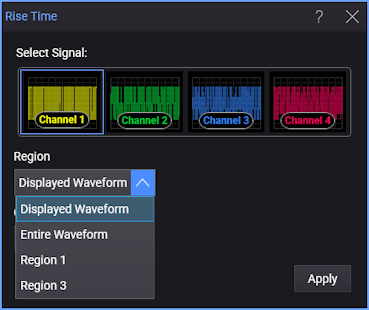
The Displayed Waveform option is what you see in the waveform window (which can be a zoomed-in view of the complete waveform). The Entire Waveform option specifies the complete waveform.
If you want to make a two-source measurement (like Δt, Phase, or Crossing) within a region, global regions (which are defined for all signal sources) are required.