Configure Time Domain Waveform Windows
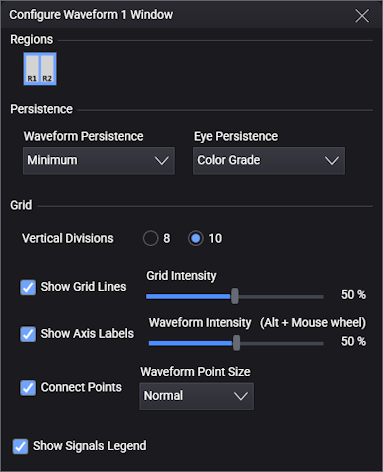
This picture shows the settings available for the Configure Window pane.
The Regions area has buttons for quickly enabling or disabling interactive regions.
Select the  Region Adjust On/Off button to enable or disable the moving and re-sizing of region boundaries using your pointing device. When enabled, you can drag the center of a region to change its position. You can drag a region's sizing handle to reduce or enlarge a region.
The remaining fields provide quick access to selections that are available on the Graticule tab of the Display Setup dialog box.
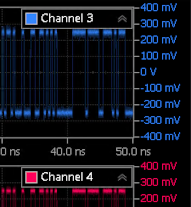
Select Show Signals Legend, located at the bottom of the pane, to hide or view the signal legend that is shown in the window's top-right corner. The signal legend associates the displayed waveforms with the input channel.