Recovered Clock Operator
 The Recovered Clock operator lets you display the signal recovered by software clock recovery.
To set up a Recovered Clock function:
- Open the Math palette.
- From the User/Custom operators group, drag the Recovered Clock operator onto the palette.
- Drag to the Recovered Clock operator input the waveform on which the clock is being (or will be) recovered.
- Drag one of the function colors to the Recovered Clock operator's function output.
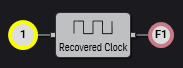
- Click the Recovered Clock operator to open the Recovered Clock Display Setup dialog box. You can specify the math function's vertical and horizontal scaling.
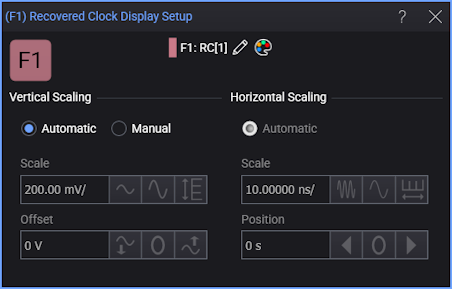
Note that the vertical range of the recovered clock signal is twice the range of the input signal.
For recovered clock function waveform scaling, a one-time tracking of the source waveform (for the X axis) and measurement (for the Y axis) can be performed. This can happen when an auto-scale is performed or when changes to the analysis occur.
- Close the dialog box and hide the Math palette.
The Recovered Clock waveform appears in the Waveform window.
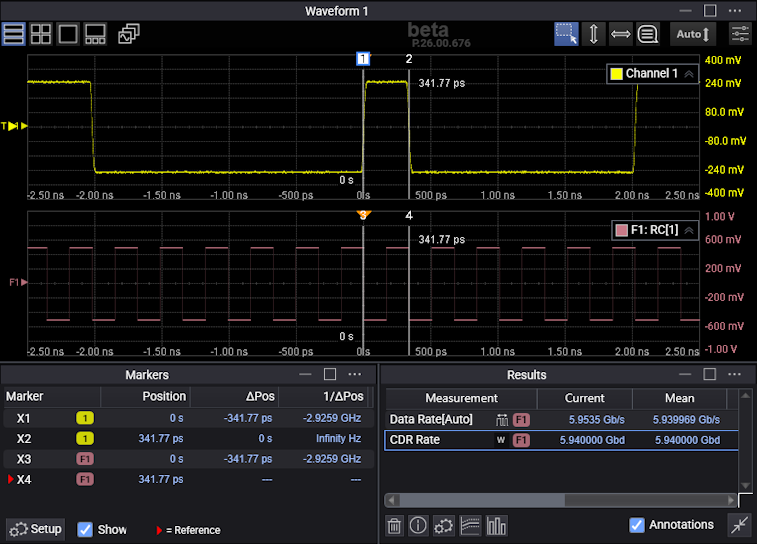
With recovered clock waveforms, you can perform measurements and apply other math functions to the waveform just like you can with other waveforms.