Limit Line Details Editor
This dialog box lets you inspect the details of the limit line test.
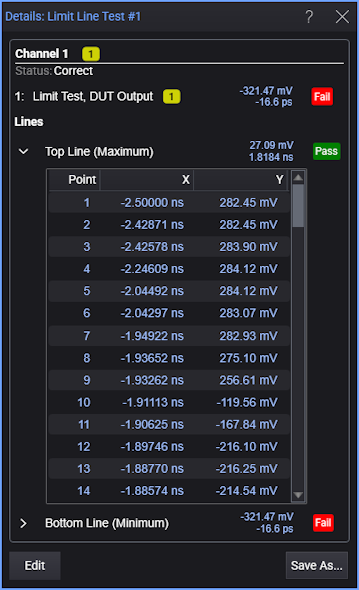
In the dialog box, the limit line status indicators show the  or
or  condition for each individual limit line. For a limit line test, the displayed test margin identifies the data point that occurs nearest to the limit line. For a limit line test, the displayed test margin identifies the data point that is the greatest distance into the limit line's failure region.
Click the  and
and  buttons to display or hide a table of X and Y coordinates for each point that is defined in each limit line.
Clicking the button on a limit line that is comprised of a large number of points may cause a delay between the time when the button is clicked and the time when the table is shown.
Editing Limit Lines
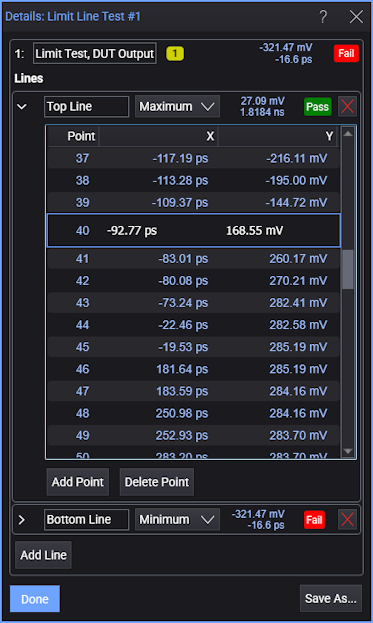
Clicking the Edit button adds the ability to modify or delete existing lines or to add additional lines.
-
Maximum or Mimimum — Select an individual limit line to define the maximum or minimum boundaries for the waveform.
-
Add Line — Add an additional line to the limit line test.
-
Add Point — Adds a new limit-line point after the selected point.
-
Delete Point — Deletes the currently selected limit-line point.
-
 — Delete the indicated limit line.
 -
Save As... — Saves the limit line definition with your edits to a new limit line file. Or, can be used to overwrite the file from which the limit line definition was imported.
Clicking Save As... is the only method way to permanently save the displayed limit-line definitions.
-
Done — Clicking Done lets you view and use your edits on the currently displayed limit line test.
Clicking Done will not save the data to a file.