Navigating Protocol Search
When protocol decodes are on and search and navigation is possible, the Navigation badge appears at the bottom of the display.
If there are multiple items that can be navigated, selecting the word "Navigation" opens a pop-up dialog box that lets you select the item to be navigated and potentially open that item's setup dialog box.
To navigate values found in the protocol decode search:
-
Select the protocol decode to search. Either select the word "Navigation" in the Navigation badge and use the pop-up dialog box or select the tab in the Protocol Search dialog box.
There can be up to four protocol decodes to choose from. You are able to search and navigate only one protocol decode at a time.
-
Click the Search button, either in the Navigation badge or the Protocol Search dialog box.
This will stop acquisitions, highlight the first value found in the waveform window (with a blue marker), and enable navigation controls to find and highlight other values in the most recent acquisition.
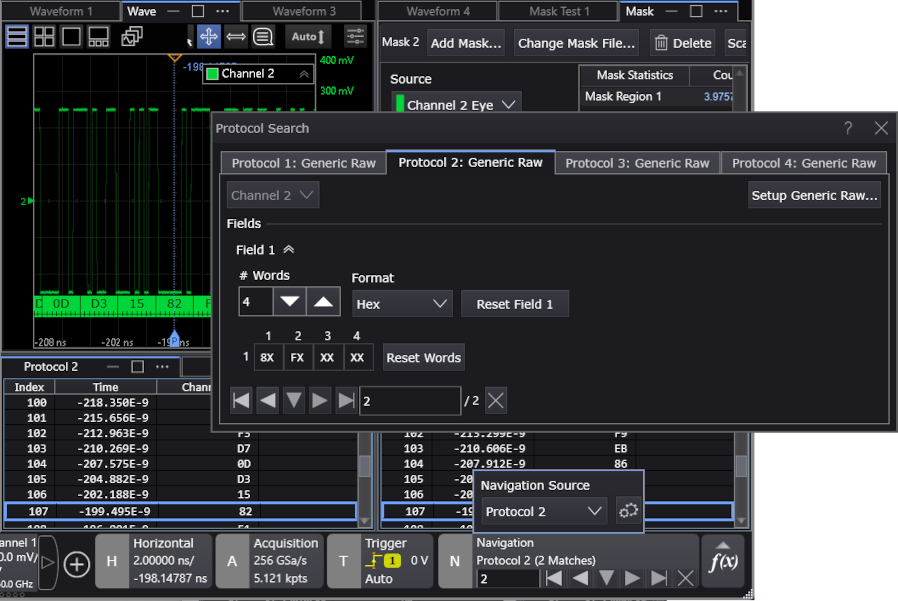
The Search button is replaced by navigation controls that let you find and highlight other values in the most recent acquisition. Use the number field to specify which found value you want to see in listing of decoded values and in the waveform window.
The found values are highlighted in blue in the table listing decoded values and with a corresponding blue marker in the waveform window.
To exit Protocol Search navigation
- Click the "X" exit button at the end of the navigation controls.
- Clearing the display or making another acquisition, for example with a Run or Single, also exits Protocol Search navigation.
The acquisition state and waveform window scaling return to the values present before Search was selected.