Last Updated: August 29, 2007
You can set the increment in which the numeric parameters increase or decrease. If the test set is preset these settings return to their default values. This topic explains:
To set an increment:
using a mouse and keyboard:
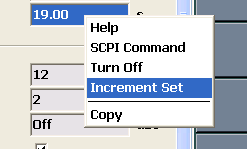
Select a relevant parameter and right-click your mouse. A pop-up window displays.
Select Increment Set.
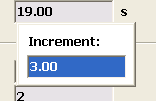
Enter the increment then press Enter on your keyboard. (Note, if you do not press Enter the setting is not saved.) The unit of measurement for the increment you enter is the same as that for the parameter you are setting the increment for.
using the front panel:
Rotate the knob so that the relevant parameter is highlighted.
Press Pop-Up.
Rotate the knob to highlight Increment Set then press the knob. (Note, if you do not press the knob the setting is not saved.) Enter the increment using the numeric keypad then press the knob. The unit of measurement for the increment you enter is the same as that for the parameter you are setting the increment for.
The following two graphics show the windows used to set an increment.
To apply the increment:
using a mouse and keyboard:
Double-click the parameter with the left mouse key then use the up and down arrows on your keyboard to increase or decrease the setting respectively.
using the front panel:
Ensure the parameter setting is highlighted by rotating and pressing the knob so that only the value is highlighted.
Then rotate the knob either clockwise or counterclockwise to increase or decrease the setting respectively.