Applies to M9484C only.
Supported Channel Configuration and License Requirements
How to Set Up Hardware for Envelope Tracking
How to Configure and Use Envelope Tracking
SCPI and GUI Settings Descriptions for Envelope Tracking
Envelope Tracking generates an Envelope Tracking (ET) waveform from an RF waveform so you can play the RF signal from the RF output while simultaneously playing the ET waveform from the IQ output. During playback, you can apply a Shaping Table to the ET waveform to dynamically adjust the envelope characteristics in real time.
The Envelope Tracking feature supports the following capabilities:
Generate envelope waveform from RF waveform: You can also use PathWave Signal Generation embedded apps and Signal Studio waveforms (.WFM) files as RF waveform.
Apply Real-Time Shaping Table: Envelope waveform is updated in real-time based on RF output power.
Real-Time RF/Envelope timing adjustment: Adjust timing with sub-pico seconds resolution.
Envelope Tracking is available only in Group 1, Signal 1 (Independent configuration).
Envelope Tracking supports the following channel configuration depending on the type of signal generator being used.
| Configuration | Description | License Requirements |
| Multi-Channel Configuration |
The ET waveform can be played through Channel 1, while the RF waveform is played through Channel 2. This setup allows independent control and analysis of the ET and RF signals. |
Requires Options AN1, DIQ, and PCH |
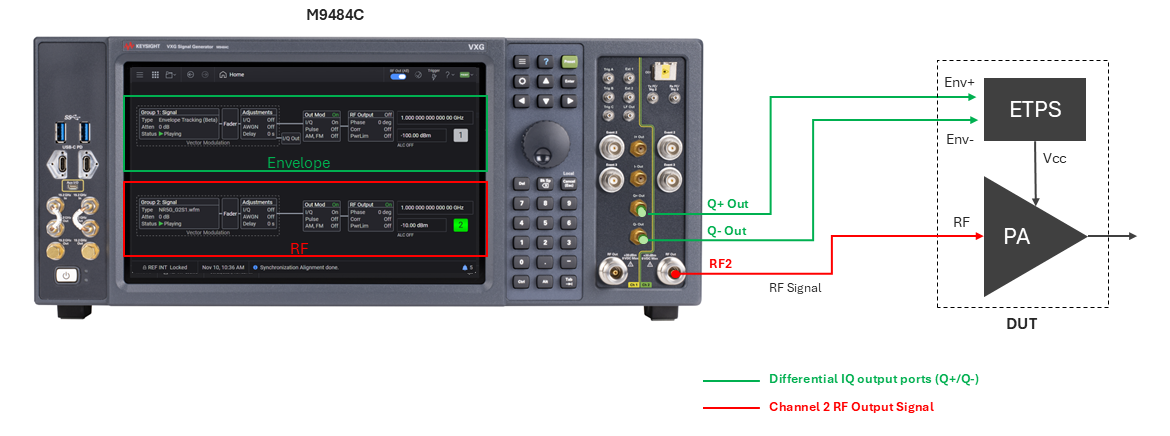
Configure channels in the Independent configuration.
Configure the RF Waveform.
In Group 2 > Signal 1 > General tab, select the RF Waveform.
In Group 2 > Signal 1 > Trigger tab:
Set Trigger Source to Global Trigger (Immediate as source).
Perform Sync Alignment if required
Set Trigger Delay to 10ms. This allows you to set negative envelope delay up to -10ms.
Set RF Power.
Enable the RF signal on Channel 2.
Configure and generate the envelope.
In Group1 > Signal 1> General tab, set the Mode to Envelope Tracking.
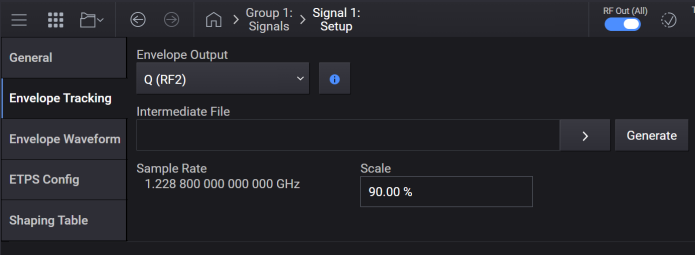
In the Envelope Tracking tab, set the Envelope Output according to your Envelope Tracking channel configuration. This determines how the envelope is routed to the IQ Output ports and how it aligns with the RF path(s).
In the Envelope Tracking tab, click Generate to create the Intermediate File as per the option you set for the envelope File. Alternatively, you can select an existing intermediate file.
Adjust Voltage Settings.
In Group1 > Signal 1 > ETPS Config tab, configure the PA input, ETPS Input, and ETPS Output settings. These settings control how the envelope interacts with the Envelope Tracking Power Supply and the power amplifier.
In the Shaping Table tab, enable and configure the shaping table settings if you want to apply a shaping table to the ET waveform. Use Import to load a shaping table file.
Enable the ET signal in Group 1> Signal 1 > General tab to output the envelope on IQ Out Q.
In Group1 > Signal 1 > Envelope Waveform tab, adjust Envelope Delay to align RF and ET timing. Example: If RF Envelope difference is 3.19 ms, set Envelope Delay to –3.19 ms.
Sets the envelope tracking output.
|
GUI Location |
Signals > General tab > Mode set to Envelope Tracking > Envelope Tracking tab > Envelope Output |
|
SCPI Command |
[:SOURce]:GROup<group>:SIGNal<signal>:ENVelope:OUTPut Q2 [:SOURce]:GROup<group>:SIGNal<signal>:ENVelope:OUTPut? |
|
SCPI Example |
:GRO:SIGN:ENV:OUTP Q2 :GRO:SIGN:ENV:OUTP? |
|
Notes |
|
| Preset |
Multi-channel: Q (RF 2) |
| Range |
Q (RF2) |
| State Saved | Yes |
|
Initial S/W Revision |
A.19.01 |
Sets the intermediate envelope waveform file. This file is in the .WFM format.
|
GUI Location |
Signals > General tab > Mode set to Envelope Tracking > Envelope Tracking tab > Intermediate File |
|
SCPI Command |
[:SOURce]:GROup<group>:SIGNal<signal>:ENVelope:FILE <string> [:SOURce]:GROup<group>:SIGNal<signal>:ENVelope:FILE? |
|
SCPI Example |
:GRO:SIGN:ENV:FILE "ETSNVWFM:myWaveform_ET" :GRO:SIGN:ENV:FILE? |
|
Notes |
The product of the number of envelope samples and envelope sample rate must be equal to that of the RF waveform samples and RF waveform sample rate. |
| Preset | "" |
| State Saved | Yes |
|
Initial S/W Revision |
A.19.01 |
Generates an intermediate envelope waveform file from the envelope waveform specified in the Envelope Waveform tab. The generated waveform file is in .WFM file format which requires N7655APPC license to playback, and is stored in the <document>\Keysight\PathWave\SignalGenerator\EnvelopeTracking\Waveforms directory. There is no query form for the command.
|
GUI Location |
Signals > General tab > Mode set to Envelope Tracking > Envelope Tracking tab > Generate |
|
SCPI Command |
[:SOURce]:GROup<group>:SIGNal<signal>:ENVelope:GENerate |
|
SCPI Example |
:GRO:SIGN:ENV:GEN |
|
StateSaved |
No |
|
Initial S/W Revision |
A.19.01 |
Query only. Returns the sample rate of the intermediate file.
|
GUI Location |
Signals > General tab > Mode set to Envelope Tracking > Envelope Tracking tab > Sample Rate |
|
SCPI Command |
[:SOURce]:GROup<group>:SIGNal<signal>:ENVelope:FILE:SCLock:RATE? |
|
SCPI Example |
:GRO:SIGN:ENV:FILE:SCL:RATE? |
|
state Saved |
No |
|
Initial S/W Revision |
A.19.01 |
Sets the scale factor of the intermediate file, in percent.
|
GUI Location |
Signals > General tab > Mode set to Envelope Tracking > Envelope Tracking tab > Scale |
|
SCPI Command |
[:SOURce]:GROup<group>:SIGNal<signal>:ENVelope:SCALe <real> [:SOURce]:GROup<group>:SIGNal<signal>:ENVelope:SCALe? |
|
SCPI Example |
GRO:SIGN:ENV:SCAL 85 GRO:SIGN:ENV:SCAL? |
|
Preset |
90 |
| Min | 1 |
| Max | 100 |
| Resolution | 0.01 |
| State Saved | Yes |
|
Initial S/W Revision |
A.19.01 |
Sets the envelope tracking file option.
|
GUI Location |
Signals > General tab > Mode set to Envelope Tracking > Envelope Waveform tab > Envelope File |
|
SCPI Command |
[:SOURce]:GROup<group>:SIGNal<signal>:ENVelope<channel>:FILE:SOURce SIGNal|USER [:SOURce]:GROup<group>:SIGNal<signal>:ENVelope<channel>:FILE:SOURce? |
|
SCPI Example |
:GRO:SIGN:ENV:FILE:SOUR SIGN :GRO:SIGN:ENV:FILE:SOUR? |
| Preset | Generate from Signal |
| Range | Generate from Signal |User Defined |
|
State Saved |
Yes |
|
Initial S/W Revision |
A.19.01 |
Sets the envelope file. Waveform files can be of type .wfm, .csv, .txt, .wiq, .bin, or .mat. The envelope data must be in complex format. All I values are applied to the envelope, while all Q values are expected to be zero.
|
GUI Location |
Signals > General tab > Mode set to Envelope Tracking > Envelope Waveform tab > Envelope File set to User Defined > Click the > button |
|
SCPI Command |
[:SOURce]:GROup<group>:SIGNal<signal>:ENVelope<channel>:FILE:USER <string> [:SOURce]:GROup<group>:SIGNal<signal>:ENVelope<channel>:FILE:USER? |
|
SCPI Example |
:GRO:SIGN:ENV:FILE:USER "ETNVCSVWFM :myWaveform_ET" :GRO:SIGN:ENV:FILE:USER? |
| Preset | "" |
|
State Saved |
Yes |
|
Initial S/W Revision |
A.19.01 |
Query only.
Returns the sample rate of signal in the channel for RF waveform.
|
GUI Location |
Signals > General tab > Mode set to Envelope Tracking > Envelope Waveform tab > Base Sample Rate |
|
SCPI Command |
[:SOURce]:GROup<group>:SIGNal<signal>:ENVelope<channel>:SCLock:RATE:BASE? |
|
SCPI Example |
:GRO:SIGN:ENV:SCL:RATE:BASE? |
|
State Saved |
No |
|
Initial S/W Revision |
A.19.01 |
Sets the oversampling ratio for the envelope signal.
|
GUI Location |
Signals > General tab > Mode set to Envelope Tracking > Envelope Waveform tab > OSR |
|
SCPI Command |
[:SOURce]:GROup<group>:SIGNal<signal>:ENVelope<channel>:OSRatio <value> [:SOURce]:GROup<group>:SIGNal<signal>:ENVelope<channel>:OSRatio? |
|
SCPI Example |
:GRO:SIGN:ENV:OSR 7 :GRO:SIGN:ENV:OSR? |
| Coupling | When Base Sample Rate is changed, the value becomes 1. |
| Preset | 1 |
| Min | 1 |
| Max |
floor (Max Sample Rate / Base Sample Rate) |
| Resolution | 1 |
|
State Saved |
Yes |
|
Initial S/W Revision |
A.19.01 |
Query only.
Returns the target sample rate which is calculated as: Base Sample Rate x Oversampling Ratio.
|
GUI Location |
Signals > General tab > Mode set to Envelope Tracking > Envelope Waveform tab > Target Sample Rate |
|
SCPI Command |
[:SOURce]:GROup<group>:SIGNal<signal>:ENVelope<channel>:SCLock:RATE? |
|
SCPI Example |
:GRO:SIGN:ENV:SCL:RATE? |
|
State Saved |
Yes |
|
Initial S/W Revision |
A.19.01 |
Sets the delay from the envelope signal to RF signal.
|
GUI Location |
Signals > General tab > Mode set to Envelope Tracking > Envelope Waveform tab > Envelope Delay |
|
SCPI Command |
[:SOURce]:GROup<group>:SIGNal<signal>:ENVelope<channel>:DELay <value> [:SOURce]:GROup<group>:SIGNal<signal>:ENVelope<channel>:DELay? |
|
SCPI Example |
:GRO:SIGN:ENV:DEL 500 ms :GRO:SIGN:ENV:DEL? |
| Preset | 0 |
| Min | -41 s |
| Max | 41 s |
|
State Saved |
Yes |
|
Initial S/W Revision |
A.19.01 |
ETPS (Envelope Tracking Power Supply) modulates the PA supply voltage to track the instantaneous RF envelope. This tab allows you to configure the ETPS settings categorized in the following three sections.
PA Input
ETPS Input
ETPS Output
Shaping table normalization defines whether the shaping table values are normalized or expressed in absolute voltage.
Indicates whether or not the Vin is normalized.
When Vin is enabled, the Vin values in the shaping table are assumed to be normalized using the Max Peak Envelope Power (converted to Peak voltage).
|
GUI Location |
Signals > General tab > Mode set to Envelope Tracking > ETPS Config tab > PA Input > Vin |
|
SCPI Command |
[:SOURce]:GROup<group>:SIGNal<signal>:ENVelope<channel>:ETPS:VIN:NORMalization[:STATe] ON|OFF|1|0 [:SOURce]:GROup<group>:SIGNal<signal>:ENVelope<channel>:ETPS:VIN:NORMalization[:STATe]? |
|
SCPI Example |
:GRO:SIGN:ENV:ETPS:VIN:NORM ON :GRO:SIGN:ENV:ETPS:VIN:NORM? |
| Preset | ON |
|
State Saved |
Yes |
|
Initial S/W Revision |
A.19.01 |
Indicates whether or not the Vout is normalized.
When Vout is enabled, the Vout values in the shaping table are assumed to be normalized using Vcc Max, with Vcc Min considered the minimum voltage of Vout.
|
GUI Location |
Signals > General tab > Mode set to Envelope Tracking > ETPS Config tab > PA Input > Vout |
|
SCPI Command |
[:SOURce]:GROup<group>:SIGNal<signal>:ENVelope<channel>:ETPS:VOUT:NORMalization:[STATe] ON|OFF|1|0 [:SOURce]:GROup<group>:SIGNal<signal>:ENVelope<channel>:ETPS:VOUT:NORMalization[:STATe]? |
|
SCPI Example |
:GRO:SIGN:ENV:ETPS:VOUT:NORM ON :GRO:SIGN:ENV:ETPS:VOUT:NORM? |
| Preset | ON |
|
State Saved |
Yes |
|
Initial S/W Revision |
A.19.01 |
Sets the Max Peak Envelope Power.
|
GUI Location |
Signals > General tab > Mode set to Envelope Tracking > ETPS Config tab > PA Input >Max Peak Envelope Power |
|
SCPI Command |
[:SOURce]:GROup<group>:SIGNal<signal>:ENVelope<channel>:PEPower:MAXimum <value> [:SOURce]:GROup<group>:SIGNal<signal>:ENVelope<channel>:PEPower:MAXimum? |
|
SCPI Example |
:GRO:SIGN:ENV:PEP:MAX 10 dBm :GRO:SIGN:ENV:PEP:MAX? |
| Preset | 0 dBm |
| Min | -200 dBm |
| Max | 100 dBm |
| Resolution | 0.01 dBm |
|
State Saved |
Yes |
|
Initial S/W Revision |
A.19.01 |
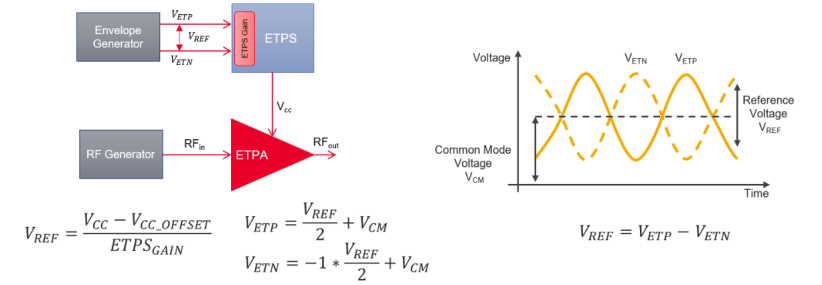
ETPS Voltage Diagram
Sets the common‑mode voltage (Vcm).
|
GUI Location |
Signals > General tab > Mode set to Envelope Tracking > ETPS Config tab > ETPS Input >Vcm |
|
SCPI Command |
[:SOURce]:GROup<group>:SIGNal<signal>:ENVelope<channel>:ETPS:VCM <voltage> [:SOURce]:GROup<group>:SIGNal<signal>:ENVelope<channel>:ETPS:VCM? |
|
SCPI Example |
:GRO:SIGN:ENV:ETPS:VCM 1.5 V :GRO:SIGN:ENV:ETPS:VCM? |
| Preset | 0 V |
| Min | -1.5 V |
| Max | 1.5 V |
| Resolution | 0.05 mV |
|
State Saved |
Yes |
|
Initial S/W Revision |
A.19.01 |
Sets the ETPS Gain.
|
GUI Location |
Signals > General tab > Mode set to Envelope Tracking > ETPS Config tab > ETPS Input >ETPS Gain |
|
SCPI Command |
[:SOURce]:GROup<group>:SIGNal<signal>:ENVelope<channel>:ETPS:GAIN <rel_ampl> [:SOURce]:GROup<group>:SIGNal<signal>:ENVelope<channel>:ETPS:GAIN? |
|
SCPI Example |
:GRO:SIGN:ENV:ETPS:GAIN 7 dB :GRO:SIGN:ENV:ETPS:GAIN? |
| Preset | 7 dB |
| Min | -20 dB |
| Max | 20 dB |
| Resolution | 0.01 dB |
|
State Saved |
Yes |
|
Initial S/W Revision |
A.19.01 |
Sets the input impedance.
|
GUI Location |
Signals > General tab > Mode set to Envelope Tracking > ETPS Config tab > ETPS Input >Input Impedance |
|
SCPI Command |
[:SOURce]:GROup<group>:SIGNal<signal>:ENVelope<channel>:ETPS:IMPedance <value> [:SOURce]:GROup<group>:SIGNal<signal>:ENVelope<channel>:ETPS:IMPedance? |
|
SCPI Example |
:GRO:SIGN:ENV:ETPS:IMP 10000000 :GRO:SIGN:ENV:ETPS:IMP? |
| Preset | 50 Ohm |
| Min | 50 Ohm |
| Max | 10 000 000 Ohm |
| Resolution | 1 Ohm |
|
State Saved |
Yes |
|
Initial S/W Revision |
A.19.01 |
Sets the Vcc offset.
|
GUI Location |
Signals > General tab > Mode set to Envelope Tracking > ETPS Config tab > ETPS Output > Vcc Offset |
|
SCPI Command |
[:SOURce]:GROup<group>:SIGNal<signal>:ENVelope<channel>:ETPS:VCC:OFFSet <voltage> [:SOURce]:GROup<group>:SIGNal<signal>:ENVelope<channel>:ETPS:VCC:OFFSet? |
|
SCPI Example |
:GRO:SIGN:ENV:ETPS:VCC:OFFS 2.275 V :GRO:SIGN:ENV:ETPS:VCC:OFFS? |
| Preset | 2.75 V |
| Min | 0 V |
| Max | 30 V |
| Resolution | 0.001 V |
|
State Saved |
Yes |
|
Initial S/W Revision |
A.19.01 |
Selects whether or not the Vcc is clipped using the Vcc Max and Vcc Min values.
|
GUI Location |
Signals > General tab > Mode set to Envelope Tracking > ETPS Config tab > ETPS Output > Vcc Clipping |
|
SCPI Command |
[:SOURce]:GROup<group>:SIGNal<signal>:ENVelope<channel>:ETPS:VCC:CLIPping[:STATe] ON|OFF|1|0 [:SOURce]:GROup<group>:SIGNal<signal>:ENVelope<channel>:ETPS:VCC:CLIPping[:STATe]? |
|
SCPI Example |
:GRO:SIGN:ENV:ETPS:VCC:CLIP ON :GRO:SIGN:ENV:ETPS:VCC:CLIP? |
| Preset | OFF |
|
State Saved |
Yes |
|
Initial S/W Revision |
A.19.01 |
Sets the maximum value of Vcc when Vcc Clipping is On.
|
GUI Location |
Signals > General tab > Mode set to Envelope Tracking > ETPS Config tab > ETPS Output > Vcc Max |
|
SCPI Command |
[:SOURce]:GROup<group>:SIGNal<signal>:ENVelope<channel>:ETPS:VCC:CLIPping:MAXimum <voltage> [:SOURce]:GROup<group>:SIGNal<signal>:ENVelope<channel>:ETPS:VCC:CLIPping:MAXimum? |
|
SCPI Example |
:GRO:SIGN:ENV:ETPS:VCC:CLIP:MAX 2.7 :GRO:SIGN:ENV:ETPS:VCC:CLIP:MAX? |
| Preset | 3.8 V |
| Coupling | When Vcc Min is changed and [Vcc Max] < [Vcc Min] + 0.1 V, Vcc Max is changed to [Vcc Max] = [Vcc Min] + 0.1 V. |
| Min | 0.1 V |
| Max | 8.0 V |
| Resolution | 0.001 V |
|
State Saved |
Yes |
|
Initial S/W Revision |
A.19.01 |
Sets the minimum value of Vcc when Vcc Clipping is On.
|
GUI Location |
Signals > General tab > Mode set to Envelope Tracking > ETPS Config tab > ETPS Output > Vcc Min |
|
SCPI Command |
[:SOURce]:GROup<group>:SIGNal<signal>:ENVelope<channel>:ETPS:VCC:CLIPping:MINimum <voltage> [:SOURce]:GROup<group>:SIGNal<signal>:ENVelope<channel>:ETPS:VCC:CLIPping:MINimum? |
|
SCPI Example |
:GRO:SIGN:ENV:ETPS:VCC:CLIP:MIN 1.8 :GRO:SIGN:ENV:ETPS:VCC:CLIP:MIN? |
| Preset | 0.6 V |
| Coupling | When Vcc Max is changed and [Vcc Min] > [Vcc Max] – 0.1 V, Vcc Min (this setting) is changed to [Vcc Min] = [Vcc Max] – 0.1 V. |
| Min | 0 V |
| Max | 7.9 V |
| Resolution | 0.001 V |
|
State Saved |
Yes |
|
Initial S/W Revision |
A.19.01 |
Turn Shaping Table on and off.
|
GUI Location |
Signals > General tab > Mode set to Envelope Tracking > Shaping Table tab > Enable |
|
SCPI Command |
[:SOURce]:GROup<group>:SIGNal<signal>:ENVelope<channel>:STABle[:STATe] ON|OFF|1|0 [:SOURce]:GROup<group>:SIGNal<signal>:ENVelope<channel>:STABle[:STATe]? |
|
SCPI Example |
:GRO:SIGN:ENV:STAB ON :GRO:SIGN:ENV:STAB? |
| Preset | OFF |
|
State Saved |
Yes |
|
Initial S/W Revision |
A.19.01 |
Sets Shaping Table Data.
This setting takes the array of real values interleaved by the first and second column values.
|
GUI Location |
Signals > General tab > Mode set to Envelope Tracking > Shaping Table tab > Edit Table |
|
SCPI Command |
[:SOURce]:GROup<group>:SIGNal<signal>:ENVelope<channel>:STABle:DATA <value>,<value>,… [:SOURce]:GROup<group>:SIGNal<signal>:ENVelope<channel>:STABle:DATA? |
|
SCPI Example |
:GRO:SIGN:ENV:STAB:DATA 0.0, 0.7, 1.0, 3.8 :GRO:SIGN:ENV:STAB:DATA? |
| Preset | 0,0,1,1 |
| Notes |
An error is generated when the number of Shaping Data is not a multiple of 2 and the data is not set. Minimum number of elements: 4 Maximum number of elements: 1500 |
|
State Saved |
Yes |
|
Initial S/W Revision |
A.19.01 |
Imports the shaping table file which is a.csv file containing two columns: Vin and Vout. The first line is a header that labels each column. There is no query form for the command.
See Also - File Location and Default Folders
|
GUI Location |
Signals > General tab > Mode set to Envelope Tracking > Shaping Table tab > Edit Table > Import |
|
SCPI Command |
[:SOURce]:GROup<group>:SIGNal<signal>:ENVelope<channel>:STABle:IMPort <string> |
|
SCPI Example |
:GRO:SIGN:ENV:STAB:IMP "ETTBL:myShapingTable" |
|
State Saved |
Yes |
|
Initial S/W Revision |
A.19.01 |
Exports the shaping table file to a .csv file. There is no query form for the command.
See Also - File Location and Default Folders
|
GUI Location |
Signals > General tab > Mode set to Envelope Tracking > Shaping Table tab > Edit Table > Export |
|
SCPI Command |
[:SOURce]:GROup<group>:SIGNal<signal>:ENVelope<channel>:STABle:EXPort <string> |
|
SCPI Example |
:GRO:SIGN:ENV:STAB:EXP "ETTBL:myShapingTable" |
|
State Saved |
Yes |
|
Initial S/W Revision |
A.19.01 |
Sets the data type for the input of the shaping table.
Absolute RF Output Voltage (AVOLtage): The Peak Envelope Power (dBm converted to Vpk), derived from RF power and waveform PAPR, is used to determine the Vin range for the shaping table.
Override RF Amplitude (OARF): A user-specified RF amplitude (and waveform PAPR) is used to determine the Vin range for the shaping table.
Normalized I/Q Amplitude (NORMalized): Regardless of the RF power setting, the full Vin range of the shaping table is used.
|
GUI Location |
Signals > General tab > Mode set to Envelope Tracking > Shaping Table tab > Conversion Input Type |
|
SCPI Command |
[:SOURce]:GROup<group>:SIGNal<signal>:ENVelope<channel>:CONVersion:TYPE AVOLtage|OARF|NORMalized [:SOURce]:GROup<group>:SIGNal<signal>:ENVelope<channel>:CONVersion:TYPE? |
|
SCPI Example |
:GRO:SIGN:ENV:CONV:TYPE NORM :GRO:SIGN:ENV:CONV:TYPE? |
| Preset | AVOLtage |
|
State Saved |
Yes |
| Range | Absolute RF Output Voltage|Override RF Amplitude|Normalized |
|
Initial S/W Revision |
A.19.01 |
Sets the RF Power value used to scale the input of the shaping table when Conversion Input Type is Override Absolute RF.
|
GUI Location |
Signals > General tab > Mode set to Envelope Tracking > Shaping Table tab > Conversion Input Type set to Override Absolute RF > Override RF Amplitude |
|
SCPI Command |
[:SOURce]:GROup<group>:SIGNal<signal>:ENVelope<channel>:CONVersion:AMPLitude <value> [:SOURce]:GROup<group>:SIGNal<signal>:ENVelope<channel>:CONVersion:AMPLitude |
|
SCPI Example |
:GRO:SIGN:ENV:CONV:AMPL 10 dBm :GRO:SIGN:ENV:CONV:AMPL? |
| Preset | -100 dBm |
| Min | -200 dBm |
| Max | 100 dBm |
| Resolution | 0.01 dBm |
|
State Saved |
Yes |
|
Initial S/W Revision |
A.19.01 |
Query only.
Returns PAPR of the RF waveform.
|
GUI Location |
Signals > General tab > Mode set to Envelope Tracking > Shaping Table tab > RF Waveform PAPR |
|
SCPI Command |
[:SOURce]:GROup<group>:SIGNal<signal>:ENVelope<channel>:RF:PAPR? |
|
SCPI Example |
:GRO:SIGN:ENV:RF:PAPR? |
| Coupling | The value can be calculated using 20log(Peak / RMS) where both Peak and RMS values are derived from the RF waveform. |
|
State Saved |
Yes |
|
Initial S/W Revision |
A.19.01 |
Query only.
Returns Peak Envelope Power.
|
GUI Location |
Signals > General tab > Mode set to Envelope Tracking > Shaping Table tab > Peak Envelope Power (dBm) |
|
SCPI Command |
[:SOURce]:GROup<group>:SIGNal<signal>:ENVelope<channel>:RF:PEPower? |
|
SCPI Example |
:GRO:SIGN:ENV:RF:PEPower? |
| Coupling |
The value can be calculated using:
|
|
State Saved |
Yes |
|
Initial S/W Revision |
A.19.01 |
Query only.
Returns Peak Voltage calculated from Peak Envelope Power.
|
GUI Location |
Signals > General tab > Mode set to Envelope Tracking > Shaping Table tab >Peak Envelope Power (Vpk) |
|
SCPI Command |
[:SOURce]:GROup<group>:SIGNal<signal>:ENVelope<channel>:RF:PVOLtage? |
|
SCPI Example |
:GRO:SIGN:ENV:RF:PVOLtage? |
| Coupling |
The value is calculated using √2PR where:
|
|
State Saved |
Yes |
|
Initial S/W Revision |
A.19.01 |