 Setup
SetupAccesses capabilities performed in the factory or under instructions from repair procedures.
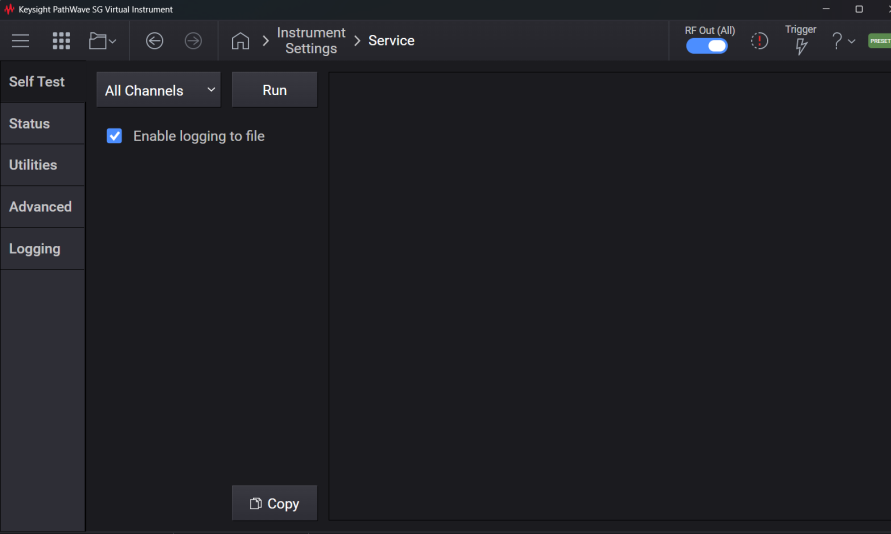
Selecting All Channels from the Run Self Test listbox followed by Run displays diagnostic information for the instrument based on channels.
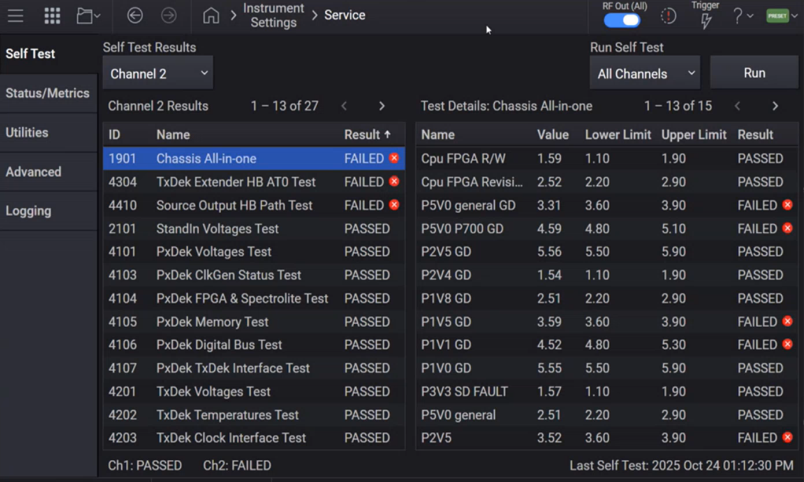
For information on running the self test using SCPI, see *TST? - Self Test Query
|
GUI Location |
System Menu (triple bar icon) > Settings (gear icon) > Service > Self Test > Run Self Test > All Channels |
|
Initial S/W Revision |
A.01.00 |
|
Modified S/W Revision |
A.11.50 Updated for M9484C |
Running Self Test takes at least five minutes to complete.
Query only
Performs the internal self-test routines for a specified RF Channel and returns a number indicating the success of the testing. A zero is returned if the test is successful, 1 if it fails.
|
GUI Location |
System Menu (triple bar icon) > Settings (gear icon) > Service > Self Test > Run Self Test > Channel <n> |
|
SCPI Command |
:SYSTem:RF<channel>:STESt? |
|
SCPI Example |
SYST:RF3:STESt? !Runs the self-test routines for RF Channel 3 and returns 0=passed, 1=some part failed. |
|
Notes |
SYSTem:RF<channel>:STESt? May take many minutes to complete, set timeout value on controlling test program to a very large value (e.g. 10 minutes). Successful completion of self-test on the channel will clear the applicable bit in the STATus:QUEStionable:STFailed or STATus:QUEStionable:STFailed:ESTFailed register. Unsuccessful completion of self-test on the channel will set the applicable bit in the STATus:QUEStionable:STFailed or STATus:QUEStionable:STFailed:ESTFailed register. |
|
Initial S/W Revision |
A.11.50 |
Performs the internal self-test routines for a specified test on a specified RF channel and returns a number indicating the success of the testing. 0 is returned if the test is successful, 1 if it fails.
Use the GUI to specify the following:
RF Channel to test on
Specific Self Test to run
Number of test Runs
|
GUI Location |
System Menu (triple bar icon) > Settings (gear icon) > Service > Self Test > Run Self Test > Selected Test |
|
SCPI Command |
No SCPI, GUI only |
|
Initial S/W Revision |
A.18.00 |
Performs the internal self-test routines for all failed tests across all RF Channels and returns a number indicating the success of the testing. 0 is returned if the test is successful, 1 if it fails.
|
GUI Location |
System Menu (triple bar icon) > Settings (gear icon) > Service > Self Test > Run Self Test > All Failed Tests |
|
SCPI Command |
No SCPI, GUI only |
|
Initial S/W Revision |
A.18.00 |
Specifies the number of times to run a specific self-test on a specified channel.
|
GUI Location |
System Menu (triple bar icon) > Settings (gear icon) > Service > Self Test > Runs |
|
SCPI Command |
No SCPI, GUI only |
|
Initial S/W Revision |
A.18.00 |
Allows aborting self-test runs whenever more than one test or multiple runs of the same test are run.
|
GUI Location |
System Menu (triple bar icon) > Settings (gear icon) > Service > Self Test > Run > Abort |
|
SCPI Command |
No SCPI, GUI only |
|
Initial S/W Revision |
A.18.00 |
Remote command only.
Enables logging for all channels during self tests execution. Logs files will be saved at:
E:\Keysight\CalTestLogs
|
SCPI Command |
:SYSTem:STESt:LOG ON|OFF|1|0 :SYSTem:STESt:LOG? |
|
SCPI Example |
SYST:STES:LOG ON SYST:STES:LOG? |
| Preset | ON |
|
State Saved |
No |
|
Initial S/W Revision |
A.18.00 |
The Status / Metrics tab displays temperatures and other information for the instrument when you click Update.
|
GUI Location |
System Menu (triple bar icon) > Settings (gear icon) > Service > Status / Metrics |
|
Initial S/W Revision |
A.01.00 |
|
Modified S/W Revisions |
A.11.50 - Updated for M9484C A.15.09 - Added Exhaust Temperature reporting A.19.00 - Added Minimum Thermal safe operating margin, RF Utilization Rate, and Display Utilization Rate. |
Copy simply copies this information to the clipboard for pasting into Windows programs.

Query only.
Returns the cumulative number of hours the signal generator has been on.
|
GUI Location |
System Menu (triple bar icon) > Settings (gear icon) > Service > Status / Metrics |
|
SCPI Command |
:DIAGnostic[:CPU]:INFormation:OTIMe? |
|
SCPI Example |
:DIAG:INF:OTIM? |
|
Initial S/W Revision |
A.01.00 |
| Modified S/W Revision | A.18.01 - Also available as a GUI option |
Query only.
Returns the cumulative number of hours the display has been on.
|
GUI Location |
System Menu (triple bar icon) > Settings (gear icon) > Service > Status / Metrics |
|
SCPI Command |
:DIAGnostic[:CPU]:INFormation:DISPlay:OTIMe? |
|
SCPI Example |
:DIAG:INF:DISP:OTIM? |
|
Initial S/W Revision |
A.18.01 |
Query only.
Returns the temperature of the instrument. This information is also displayed on the Service, Status screen.
|
GUI Location |
System Menu (triple bar icon) > Settings (gear icon) > Service > Status / Metrics |
|
SCPI Command |
:SYSTem:TEMPerature? |
|
SCPI Example |
SYST:TEMP? |
|
Notes |
Value returned is in degrees Celsius. |
|
Initial S/W Revision |
A.14.00 |
Query only.
Returns the instrument's airflow temperature.
This setting measures the temperature of the air coming out of the instrument.
|
GUI Location |
System Menu (triple bar icon) > Settings (gear icon) > Service > Status / Metrics |
|
SCPI Command |
:SYSTem:TEMPerature:FAN? |
|
SCPI Example |
SYST:TEMP:FAN? |
|
Notes |
Value returned is in degrees Celsius. |
| Backwards Compatibility SCPI |
:SYSTem:TEMPerature:EXHaust? |
|
Initial S/W Revision |
A.15.09 |
|
Modified at S/W Revision |
A.18.01 - Changed to use the new SCPI command. |
Query only.
Returns the maximum fan airflow temperature recorded for the instrument.
|
GUI Location |
System Menu (triple bar icon) > Settings (gear icon) > Service > Status / Metrics |
|
SCPI Command |
:SYSTem:TEMPerature:FAN:MAXimum? |
|
SCPI Example |
SYST:TEMP:FAN:MAX? |
|
Notes |
Value returned is in degrees Celsius. |
|
Initial S/W Revision |
A.18.01 |
Query only.
Returns the average fan airflow temperature recorded for the instrument, where the exhaust temperature is measured once an hour.
|
GUI Location |
System Menu (triple bar icon) > Settings (gear icon) > Service > Status / Metrics |
|
SCPI Command |
:SYSTem:TEMPerature:FAN:AVERage? |
|
SCPI Example |
SYST:TEMP:FAN:AVER? |
|
Notes |
Value returned is in degrees Celsius. |
|
Initial S/W Revision |
A.18.01 |
When monitoring the instrument’s temperature it is recommended to use the Instrument Temperature. For instruments with more than 1 channel, the ability to query an individual channel’s temperature is provided should you desire to monitor an individual channel.
|
GUI Location |
System Menu (triple bar icon) > Settings (gear icon) > Service > Status / Metrics |
|
SCPI Command |
:SYSTem:RF<channel>:TEMPerature? |
|
SCPI Example |
SYST:RF2:TEMP? |
|
Notes |
Value returned is in degrees Celsius. If the indicated <channel> doesn’t exist on the instrument, a timeout will occur. Ensure that you use this query only on the available channels of the instrument. |
|
Initial S/W Revision |
A.14.00 |
Query only.
The instrument maintains proper instrument operation with the Fan Control set to Auto for the specified environmental conditions. If the instrument’s temperature becomes excessive, it may shut down. Thermal safe operating margin allows you to observe how close the current temperature is to the safety limit for a specified channel.
|
GUI Location |
System Menu (triple bar icon) > Settings (gear icon) > Service > Status / Metrics |
|
SCPI Command |
:SYSTem[:RF<channel>]:TEMPerature:OMARgin? |
|
SCPI Example |
SYST:TEMP:OMAR? |
|
Notes |
Value returned is in degrees Celsius. |
|
Initial S/W Revision |
A.14.00 |
|
Modified at S/W Revision |
A.18.01 - Added optional RF channel SCPI node |
Query only.
The instrument maintains proper instrument operation with the Fan Control in Auto for the specified environmental conditions. If the instrument’s temperature becomes excessive, it may shut down. Minimum thermal safe operating margin reports the lowest ever Thermal Safe Operating Margin recorded for a specified channel.
|
GUI Location |
System Menu (triple bar icon) > Settings (gear icon) > Service > Status / Metrics |
|
SCPI Command |
:SYSTem[:RF<channel>]:TEMPerature:OMARgin:MINimum? |
|
SCPI Example |
SYST:TEMP:OMAR:MIN? |
|
Notes |
Value returned is in degrees Celsius. For Multi-Instrument systems in Control Followers With Leader mode, all per-channel metrics such as Minimum Thermal Safe Operating Margin are stored on the Leader. |
|
Initial S/W Revision |
A.19.00 |
Query only.
Returns the cumulative number of hours the RF has been on.
|
GUI Location |
System Menu (triple bar icon) > Settings (gear icon) > Service > Status / Metrics |
|
SCPI Command |
:DIAGnostic[:CPU]:INFormation:CCOunt:OUTPut[:RF<channel>]:OTIMe? |
|
SCPI Example |
:DIAG:INF:CCO:OUTP:OTIM? |
|
Notes |
For Multi-Instrument systems in Control Followers With Leader mode, all per-Channel metrics such as RF Hours On are stored on the Leader. |
|
Initial S/W Revision |
A.18.01 |
Query only.
Calculates and returns the percentage of total system ON time during which the RF has been active, based on the cumulative number of hours.
|
GUI Location |
System Menu (triple bar icon) > Settings (gear icon) > Service > Status / Metrics |
|
SCPI Command |
:DIAGnostic[:CPU]:INFormation:CCOunt:OUTPut[:RF<channel>]:RATE? |
|
SCPI Example |
:DIAG:INF:CCO:OUTP:RATE? |
|
Notes |
For Multi-Instrument systems in Control Followers With Leader mode, all per-Channel metrics such as RF Utilization Rate are stored on the Leader. |
|
Initial S/W Revision |
A.19.00 |
Query only.
Calculates and returns the percentage of total system ON time during which the display has been ON, based on the cumulative number of hours. This percentage is calculated from the values in the On Time History Query and Display On Time History settings.
|
GUI Location |
System Menu (triple bar icon) > Settings (gear icon) > Service > Status / Metrics |
|
SCPI Command |
:DIAGnostic[:CPU]:INFormation:CCOunt:DISPlay:RATE? |
|
SCPI Example |
:DIAG:INF:CCO:DISP:RATE? |
|
Initial S/W Revision |
A.19.00 |
Query only.
Returns the cumulative number of times the signal generator has been powered on.
|
GUI Location |
System Menu (triple bar icon) > Settings (gear icon) > Service > Status / Metrics |
|
SCPI Command |
:DIAGnostic[:CPU]:INFormation:CCOunt:PON? |
|
SCPI Example |
:DIAG:INF:CCO:PON? |
|
Initial S/W Revision |
A.01.00 |
|
Modified S/W Revision |
A.18.01 - Also available as a GUI option |
Available when connected from a remote PC via a browser and the browser screen dimension are greater than 600 pixels high.
Pressing "Copy" copies the status and metrics information present in the GUI to the Clipboard for pasting into Windows programs.
|
GUI Location |
System Menu (triple bar icon) > Settings (gear icon) > Service > Status / Metrics > Copy |
|
SCPI Command |
No SCPI. GUI only. |
|
Initial S/W Revision |
A.18.00 |
Selecting Utilities displays the available utilities for the installed modules.
|
GUI Location |
System Menu (triple bar icon) > Settings (gear icon) > Service > Utilities |
|
Initial S/W Revision |
A.14.00 |
By default, the instrument dynamically adjusts the fan speed to provide the appropriate cooling for specified environmental conditions. You can override this automatic control by setting the fan to the maximum speed, in the event your environmental conditions are extreme.
If you set the fan to the maximum speed, it results in the loudest instrument operation.
|
GUI Location |
System Menu (triple bar icon) > Settings (gear icon) > Service > Utilities |
|
SCPI Command |
:SYSTem:FCONtrol AUTO|MAXimum :SYSTem:FCONtrol? |
|
SCPI Example |
SYST:FCON MAX |
|
Setup |
:SYSTem:PRESet:PERSistent |
| Post Setup |
:SYSTem:PRESet:PERSistent |
|---|---|
|
Dependencies |
Default value of AUTO is set by Restore System Defaults |
|
State Saved |
Persistent, survives preset and power cycle but not saved in the instrument state. |
|
Initial S/W Revision |
A.14.00 |
GUI option only
The Generate Report button generates the .zip archive report containing a variety of system information and configuration files, including:
Log files
State files
Installed license files
Software and Hardware version information
These reports are intended for Keysight Support Engineers to assist in the diagnosis of undesirable instrument behaviors.
After the report is generated, you can copy the .zip archive report off the instrument.
If viewing the instrument interface from the instrument’s front panel, a QR code appears to copy the archive file to a QR-scanning device.
If accessing the instrument interface from the browser of a remote PC, the Download button appears to copy the file directly to the remote PC.
|
GUI Location |
System Menu (triple bar icon) > Settings (gear icon) > Service > Utilities |
|
Initial S/W Revision |
A.17.00 |
Log files are intended for Keysight Support Engineers to assist in diagnosis of undesirable instrument behaviors.
The Logging Configuration options allows for precise modifications to the log output. These modifications can be done utilizing logging presets or manually by adding and removing individual loggers via the Add Logger button.
GUI option only
This drop-down adds a specific logger to the logging configuration.
Once added, loggers can be removed individually via the Minus button in the table.
Modifying the verbosity of any specific logger, added by preset or otherwise, can be done at anytime with the provided drop-downs. Verbosity options from high to low are:
Trace
Debug
Info
Warn
Error
Critical
|
GUI Location |
System Menu (triple bar icon) > Settings (gear icon) > Service > Logging > Add Logger |
|
Initial S/W Revision |
A.17.00 |
GUI option only
Save must be pressed before leaving the tab or all modifications will be lost. If the table is empty when Save is pressed, default logging behaviors will be restored.
|
GUI Location |
System Menu (triple bar icon) > Settings (gear icon) > Service > Logging > Save |
|
Initial S/W Revision |
A.17.00 |
GUI option only
Adds preconfigured loggers to the logging configuration.
The simplest way to configure logging is to use one of the available presets via the Logging Presets drop-down. These presets are preconfigured to aid in diagnosis of specific categories of instrument behaviors, adding a subset of loggers at specific verbosity levels.
|
GUI Location |
System Menu (triple bar icon) > Settings (gear icon) > Service > Logging > Logging Presets |
|
Initial S/W Revision |
A.17.00 |
GUI option only
Immediately adds a line to the log for future reference. The text of the line will be:
"[siggen.custom] [info] Log Flag"
|
GUI Location |
System Menu (triple bar icon) > Settings (gear icon) > Service > Logging > Write Log Flag |
|
Initial S/W Revision |
A.17.00 |
GUI option only
Opens a log viewer for the most recent lines written to the log. This reads logs directly from file. Therefore, if a log file is manually deleted, this view will also be impacted. Options are available to change the number of lines displayed.
|
GUI Location |
System Menu (triple bar icon) > Settings (gear icon) > Service > Logging > View Logs |
|
Initial S/W Revision |
A.17.00 |
If the instrument application stops running for any reason, a dialog appears with a link to show the Support Options menu. This menu provides options for support and recovery. The tools available in this menu are:
Applies to M9484C only
Requires Option NLC
The Real-Time Instrument Nonlinear Correction (INC) calibration extracts a model that characterizes the output behavior of the signal generator. The extracted model is then processed to generate parameters that are required for Real-Time INC to automatically apply the right corrections and compensate for the instrument’s nonlinearity without measuring correction. For details, refer to Real-Time Instrument Nonlinear Correction.
Make the following connections between the Spectrum Analyzer and Signal Generator.
Connect the RF input of the Spectrum Analyzer to an RF output on the Signal Generator via cables and potentially other components.
Connect the Trigger1 input of the Spectrum Analyzer to Event 1 output of the Signal Generator.
Connect the 10 MHz reference output from the Signal Generator to the 10 MHz reference input of the Spectrum Analyzer.
Connect LAN from the Spectrum Analyzer to the Signal Generator, as the Spectrum Analyzer can only use LAN to control the Signal Generator (regardless of the Connection Type specified for the device).
Connect either USB or LAN from the Signal Generator to the Spectrum Analyzer, as the Signal Generator can use either USB or LAN to control the Spectrum Analyzer.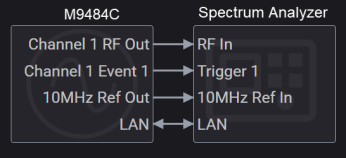
In the Settings > Service > Real-Time INC Calibration tab, select the RF channel for which you want to perform calibration.
Click Configure Device to configure the Spectrum Analyzer that you want to use as the measurement device for calibration.
Click Start Calibration to start the calibration.
A dialog is displayed indicating that Real-Time INC Calibration is in progress. The Abort button on the dialog aborts the calibration.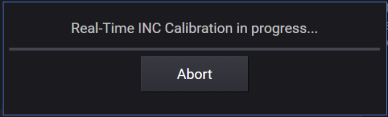
In the Calibration Status section, you can check the calibration status and calibration date for each RF channel. See this section to check if the calibration is running or completed.
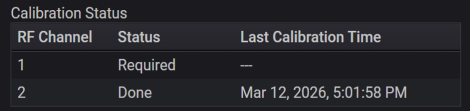
Once the calibration is complete, Real‑Time INC can be enabled on the calibrated channel.
Specifies a Spectrum Analyzer to be used for the Real-Time INC Calibration from the Device List.
To configure external devices in the Device List, see Device List.
|
GUI Location |
System Menu (triple bar icon) > Settings (gear icon) > Service > Real-Time INC Calibration > Measurement Device > Configure Device |
|
SCPI Command |
:CALibration<channel>:NCORrection:INSTrument:RTIMe:DEVice <name> :CALibration<channel>:NCORrection:INSTrument:RTIMe:DEVice? |
|
SCPI Example |
CAL:NCOR:INST:RTIM:DEV "myDevice" CAL2:NCOR:INST:RTIM:DEV? |
|
Notes |
If the specified device does not exist in the Device List, an error will be raised: -220,"Parameter error; Specified device does not exist", and the setting is set to an empty string (""). If the specified device is not a Spectrum Analyzer, a warning will be raised: -220,"Parameter error; Real-Time INC Calibration requires a Spectrum Analyzer device type", and the specified value is set to the setting. |
| Dependencies | Power Amplifier mode should be present on the specified Spectrum Analyzer. |
| Couplings | If the device currently selected from the Device List is removed, this setting will default to an empty string (""). |
|
Preset |
This is unaffected by a Preset but is set to an empty string on a "Restore System Settings to Default Values." |
|
State Saved |
Persistent, survives preset and power cycle but not saved in the instrument state. |
|
Initial S/W Revision |
A.19.01 |
Runs the Real-Time INC Calibration on the specified channel.
This is an overlapped command. It can be aborted. See Abort.
The calibration can take significant amount of time, depending on the frequency range covered by the utilized signal Generator. The maximum, estimated calibration time is displayed on the Instrument Settings > Service > Real-Time INC Calibration tab.
To determine if calibration is currently in progress, you can use the following features:
Periodic polling at appropriate intervals using:
The return value of the Real-Time INC Calibration Status command.
The appropriate bit in the STATus:OPERation:ALIGning register. While performing the calibration, the appropriate bit in this register is set. Completion or termination clears the appropriate bit in this register.
Making a Service Request (SRQ) to notify you when a specified condition changes.
|
GUI Location |
System Menu (triple bar icon) > Settings (gear icon) > Service > Real-Time INC Calibration > Start Calibration |
|
SCPI Command |
:CALibration<channel>:NCORrection:INSTrument:RTIMe |
|
SCPI Example |
CAL:NCOR:INST:RTIM |
|
Notes |
The <channel> value specifies the channel to calibrate for Real-Time INC. You cannot use *WAI or *OPC? to synchronize operation. |
| Dependencies |
For M9484C with Option SNC: Available only when Multi-Instrument Synchronization Role is Standalone. For M9484C with Option AL2: Unavailable when an external upconverter is connected. Unavailable when User Power Limit is enabled. |
| Couplings |
The following errors may occur prior to calibration, causing the calibration not to run:
The following errors may occur during calibration:
Starting the calibration presets the system. It is recommended to save your system state, if necessary, before starting the calibration.
|
|
Status Bits/OPC dependencies |
|
|
Initial S/W Revision |
A.19.01 |
Aborts the currently running Real-Time INC Calibration.
|
GUI Location |
System Menu (triple bar icon) > Settings (gear icon) > Service > Real-Time INC Calibration > Start Calibration > Abort |
|
SCPI Command |
:CALibration<channel>:NCORrection:INSTrument:RTIMe:ABORt |
|
SCPI Example |
CAL:NCOR:INST:RTIM:ABOR |
|
Notes |
This command aborts the calibration running on the specified channel. If no Real-Time INC calibration is running, or if it is running on a different channel, the command has no effect. |
|
State Saved |
No |
|
Initial S/W Revision |
A.19.01 |
Query only.
Returns the status of Real-Time INC calibration for the specified channel.
Not Available (NAVailable): The Option NLC is not installed. Real-Time INC Calibration is not available on this channel.
Required (REQuired): Calibration is required to be done before you use Real-Time INC on this channel.
Running (RUNNing): Real-Time INC Calibration is running on this channel.
Done (DONE): Calibration has been completed. Real-Time INC is available on this channel.
|
GUI Location |
System Menu (triple bar icon) > Settings (gear icon) > Service > Real-Time INC Calibration > Calibration Status |
|
SCPI Command |
:CALibration<channel>:NCORrection:INSTrument:RTIMe:STATus? |
|
SCPI Example |
CAL:NCOR:INST:RTIM:STAT? |
|
Range |
Not Available|Required|Running|Done |
|
State Saved |
No |
|
Initial S/W Revision |
A.19.01 |
Query only.
Returns the date and time when the last, successful Real-Time INC calibration was performed.
|
GUI Location |
System Menu (triple bar icon) > Settings (gear icon) > Service > Real-Time INC Calibration > Calibration Status > Date |
|
SCPI Command |
:CALibration<channel>:NCORrection:INSTrument:RTIMe:TIME? |
|
SCPI Example |
CAL:NCOR:INST:RTIM:TIME? |
|
Notes |
Returns a string in the format "YYYY-MM-DD HH:MM:SS" in the instrument’s local time. If no valid Real-Time INC calibration exists on the specified channel, an empty string ("") is returned. |
|
State Saved |
No |
|
Initial S/W Revision |
A.19.01 |