Pulse Building
The Pulse Building application is a tool for creating complex, single-emitter pulse patterns used to test radar receivers at microwave frequencies. Using this application, you can easily build pulses and pulse patterns to simulate a single radar emitter.
For many radar receiver test applications, the Pulse Building application eliminates the need to write custom software programs that create complex pulse patterns.
This topic provides information on:
The Pulse Building application is enabled on
N7620APPC PathWave Signal Generation for Pulse Building is running as firmware inside M9484C VXG, firmware version A.18 or above
The Pulse Building application provides a graphical user interface (GUI) that makes it easy to create complex pulse signals without requiring extensive mathematical calculations.
The Pulse Building application enables you to:
Create pulses of different types and configurations based on user-defined
parameters. The collection of pulses created in the current pulse building configuration project is termed as the Pulse Library for the project. All pulses in the Pulse Library are available for use when creating patterns in the project.
Refer to Pulses - Overview to know more.
Create patterns. Each pattern can contain one or more Items. The purpose of Items is to include a combination of pulses (from the Pulse Library) or other patterns or off-times in a sequence in the pattern and set the repetition of each of these.
Refer to Patterns - Overview to know more.
Create nested patterns to achieve complex signal generation scenarios.
Generate a waveform for the selected pattern
and play it on Keysight
Save pulse building signal configurations in a .pwsg file for future use.
Save signal definitions on a PC and signal generator's waveform memory and recall later.
Run SCPI commands for remote control and test automation. GUI features are accessible using these SCPI commands.
To support backward compatibility with Signal Studio, the Import Pattern and Import .pbp options are available in the Pulse Building application GUI.
Using the Import Pattern option, you can import a Signal Studio pattern ( csv) file into the Pulse Building application GUI.
Using the Import .pbp option, you can import a Signal Studio project (.pbp) file into the Pulse Building application GUI.
Calibration data, obtained from a spectrum analyzer and signal generator calibration routine, is used by the Pulse Building application to provide corrections for the signal. This results in a higher level of signal accuracy. Corrections can be enabled or disabled as desired.
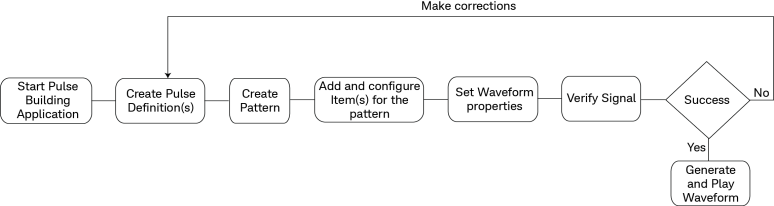
This section gives a brief overview of the steps used to create a signal using the Pulse Building GUI. Detailed instructions are given in the Pulse Building Examples topic. The following simplified flow diagram shows the process used to create and play a signal using the Pulse Building GUI.
Start the Pulse Building application. A default pulse named Pulse 1 is automatically created.
Configure pulse parameters in the Pulse Details section.
Go to the Pattern tab. A default pattern named Pattern 1 with Item 1 is automatically created.
Set pattern item parameters.
Create more items within the pattern, if needed.
Go to the Waveform tab and set waveform properties and select the pattern for which you want to generate the waveform.
Once the signal configuration is complete, you can use Verify Signal option to check if there are any problems in the configuration of pulses and patterns.
Click Generate to generate a waveform for the currently selected pattern and to play it on the instrument.
Each generated signal contains waveform and sequence data as well as settings for the signal generator. Many of the signal generator values may be updated by simply pressing the Generate button. Switching between patterns is accomplished by selecting the desired pattern from the pattern list and pressing Generate.
The waveform and sequence data downloaded to the signal generator's internal Arb is placed in volatile memory. The data may be copied to non-volatile memory for permanent storage. Use the instrument's save/recall feature to save the other instrument settings for this signal. When you want to play a previously stored waveform, load the waveform into volatile memory and recall the associated instrument state.
| Keysight Signal Generator |
Requirements |
|
M9484C VXG signal generator |
Firmware:
|