Select a command from the displayed menus to navigate to a description of the command.
 disposes the current settings and sets the software to its initial
state using the current hardware
configuration. The window name changes to
disposes the current settings and sets the software to its initial
state using the current hardware
configuration. The window name changes to  Untitled.
Rename and save the new setup as a settings (.scp) file (saving only the
software parameters), or as a Quick
Setup (saving the current hardware and software parameters).
Untitled.
Rename and save the new setup as a settings (.scp) file (saving only the
software parameters), or as a Quick
Setup (saving the current hardware and software parameters).
You must save the current software parameter settings before selecting > to prevent the loss of data.
 opens a saved settings (.scp) file.
Opening a settings file configures only the waveform data parameters for
use with the hardware configuration that was present when the settings
file was saved. To use a settings file with a different hardware configuration,
select Change Hardware
Settings, or Run System
Configuration Wizard to configure new hardware.
opens a saved settings (.scp) file.
Opening a settings file configures only the waveform data parameters for
use with the hardware configuration that was present when the settings
file was saved. To use a settings file with a different hardware configuration,
select Change Hardware
Settings, or Run System
Configuration Wizard to configure new hardware.
Use Quick Setups to open a saved settings file that includes the hardware connection and software settings.
 saves only waveform data settings to a specified
settings (.scp) file. Settings files contain function
setup information, but do not contain the hardware configuration data.
To save a settings file with a specific hardware configuration, select
Change Hardware Settings,
or Run System Configuration
Wizard to configure new hardware. When a file is saved it is added
to the top of the Most Recently Used Files list.
saves only waveform data settings to a specified
settings (.scp) file. Settings files contain function
setup information, but do not contain the hardware configuration data.
To save a settings file with a specific hardware configuration, select
Change Hardware Settings,
or Run System Configuration
Wizard to configure new hardware. When a file is saved it is added
to the top of the Most Recently Used Files list.
Use Quick Setups to save the current hardware configuration with your waveform setup.
The function setup information is saved as part of the settings file (*.scp). If the number of signal generators you connected doesn't match the one saved with the setup file, the software will revert to simulated mode. If the signal generator model you connected doesn't match the one saved with the setup file, the Instrument Model Number under the software tree view > will be changed to the one in the setup file.
: After recalling a setup file, click on > to verify that the instrument model is correct before proceeding.
saves an encrypted waveform file (with a .wfm file extension) to your PC. This waveform file can then be downloaded and played in other licensed instruments. If a waveform is configured, but has not been generated, this selection also generates the waveform. You can use a Web browser and the Web-enabled instrument interface to FTP a waveform file into a signal generator. This is a much easier alternative than using programming.
To download a saved waveform to a signal generator or other instrument, refer to that instrument's Programming Guide.
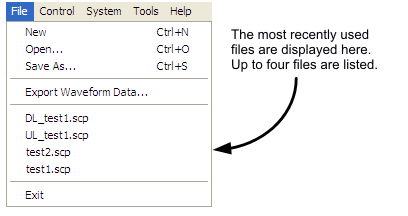
displays the four most recent settings files that were either opened with Open... or saved with Save as.... The settings file used most recently is added to the top of the list. Deleting a settings file does not immediately remove it from the list. Selecting a deleted settings file displays an error then removes the file from the list.
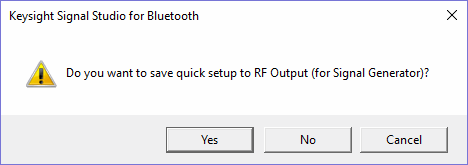
stops and closes the software. If you made any waveform setup changes,
a dialog box
is displayed asking if you want to save the changes as a quick setup before
exiting. The close button
performs the same function. You can always rename the quick setup later under the Quick Setups node.
To save any hardware parameter changes, you must use the Save As Quick Setup button. You are not prompted to save Hardware parameter changes when closing or exiting the software unless changes are also made to the Waveform Setup parameters.
 enables you
to generate a waveform. Use the
enables you
to generate a waveform. Use the  to check for waveform errors before downloading or exporting
the waveform.
to check for waveform errors before downloading or exporting
the waveform.
 enables you to generate and download
a waveform to the hardware.
enables you to generate and download
a waveform to the hardware.
When a power-sensitive DUT is connected to the signal generator, ensure that the RF power is off before downloading a waveform.
 sends the current signal generator configuration
to the appropriate instrument. This button updates all instrument parameters
if there are multiple instrument connections. An error message describing
the problem appears if the configuration is not received by the instrument.
sends the current signal generator configuration
to the appropriate instrument. This button updates all instrument parameters
if there are multiple instrument connections. An error message describing
the problem appears if the configuration is not received by the instrument.
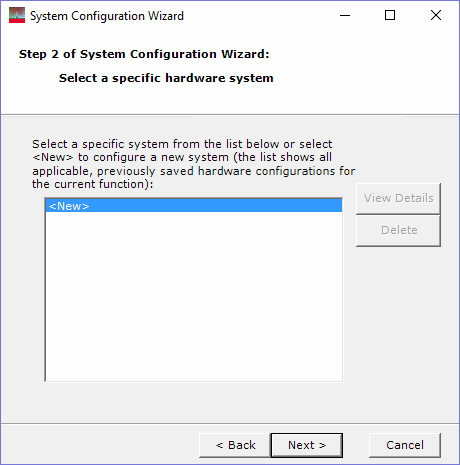
displays a list of saved hardware connections.
This menu choice opens the System Configuration
wizard,
where you can select a previously saved hardware configuration, or configure
and save a new hardware setup.
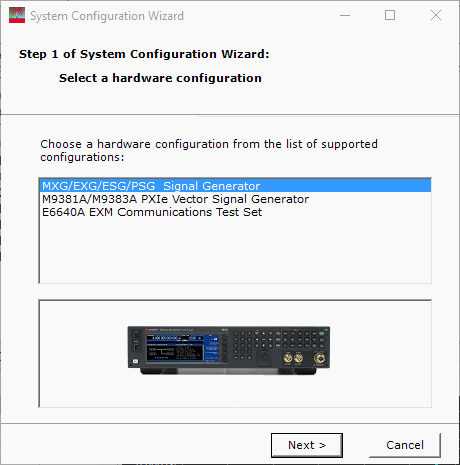
enables you to configure your system component connections and
save the hardware configuration for later use. Use
Run System Configuration wizard
to set up a new instrument connection, or use Quick Setups to save and change between complete
setups that include the hardware connection and software settings.
enables you to turn the Status Window on or off. The status window shows the results of a parameter check on the current configuration.
opens the following selection:
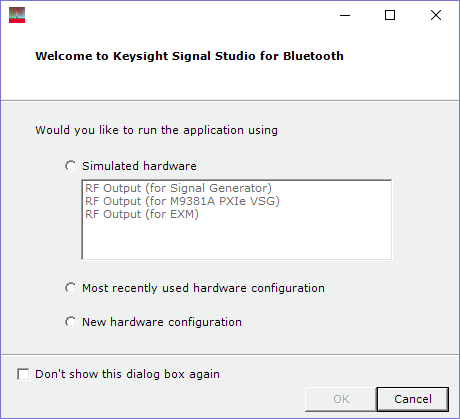
lets you enable or disable
the welcome dialog
display.
updates header information in legacy Signal Studio waveform files (*.wfm) so they can be used with N7606C-licensed instruments. Clicking this selection opens a file management window where you can select multiple waveform files at once. Click OK to begin the conversion. A progress bar is displayed. When complete, the converted waveform files appear in the same directory as the originals, keeping their same file names, but with "_new" appended to them. The original files remain unchanged.
selects the waveform configuration parameters for the Bluetooth BR+EDR standard.
selects the waveform configuration parameters for the Bluetooth low energy wireless technology standard.
selects the waveform configuration parameters for the Bluetooth Higher Data Throughput format.
opens the help system and displays the table of contents. Press F1 to do the same.
opens the help system and displays the search utility.
opens the API help system, including programming commands and descriptions.
opens the Keysight Software End-User License Agreement (EULA).
opens the Signal Studio web page, describing products, options, and bundles.