This procedure guides you through the settings to generate a real-time GNSS signal using the node and node on the software user interface (UI). To learn more about individual cell settings, refer to the UI descriptions.
While a scenario is playing, the settings in the node appear active and allow changes. But the changes will not take affect until the scenario is stopped and restarted (click or ). However the settings are active along with the properties in the node and effect the playing scenario in real-time.
Load a PXB GNSS configuration:
If you already have a GNSS configuration loaded on the PXB, skip the following substeps and proceed to Step 2.
Open the PXB Baseband Generator and Channel Emulator software.
Under Generate in the Configuration Browser, select either a single- or dual-channel configuration.
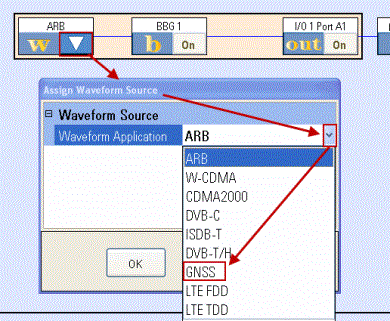
For each of the channels in the block diagram, click the drop-down arrow in the  waveform block, and in the dialog box that appears, use the drop-down menu to select (Global Navigation Satellite System). ARB on the waveform block changes to GNSS.
In the dialog box, click
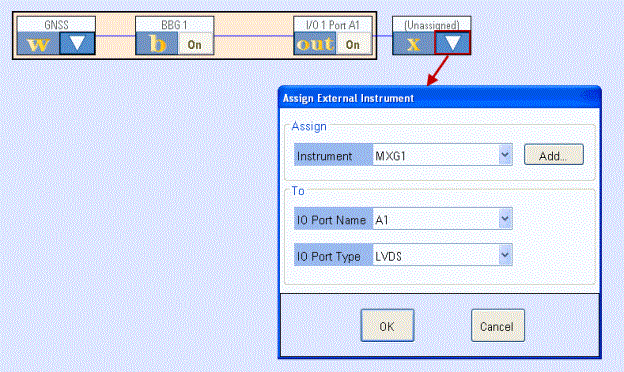
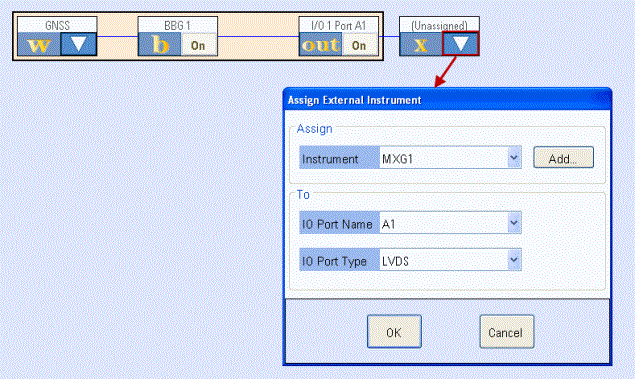
Assign an MXG/EXG/ESG signal generator to the output block
for each channel along with selecting the IO Port and IO Port Type.
In the dialog box, click
Click .
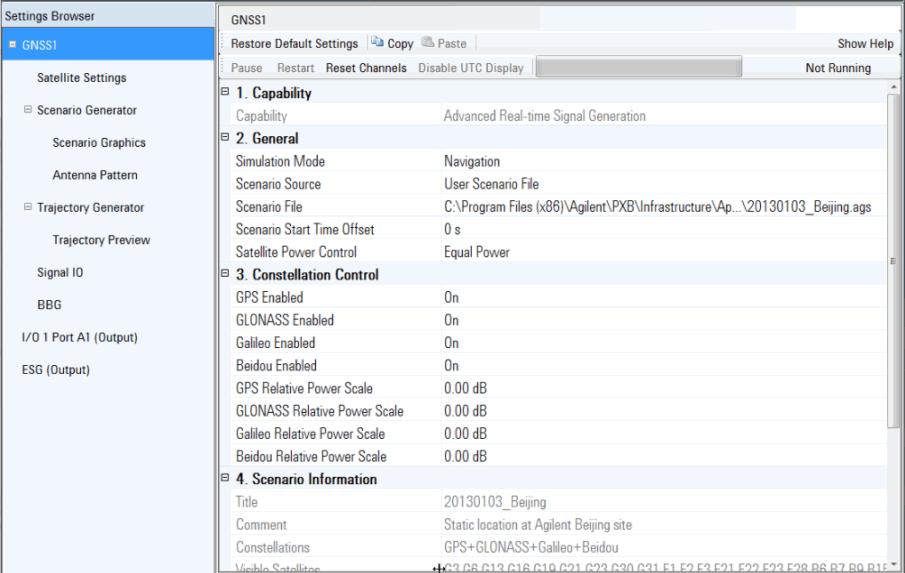
In the Settings Browser, click to see the GNSS settings.
View the cell and ensure that is the current selection. If not, click the cell, and use the drop-down arrow to display a menu from which you can select .
The selection enables a static GNSS signal that uses the scenario file to initialize the satellites. The user can then select the node to reconfigure the satellite properties to match the test needs.
Click the cell and ensure that is the current selection. If not, use the drop-down arrow menu to select .
The setting is available with only the Simulation Mode.
The selection enables the generation of a real-time signal based on the current scenario settings shown in the node. Since the signal is transmitted in real-time using the current scenario settings, there is no need for a scenario file.
Click the cell and use the dialog box launch icon to launch the dialog box to navigate to and select a scenario file.
The default scenario file is 20130103_Beijing.ags, which is a GPS+GLONASS scenario file. For information on the factory supplied scenario files and to see which files support a particular GNSS constellation, see the "Factory Supplied GNSS Files" topic.
The factory supplied scenario files are located at the following path: C:\Program Files\Agilent\PXB\Infrastructure\Applications\GNSS\Scenarios.
After loading a file, the scenario information appears in the section of the GNSS1 node.
Enter the , with the resolution of three seconds.
The start time offset indicates the starting position of scenario playback. When the Scenario Source is , a change to the offset does not provide an offset, but instead changes the Start Date Time set in the Scenario Generator node.
You can change the Start Time Offset during playback without stopping/restarting the scenario, but the change will have no effect until you stop the scenario and click either Restart.or .
is available only when is set to .
If the scenario file is using a GPS+GLONASS scenario and there is a need to modify whether to transmit both constellations, or to add a power offset to the GLONASS constellation, perform these setting either before playing the scenario or in real-time during the scenario file playback:
Typically these settings are used for constellation control during scenario playback.
In the cell, select either (default) or .
In the cell, select either (default) or .
If both cells are On, this means that you will be transmitting a combined GPS and GLONASS signal.
If GLONASS Enabled is set to , set the parameter.
This sets the offset power of the GLONASS constellation (for all GLONASS satellites) relative to the GPS constellation.
Select the signal pattern for marker outputs such as start for Marker 1, Pulse per second for Marker 3 and Pulse per millisecond for Marker 4. If desired, you can also route events to different marker outputs.
After the
configuration is complete,click the node to set various satellite parameters such as turning individual channels off or on in real-time
while the signal is playing. To change a channel’s status, click on the cell  .
.
Another setting to change in real-time is the relative power level for each satellite channel. The power offset is displayed to allow you to calculate individual satellite power based on the MXG/EXG/ESG amplitude power (individual satellite power = power offset + MXG/EXG/ESG amplitude setting).
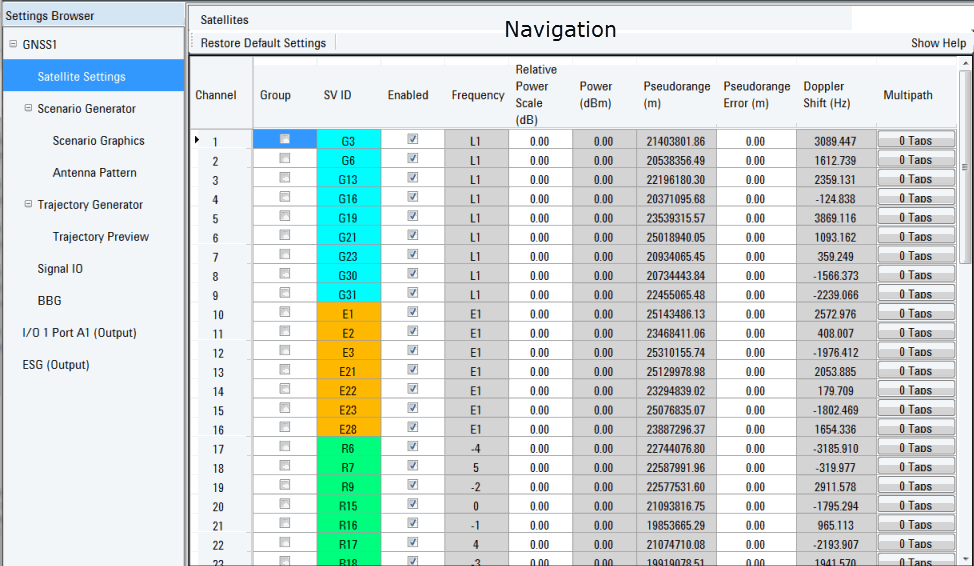
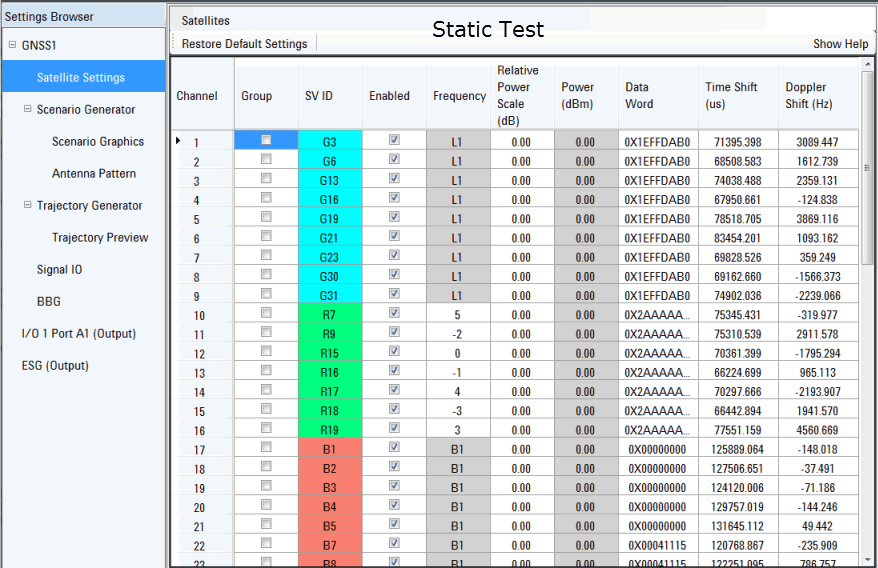
The available satellite settings vary depending on whether the Simulation Mode in the node is set to Navigation or Static Test .
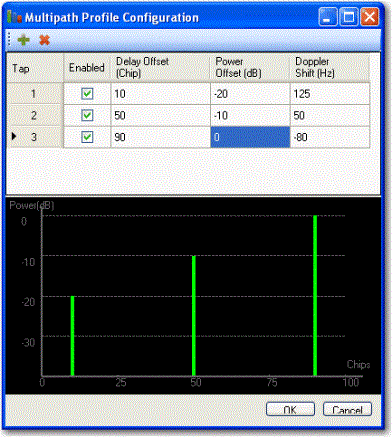
The mode of Satellite Settings includes a multipath setting for each satellite that is accessed by clicking the n button, which launches the dialog box.
There are two SV ID designations, Gn for GPS satellites and Rn for GLONASS satellites. In Navigation mode, the SV ID is set by the scenario file. In Static Test mode, you can assign SV IDs as needed.
In the Settings Browser, select , , or , depending on the type of signal generator assigned to the signal generator block.
In the Signal Generator view:
Set the frequency to 1.57542 GHz.
Set the amplitude to -120 dBm.
Set any other needed parameters.
If the signal generator is supplying an external 10 MHz reference to the PXB, configure the PXB to recognize the external reference:
In the menu bar, click > .
In the Clock and Trigger view, click the cell and use the drop-down arrow to display and select .
In the Settings Browser, click .
If needed, finish configuring the signal using the and nodes in the Settings Browser..
Click on  to begin playing the signal. The progress bar
displays the playback status.
to begin playing the signal. The progress bar
displays the playback status.
After clicking , it takes a few seconds for the PXB to run an IQ calibration and power calibration on the ESG or MXG signal generator before the signal starts playing back.
To skip the power calibration each time is clicked, set the power calibration setting to Manual. For more information, refer to the PXB User Interface, Menu Bar descriptions.
Click to quickly start the playback from the beginning of the scenario or from the , if one is entered, without waiting for the IQ and power calibration operations to complete.