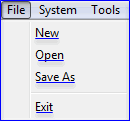
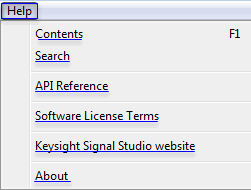
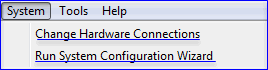
Select a command from the displayed menus to navigate to a description of the command.
|
|
|
|
|
|
 disposes the current settings and sets the software to its initial
state using the current hardware
configuration. The window name changes to
disposes the current settings and sets the software to its initial
state using the current hardware
configuration. The window name changes to  Untitled.
Rename and save the new setup as a settings (.scp) file (saving only the
software parameters), or as a Quick
Setup (saving the current hardware and software parameters).
Untitled.
Rename and save the new setup as a settings (.scp) file (saving only the
software parameters), or as a Quick
Setup (saving the current hardware and software parameters).
You must save the current software parameter settings before selecting > to prevent the loss of data.
 opens a saved settings (.scp) file.
Opening a settings file configures only the waveform data parameters for
use with the hardware configuration that was present when the settings
file was saved. To use a settings file with a different hardware configuration,
select Change Hardware
Settings, or Run System
Configuration Wizard to configure new hardware.
opens a saved settings (.scp) file.
Opening a settings file configures only the waveform data parameters for
use with the hardware configuration that was present when the settings
file was saved. To use a settings file with a different hardware configuration,
select Change Hardware
Settings, or Run System
Configuration Wizard to configure new hardware.
 saves only waveform data settings to a specified
settings (.scp) file. Settings files contain function
setup information, but do not contain the hardware configuration data.
To save a settings file with a specific hardware configuration, select
Change Hardware Settings,
or Run System Configuration
Wizard to configure new hardware. When a file is saved it is added
to the top of the Most Recently Used Files list.
saves only waveform data settings to a specified
settings (.scp) file. Settings files contain function
setup information, but do not contain the hardware configuration data.
To save a settings file with a specific hardware configuration, select
Change Hardware Settings,
or Run System Configuration
Wizard to configure new hardware. When a file is saved it is added
to the top of the Most Recently Used Files list.
Use Quick Setups to save the current hardware configuration with your waveform setup.
The function setup information is saved as part of the settings file (*.scp). If the number of signal generators you connected doesn't match the one saved with the setup file, the software will revert to simulated mode. If the signal generator model you connected doesn't match the one saved with the setup file, the Instrument Model Number under the software tree view > will be changed to the one in the setup file.
: After recalling a setup file, click on > to verify that the instrument model is correct before proceeding.
stops and closes the software. If you made any waveform setup changes,
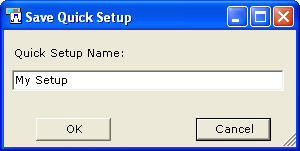
a dialog box
is displayed asking if you want to save the changes as a quick setup before
exiting. The close button
performs the same function.
To save any hardware parameter changes, you must use the Save As Quick Setup button. You are not prompted to save Hardware parameter changes when closing or exiting the software unless changes are also made to the Waveform Setup parameters.
displays a list of saved hardware connections.
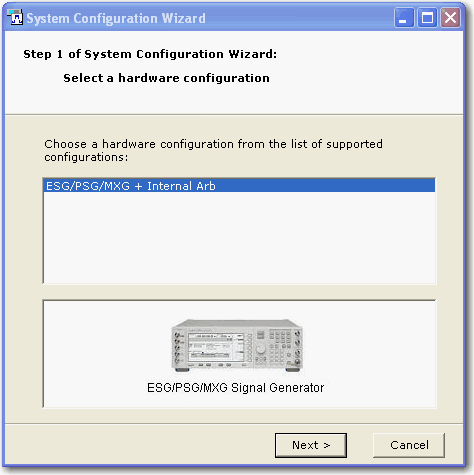
This menu choice opens the System Configuration
wizard,
where you can select a previously saved hardware configuration, or configure
and save a new hardware setup.
enables you to configure your system component connections and save the hardware configuration for later use. Use Run System Configuration wizard to set up a new instrument connection, or use Quick Setups to save and change between complete setups that include the hardware connection and software settings.
The Tools menu includes the following two sub-menus:
: There is only one item under Options.
lets you to enable or disable the welcome dialog display.
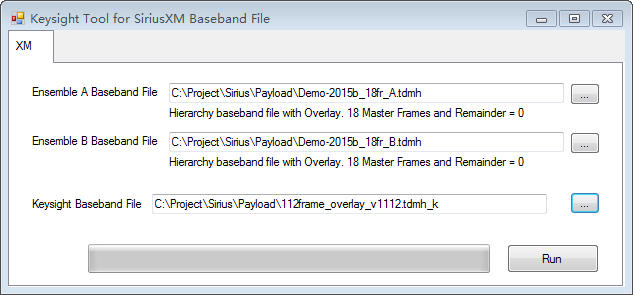
allows you to select the input file provided by SiriusXM. The file extension can be .tdmh or .tdm. The file .tdmh contains overlay information and .tdm files contains baselayer only.
opens the Help system and displays the table of contents.
opens the Help system and displays the table of contents.
opens the Help system and displays the Index utility.
opens the Help system and displays the search utility.
displays the version and release date of the software.
displays the API Reference help.
displays thesoftware license terms and conditions.