Step 5 - Testing the Equipment Connections
Installation Steps: 1 2 3 4 5
-
Turn on the instrument and the computer.
-
Start the Signal Studio software.
-
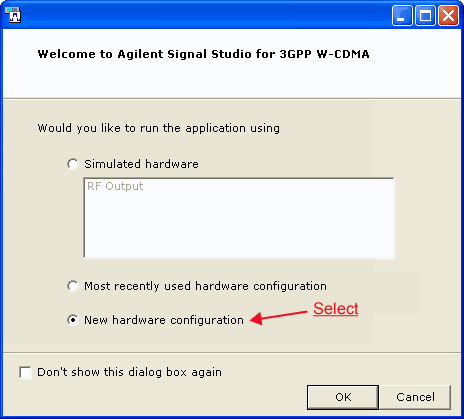
Establish communications between the software and the instrument by first selecting New hardware configuration in the Welcome to Agilent Signal Studio for 3GPP W-CDMA dialog box (System Configuration Wizard) that appears.
-
Select OK and follow the remaining prompts. (Be prepared to enter the instrument's IP/GPIB address.)
-
If you are running Signal Studio on the PXB, use “localhost” in the Hostname/IP Address field in Step 4 of the System Configuration Wizard.
-
If you are running Signal Studio on a PC connected to the PXB, use the PXB's address (LAN/GPIB) or hostname (LAN only) :
-
hostname: click System > Product Information and view the Machine Name row
-
IP address: click System > Product Information and view the IP Address row
-
GPIB address: click System > GPIB
-
If you are running Signal Studio on a PC connected to a signal generator, refer to the following table to locate the instrument's address (LAN/GPIB) or hostname (LAN only):
|
Connection
|
Signal Generator
|
Key Path
|
|
LAN
|
ESG
PSG
|
Utility > GPIB/RS-232 LAN > LAN Setup
|
|
GPIB
|
ESG
PSG
|
Utility > GPIB/RS-232 LAN > GPIB Address
|
|
If the connection fails or for help with error messages, refer to Troubleshooting.
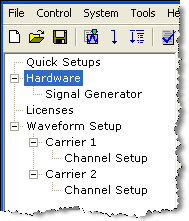
After making the connection, you can view the instrument's information by selecting Hardware in the tree view
-
Install the software license:
Related Topic
Run Self-test
Test IO Connections