Before installing the license file, save a backup copy in a safe place.
|
|
Before installing the license file, save a backup copy in a safe place. |
To enable your PSG signal generator to play waveforms generated by the Signal Studio software, you must install a license file in the signal generator. Agilent sends you the license file by email when you redeem your license. To install the license file in your signal generator, follow the procedure below for your connection type.
For LAN connection between PC and signal generator, see Using Agilent License Manager.
For GPIB connection between PC and signal generator, see Using GPIB and SCPI Commands.
The Agilent License Manager software requires a LAN connection between the PC on which it is installed and the PSG signal generator. If your equipment cannot be connected through a LAN, install the license using a GPIB connection and SCPI commands.
If you do not have Agilent License Manager installed on your PC, you can download it at no charge from the following website: http://www.agilent.com/find/licensemanager.
Establish a LAN connection between the PC running the Agilent License Manager software and the PSG signal generator as described in Equipment Setup and Connection.
Copy the license file to your PC. The license file has a .lic extension, and is attached to the email message you received when you redeemed your license (see Getting a License). In this example, the license file E8267D-US70000654.lic is placed in a folder named E8267D.
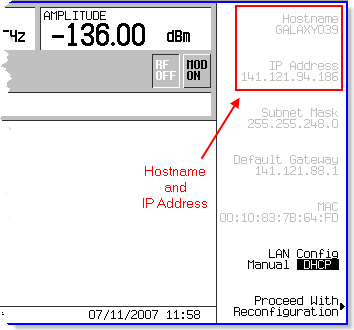
Obtain the hostname or IP address of your signal generator. Press Utility > GPIB/RS-232 LAN > LAN Setup on the signal generator front panel. The hostname and IP address are displayed as shown below.
On your PC, start the Agilent License Manager software. Click Start > All Programs > Agilent License Manager > Agilent License Manager.
In the Agilent License Manager main window, click File > Connect... to open the Connect to Device dialog box.
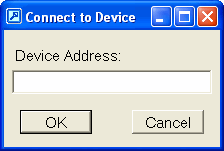
In the Device Address field, enter either the hostname or the IP address of the signal generator obtained in Step 4.
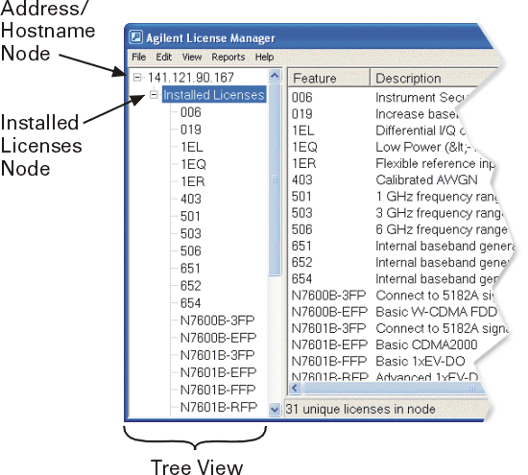
Click OK. The instrument address and its installed licenses appear in the tree view (left pane). The right pane displays additional information for each license. (See the drop-down figure.)
Click File > Install License(s)... to open the Install License File(s) dialog box.
Use the Install License File(s) dialog box to navigate to the location where you placed the license file (*.lic) in Step 3.
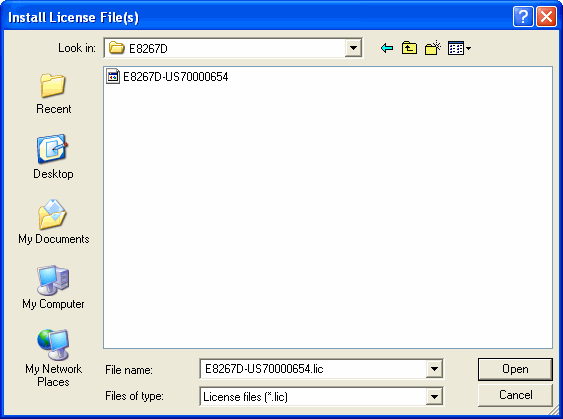
Select the desired license file and click Open.
Wait for a message to appear, informing you that the license has been successfully installed in the signal generator.
|
|
Refer to the Agilent License Manager online help for more information about using the software. |
If you are unable to establish a LAN connection between your PC and your PSG signal generator, you can manually install the license using a GPIB or RS-232 connection and the Agilent Connection Expert software (or another command line tool).
|
|
This method can be used for permanent and time-based licenses only. To install or move a transportable license, you must use the Agilent License Manager software on a PC connected to your PSG through a LAN. |
Copy the license file to your PC. The license file is attached to the email message you received when you redeemed your license (see Getting a License).
On your PC, start the Agilent Connection Expert software. Click Start > All Programs > Agilent IO Libraries Suite > Agilent Connection Expert. If you do not have Agilent IO Libraries Suite installed on your PC, you can download it from the following website: http://www.agilent.com/find/iolib.
|
|
If you are not using Agilent Connection Expert, start your command line tool and proceed to Step 6. |
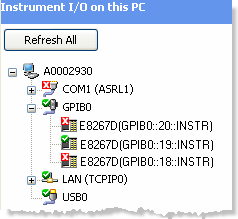
In the Instrument IO on this PC tree view, select the E8267D PSG signal generator connected via GPIB.
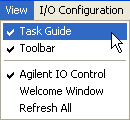
If the Task Guide view is not enabled, select View > Task Guide.
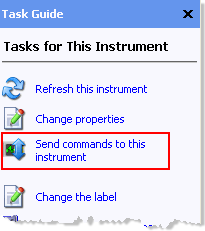
In the Tasks for This Instrument column, click Send Commands to this Instrument to open the Agilent Interactive IO window.
Open the license file you copied to your PC in Step 1 using Microsoft® Notepad, or a similar text editor that creates plain, ASCII text files. Do not use a word processor such as Microsoft® Word.
Using the text editor, select and copy the license file text.
Type the following SCPI command into the Command: field in the Agilent Interactive IO window, pasting the license file text you copied in Step 7 at the <license_line> location in the command.
:SYST:LIC:INST"<license_line>"
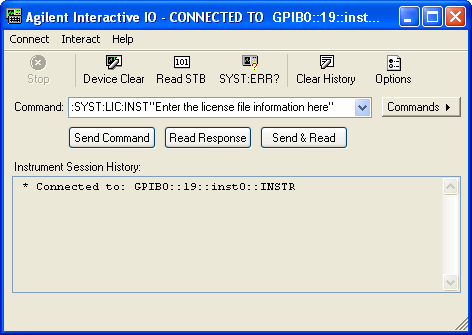
Click the Send Command button to send the command, or the Send & Read button to send the command and read the response in the Instrument Session History displayed at the bottom of the window.