SCPI Recorder
The SCPI recorder is a powerful tool that enables you to quickly discover, record, and learn about the commands needed to perform almost any task remotely. When you've recorded your commands, you can play them back and save them as a macro. Click REC and the recorder performs the following tasks:
- Captures most setting changes (mouse clicks or keyboard presses).
- Translates the setting into an equivalent SCPI remote-programming command.
- Records the SCPI command within the dialog box.
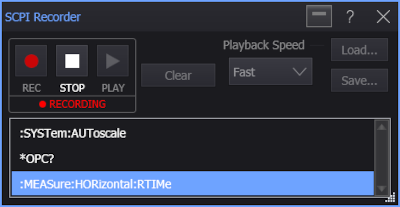
 Click REC to begin recording. The button turns red to alert you that any mouse clicks or keyboard presses will be recorded. When you have captured all your commands, click the record button again to end the recording.
 During recording, click STOP to end the recording.
 Click Play to play back your recording and observe the commands as they are executed. Playback always starts at the highlighted command, which is shown in a blue box as seen in the above figure. Click any command in the dialog box to highlight that command. Use Playback Speed to control the rate that the commands are played: Slow, Normal, or Fast.
Select the Playback Speed depending on whether you want to quickly make Infiniium settings or if you want to watch the commands as they are executed..
Click Clear to delete your recorded commands from the dialog box.
Click Save... to save your recorded commands into a script file (.scpi) that can be reloaded into the dialog box at any time by clicking Load.... The default user data folder for saving script files is \SCPI Scripts. SCPI script file are ASCII files, so you can edit them as well as create new script files using a text editor. SCPI scripts are often small snippets of code that may depend on Infiniium being set to very specific settings. As a result, your scripts may not work in the same manner in different situations. This can be alleviated by starting your scripts with commands that configure starting conditions. For example, the first few lines in the following code configures Infiniium from a default setup before making a rise time measurement. To include comments in your scripts, precede the comments with two forward-slash characters as shown in this example:
:SYSTem:DEFault
:SYSTem:AUToscale
*OPC?
:MEASure:HORizontal:RTIMe  // Measure rise time
:MEASure:HORizontal:RTIMe?
When Infiniium is installed, a registry entry is created to associate script files (.scpi) with Notepad. This makes it easier to open script files.