Vertical Scale and Offset
You can change the vertical scale and offset of Channels, Waveform Memories, Color-Grade/Gray Scale Memories, and Functions. The waveform's offset value represents an absolute value on the display. Vertical scale changes the sensitivity and sets the volts-per-division scale. The vertical expansion and contraction is about the center offset value of the display and not at the ground reference.
To make coarse adjustments, the instrument uses a scheme of settings referred to as the 1-2-5 sequence. This sequence is used for making quick adjustments to the vertical scale of a waveform. The 1-2-5 sequence gives the instrument the ability to assign whole, easy-to-interpret numbers (values) to the volts (or watts) per division. Using this sequence allows you to take a quick glance at the waveform on the display when you are not concerned about specific settings for vertical scale values.
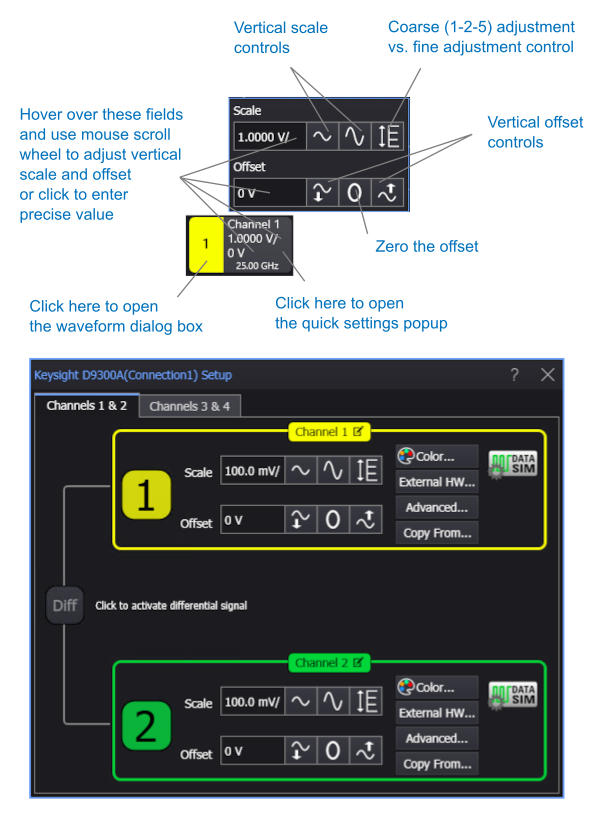
The following paragraphs describe several methods that you can use to adjust scale and offset.
Scroll-Wheel Mouse
If you have a scroll-wheel mouse:
- Hover the mouse pointer over the scale or offset value on a waveform badge or in the popup or waveform dialog box fields.
- Turn the mouse wheel to adjust scale or offset.

Scale and Offset Adjustment Buttons
In the quick settings popup, or in the waveform setup dialog box, click on the scale and offset adjustment buttons.
Drag the Waveform Offset Indicator
You can quickly change a waveform's vertical offset by dragging its offset marker on the left side of the grid up or down.
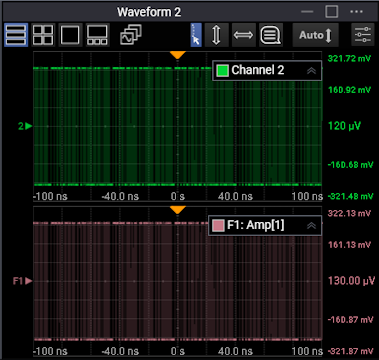
The offset marker has the same color as the associated waveform. The offset marker is the waveform's 0V level. Each waveform has its own marker.
The offset value is the grid's vertical center relative to the waveform's (0V) level.
During an Auto Scale, an offset is applied to vertically center the signal. The offset changes the vertical position of the waveform on the display screen without modifying the waveform itself.