Color-Grade/Gray Scale Memory
Use the Color Grade-Gray Scale Memories dialog box to load an eye, color-grade, or gray scale waveform into any of eight available memories. Data can also be imported from .csv or .cgsi files.
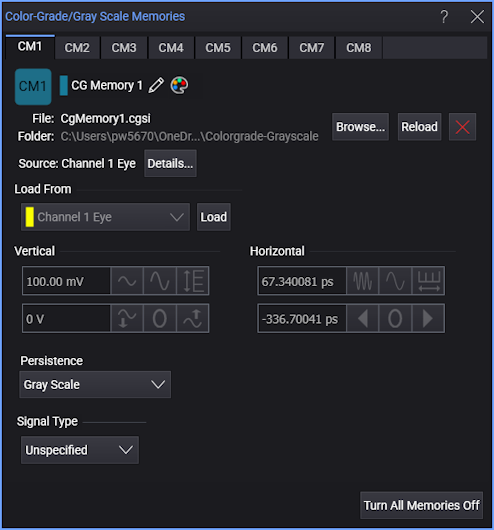
These memories are called Color Grade-Gray Scale Memory, because the color grade or gray scale persistence modes are used to display the data on the screen. The memory is a database that contains all the eye waveform data for eye measurements, histograms, and mask tests. This memory can store eye diagrams and the pulse waveform jitter measurement.
The database cannot be imported into an external database application.
Loading Color-Grade/Gray Scale Memory
To load a previously saved color grade-gray scale file, which has an .csv or .cgsi extension, click Browse... and select the file.
To load one of the currently enabled waveforms, select it from the Load From drop-down list and click Load. The following types of waveforms can be loaded into a Color-Grade/Gray Scale memory:
- Input channel or math function when Waveform Persistence is set to Gray Scale or Color Grade. See Display Setup (Graticule tab).
- Eye memory
Click the red "X" button to clear (erase) data from a color grade memory.
Click the "CM" button to display or hide the memory waveform. This button is hidden until data has been loaded into a memory. You can simultaneously display all eight waveform memories.
Click Turn All Memories Off to turn the display of each Color-Grade/Gray Scale memory off.
If you are using a display persistence mode other than color grade or gray scale, enabling color grade-gray scale memory will set the persistence to gray scale.
Persistence
A Color-Grade/Gray Scale memory can be displayed with Gray Scale or Color Grade persistence. The color options for either selection are specified in the Display Setup (Appearance tab) dialog box.
Signal Type
In Infiniium, three signal types can be placed in color-grade/gray scale memory: Unspecified, NRZ, PAM3, or PAM4. Use this field to specify the signal type. The Signal Type settings are coupled to the identical settings that are in the Signal Type Setup dialog box. You can make these selections in either location.
Custom Waveform User Names
Waveforms displayed in tiled, stacked, or tab tile views include a waveform label (see Views and Panels). You can change the waveform's labels to your own more meaningful user name by clicking the Name button or by clicking the  icon that appears in the waveform label at the top of this dialog box. See Custom Waveform Names.
Vertical and Horizontal Scale Fields
The Vertical and Horizontal scale information for the selected memory appears in this dialog box.
Waveform Color
Click the  icon to display the waveform in one of 48 colors.

Memory State Indicators
A quick glance at the dialog box tabs shows you the state of each of the eight available memories. As shown in the following table and in the picture above, tabs can be text only or text with a gray or colored button. You can click on the gray and colored tab buttons to display or hide the waveform on the display.
| Button | Description | Example in Picture |
|---|---|---|

|
Colored button indicates that the waveform is loaded and displayed | Color Grade Memory 1 |

|
Grey button indicates that the waveform is loaded but not displayed | Color Grade Memory 2 |
| none | Missing button indicates that memory has no waveform loaded | Color Grade Memory 3 |
The eye memories are non-volatile because they are stored on the hard disk. These memories are restored each time the instrument is turned on.
Unlike a channel input, color grade-gray scale memory is not cleared any of the following occurs:
- Clear Display button pressed
- Operating mode changed
- Timebase changed
- Vertical scale and offset changed
- Trigger level or source changed
- Plug-in module removed or inserted
- Power cycled