PAM3 Rise/Fall Thresholds
For NRZ (non-return-to-zero) signals, General and Rise/Fall threshold settings are independent. However, for PAM3 signals, both PAM3 General and PAM3 Rise/Fall threshold settings are used, and both must be set appropriately.
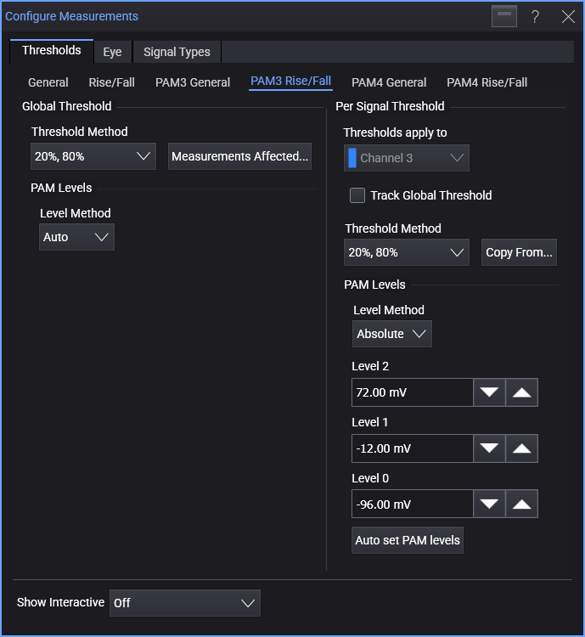
With the measurements that use these thresholds, middle thresholds are not used, so there is no ± Hysteresis threshold method.
As with General thresholds, you can:
- Specify the PAM3 global threshold (and signal level) definitions.
- Specify unique PAM3 threshold (and signal level) definitions for each signal.
For each signal:
-
Select the signal under Thresholds apply to.
For a real-time eye made from another waveform in the system, select the original waveform. For a real-time eye in a color grade memory, select the color grade memory.
-
Select Track Global Threshold to use the global threshold (and top-base) definitions for the selected signal.
Or, clear the Track Global Threshold selection to specify unique threshold (and top-base) definitions for the selected signal. Another set of threshold (and top-base) definition controls become available.
When specifying unique threshold definitions for a selected signal, you can click Copy From... to copy the threshold definitions that another signal uses. If the other signal is tracking the global threshold, the selected signal will then switch to tracking the global threshold too.
-
Select the Threshold Method as either 20%, 80% or 10%, 90%.
-
Next, you define the PAM levels. For the Level Method, you can select:
-
Auto — The PAM levels are automatically determined.
-
Absolute — You can enter level values in the Level 2, Level 1, and Level 0 fields.
You can click Auto set PAM levels to cause a vertical histogram measurement to be run to determine the levels automatically. These values are copied into the fields above where you can make adjustments.
-
Measurements Affected
To see a list of the measurements affected by the PAM3 rise/fall threshold and signal level definitions, click Measurements Affected....