Opening an Eye
This example demonstrates how signal processing can be used to open an eye. It uses a simulated instrument to create a simulated signal. You can use a real data signal if you prefer. The procedure uses a simulated 9.95328 GBd PRBS data signal.
Configuring a Simulated Signal with a Closed Eye
- Select the
 button that is displayed to the right of the channel buttons along the bottom of the display.
 - In the Signal Management dialog box, select the
 button to the right of the analog channels.
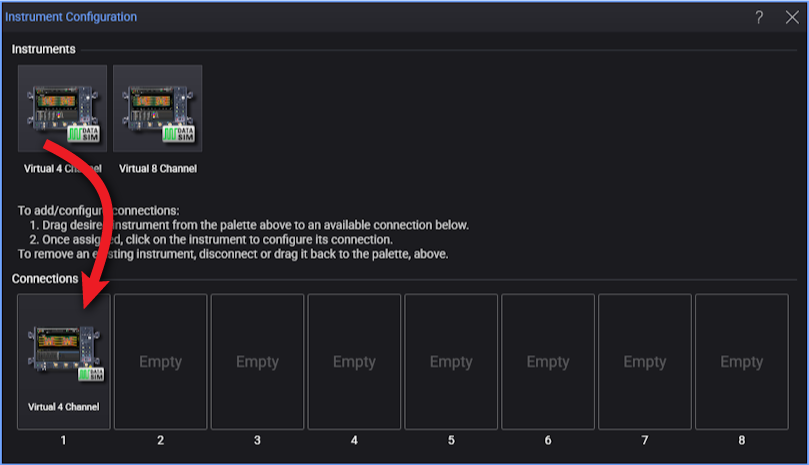
 - Drag a virtual oscilloscope down into one of the connections at the bottom of the dialog box.
- Close the dialog box.
- Click the channel badge to open the channel setup dialog box; then, click the Data Sim button.
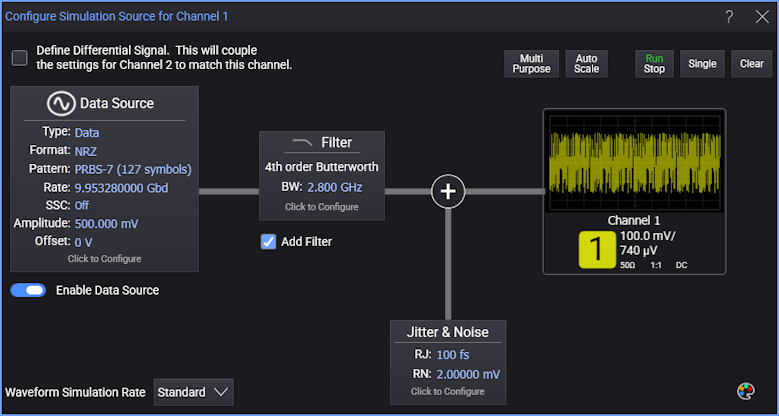
- In the Configure Simulation Source for Channel dialog box, define a 9.95328 GBd PRBS 7-1 (127 symbols) signal. In the Filter field, select 4th order Butterworth. Enter a Filter Bandwidth of 2.8 GHz.
- Close the dialog boxes.
Turn on the Real-Time Eye
- Click Auto Scale in the menu bar. Or, use the keyboard shortcut Ctrl-Alt A.
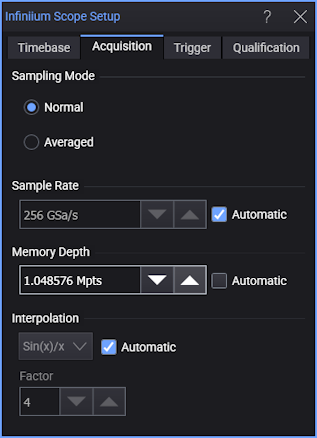
- Choose Setup > Acquisition... and set a manual memory depth of about 1 Mpts.
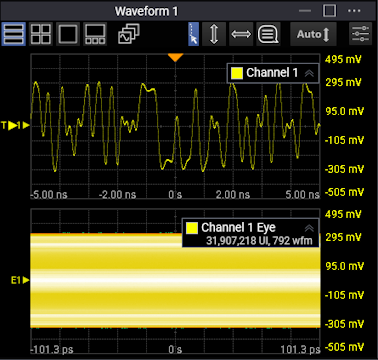
- The displayed signal should have a closed eye diagram. In the remaining steps, we'll use signal processing to open this severely closed eye.
Apply Signal Processing
- Click the
 button on the lower-right corner of the screen.
 - In the Functions dialog box's Operators Pane, click the Signal Processing button.
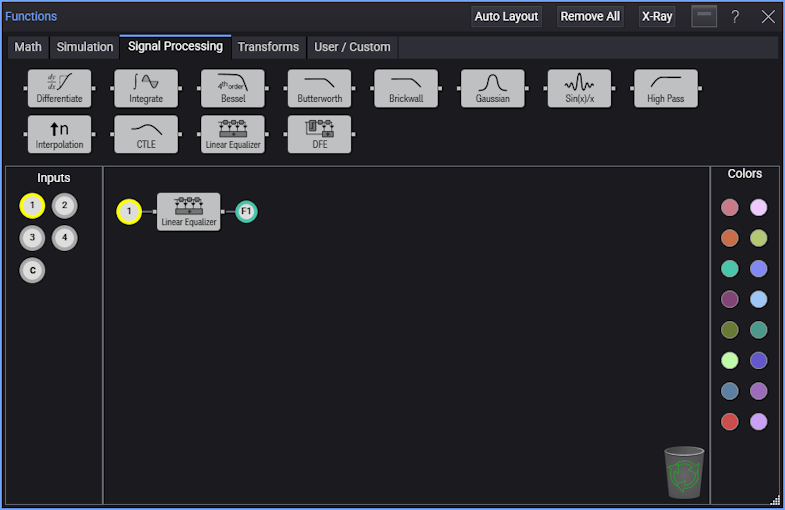
- Drag the Linear Equalizer operator onto the construction area.
- Drag a function color icon over the output of the Linear Equalizer operator as shown in this figure. If not already placed, drag the channel 1 icon to the input of the operator. In this example, the function color icon determines the color of the displayed output waveform.
- In the signal processing diagram, click on the Linear Equalizer operator to open the Equalizer Setup dialog box.
- Minimize the Functions dialog box so that only the Infiniium's main display and the Equalizer Setup dialog box are visible. This will let you view changes to the eye diagram as you change the linear equalizer's settings.
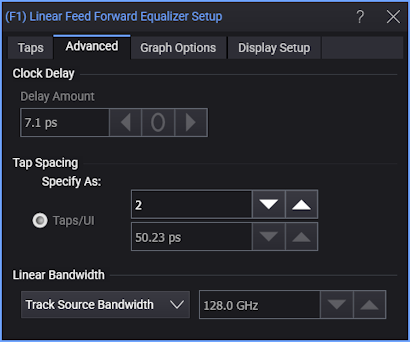
- In the Equalizer Setup dialog box, select the Advanced tab to show the advanced settings.
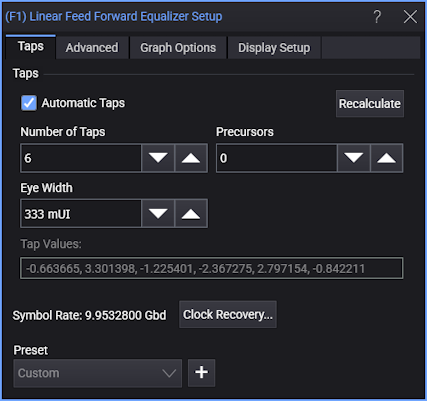
- In the Taps tab, confirm that Automatic Taps is selected. Click Recalculate to update the automatic settings.
- Experiment changing the Number of Taps, Precursors, and Taps/UI fields to see how they affect the eye diagram.
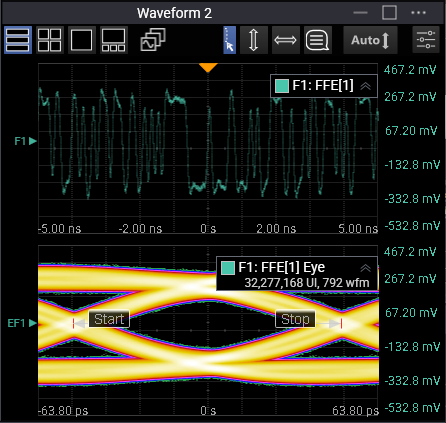
- The following settings produced the opened eye diagram shown in this figure. The input waveform is yellow and the output waveform is green.
- Number of Taps: 6
- Precursors: 0
- Taps/UI 2