Configuring Simulated Instruments
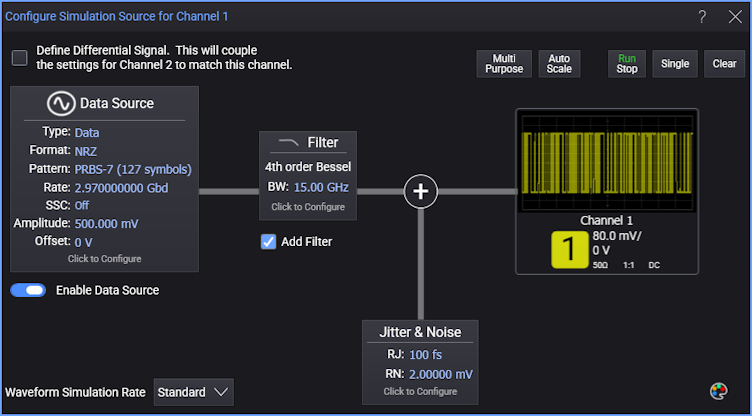
Use the Configure Simulation Source dialog box to configure a simulated waveform.
In this dialog box:
- Click the Data Source block to select the waveform type and symbol rate.
- Click the Filter block to add filtering.
- Click the Jitter & Noise block to add jitter and noise.
To Display a Simulated Waveform
-
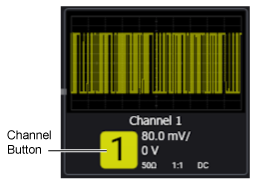
Click the channel button so that it shows the color assigned to the waveform.
-
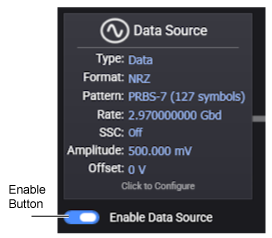
Select the Enable Data Source option to turn on the waveform.
- If the Filter block is not displayed in this dialog box, select Add Filter. After configuring your simulated waveform, you can quickly turn the channels on and off using the Signals palette or channel buttons.
Differential Electrical Signals
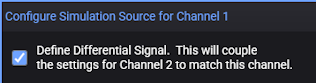
When configuring a channel on a simulated oscilloscope, the additional Define Differential Signal check box will be displayed, as shown in this picture. Select this check box if you want channel 1 and 2 to be differential. All changes that you enter for waveform 1 will be automatically entered for waveform 2.
Waveform Simulation Rate

Use Waveform Simulation Rate in the lower-left corner of the dialog box to select the amount of CPU usage devoted to data simulation: Low, Standard, or High. The default setting is Standard. Adjusting this setting can affect the performance of Infiniium and any concurrently running applications.
Waveform Color
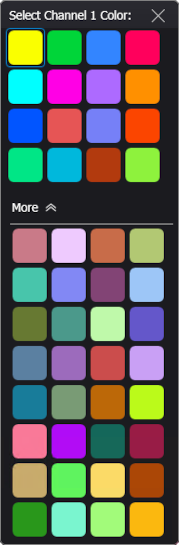
Click the  icon in the lower-right corner of the dialog box to display the waveform in one of 16 colors.