SNDR Operator
 The SNDR operator lets you display pattern average, Linear Fit Pulse Response, step response, pulse corrected pattern average, or pulse corrected error SNDR function waveforms (and specify their scaling).
To display an SNDR function waveform:
- Open the Math palette.
- From the User/Custom operators group, drag the SNDR operator onto the palette.
- Drag to the SNDR operator input the waveform on which the clock is being (or will be) recovered.
- Drag one of the function colors to the SNDR operator's function output.
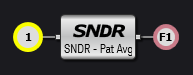
-
Click the SNDR operator to open the SNDR Waveform Setup dialog box.
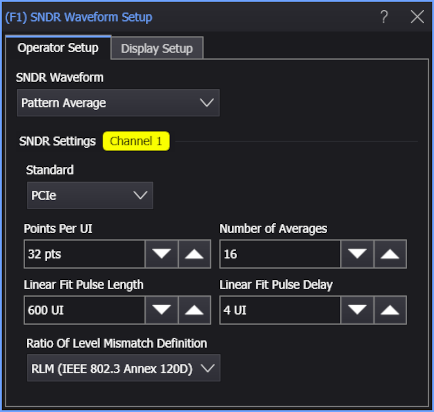
In the Operator Setup tab, use the SNDR Waveform control to select the waveform to display:
-
Pattern Average — This is the source input waveform with the pattern averaging and points-per-UI linear fit math parameters applied.
-
Linear Fit Pulse Response — This is the (matrix) math computed linear fit pulse response p(k).
-
Step Response — This is the step response derived from the linear fit pulse response.
-
Pulse Corrected Pattern Average — This is the Pattern Average waveform with the linear fit pulse correction applied.
-
Pulse Corrected Error — This is the (matrix) math computed linear fit error e(k) waveform.
The SNDR Settings controls are the same ones you see in the SNDR measurement setup dialog box (see SNDR). Changing one of the settings here will also change it there.
-
-
In the Display Setup tab, you can specify the math function's vertical and horizontal scaling.
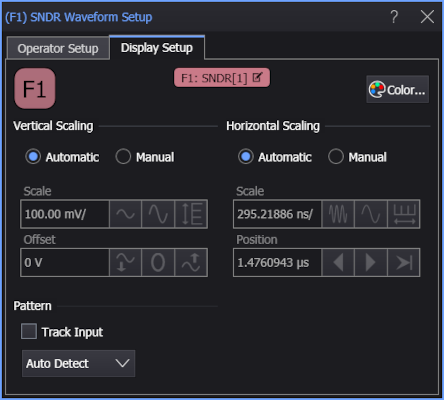
For the Pulse Corrected Error function waveform, only Vertical scaling applies.
- Close the dialog box and hide the Math palette.
The SNDR waveform(s) appear in the Waveform window like any other math function waveform.
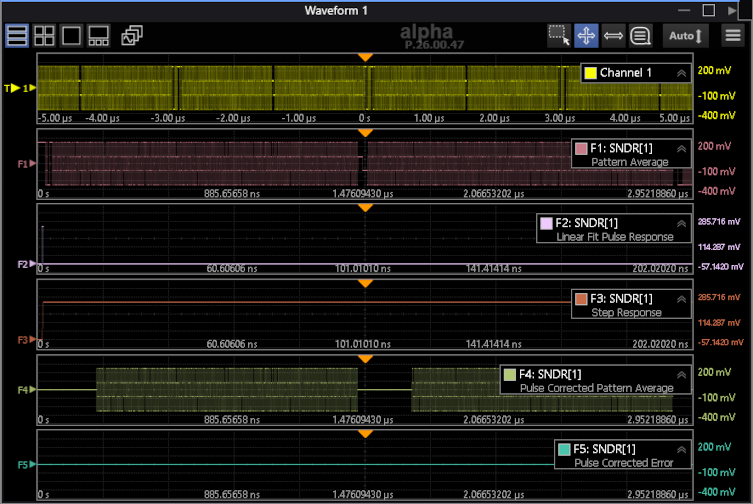
With SNDR waveforms, you can perform measurements and apply other math functions to the waveform just like you can with other waveforms.