Gating Operator
 The Gating operator lets you extract part of a waveform within a region as a separate function waveform.
In order to use the Gating operator, at least one region must be enabled for the waveform source that is the input to the function (see Regions).
To set up a Gating function:
- Open the Math palette.
- From the User/Custom operators group, drag the Gating operator onto the palette.
- Drag to the Gating operator input the waveform on which the measurement is being (or will be) made.
- Drag one of the function colors to the Gating operator's function output.
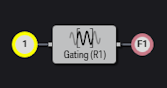
- Click the Gating operator to open the Gating Setup dialog box.
- In the Operator Setup tab, select the region that defines the portion of the input waveform that is to be extracted.
You may need to click Regions... to set up or enable a region that can be selected. For more information on setting up regions, see Regions.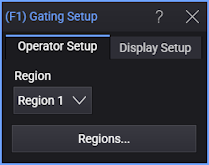
- In the Display Setup tab, you can specify the math function's vertical and horizontal scaling.
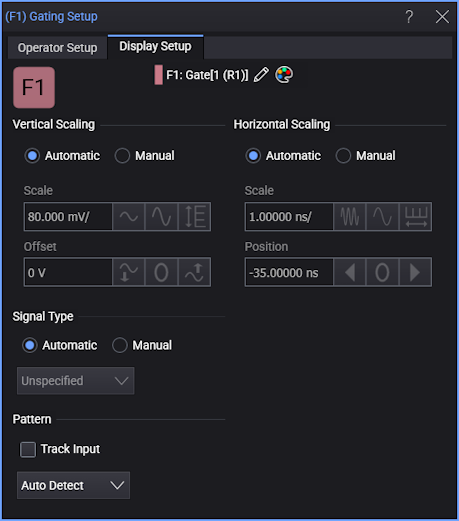
For gating function waveform scaling, a one-time tracking of the source waveform (for the X axis) and measurement (for the Y axis) can be performed. This can happen when an auto-scale is performed or when changes to the analysis occur.
- Close the dialog box and hide the Math palette.
The Gate waveform appears in the Waveform window.
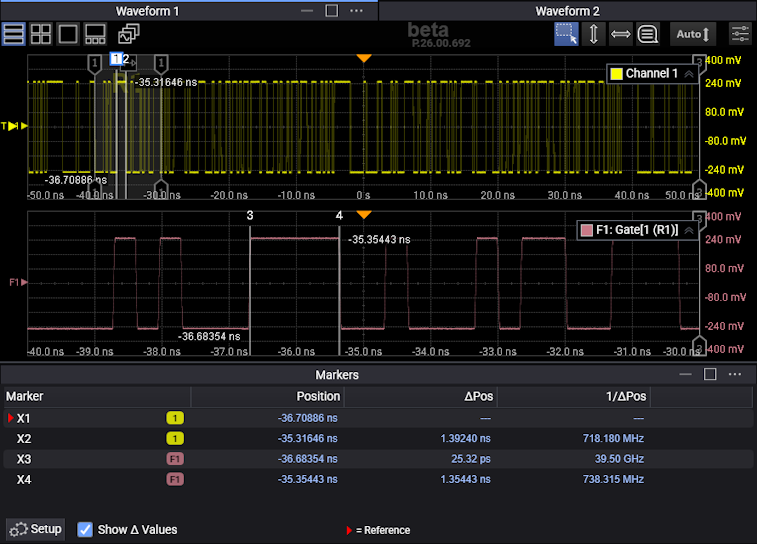
With gated waveforms, you can perform measurements and apply other math functions to the waveform just like you can with other waveforms.