Save Screen Image After Limit
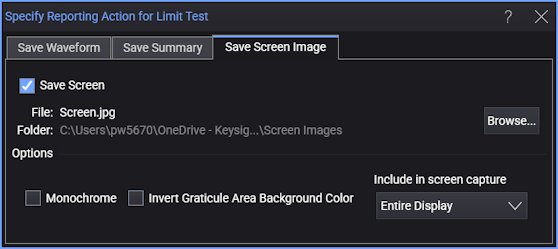
In the "Specify Report Action for Limit Test" dialog box, the Save Screen Image tab lets you save a screen capture for a limit test.
The screen image lets you see what the waveform looked like when the limit test stopped.
-
Save Screen — Enables or disables screen image saving.
-
Destination for <Waveform Source> — For each waveform source, select Off (not saved), Disk (saved to disk), or Memory (saved to waveform memory).
A waveform memory can contain only one waveform at a time. Use the waveform memory option when you are looking for only one failure during the limit test. You can specify a different destination for each waveform source. For example, you can save channel 1 to an external memory device and channel 2 to a memory.
-
Set All Destinations to Off — Selects Off for all waveform sources.
-
Destination Memory — When Memory is selected, this drop-down list lets you select the waveform memory.
-
Browse... — Opens a dialog box where you can specify the name of the file to which the screen image is saved.
The file format choices are the same as when manually saving a screen image. See Save Screen Image Files.
-
Monochrome — Saves the screen as a black and white image.
-
Invert Graticule Area Background Color — Saves the image file's background color as white (the original color is black). The waveform colors remain unchanged. This option is especially useful when printing the waveform. The background of the printed image will be white; the waveform color will vary depending on the printer available (black and white, or color).
-
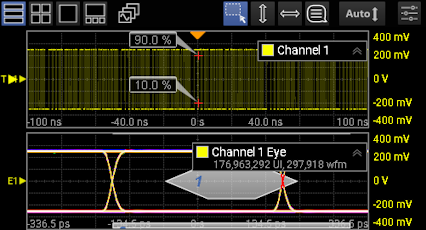
Include in screen capture — Selects the display area to capture: Entire Display or Only Waveform N Window. For example:
Entire Display Screen Capture
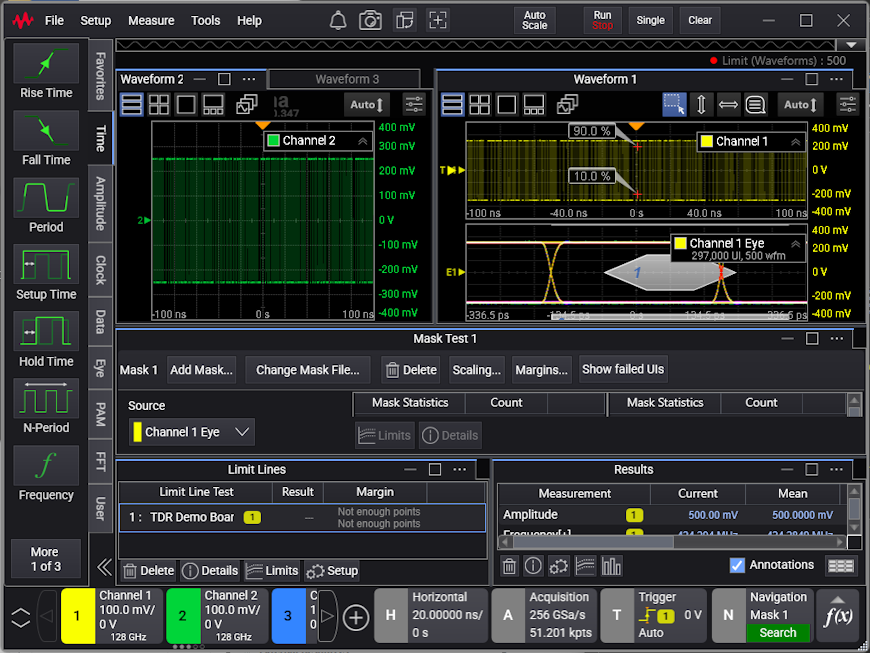
Only Waveform N Window Screen Capture