Mask Test Margin
To specify the compliance margin for a standard or scaled mask:
- Click Setup in the mask test results content window.
- In the Mask Test Setup dialog box, select the Margin tab.
Margins indicate areas that are to contain a specified number of hits (violations within the mask region) in order to comply with testing standards. You can use this information to determine at what level the waveform begins to fail to comply with industry standards.
Once you have defined your margins, select Mask Test Margins On to apply your margins. Mask regions are shown in light gray and mask margins are shown in dark gray. Any acquired data point that falls inside a mask margin appears in red.
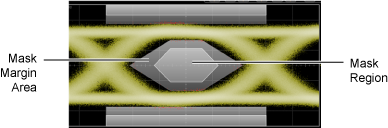
With waveform (overlaid acquisition) masks, margins can be used with percentages. With real-time eye diagram (overlaid UI) masks, there are more choices.
Margin Type: Auto
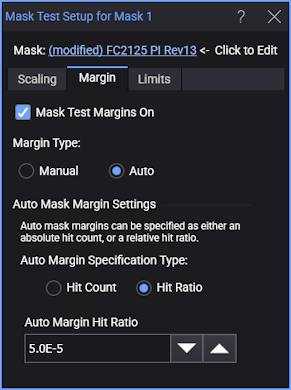
In the Margin Type field, select Auto to automatically set the mask margins based on your entered target Hit Count or target Hit Ratio. Selecting Hit Count sets the margins so that:

Selecting Hit Ratio causes the margins to be sized to achieve the entered Auto Margin Hit Ratio. Use Hit Ratio based mask testing with measurement limit testing (based on percent uncertainty) to reduce test times while increasing test repeatability. This is especially important in testing high-volume optical transceivers. To discover how Hit Ratio based mask testing works, see About Hit Ratio Mask Testing. To set up your testing, see Running a Hit-Ratio Based Mask-Margin Test.
Margin Type: Manual
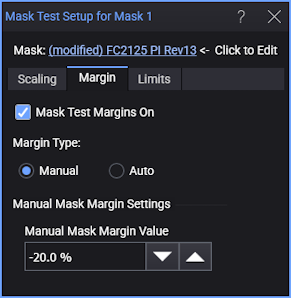
When Manual Margin Type is selected, you can specify positive or, negative mask margins:
- Positive margins (0% to +100%) determine how much larger you will be able to increase the mask size before violations occur.
- Negative margins (0% to −100%) determine how much smaller you have to decrease the mask size before violations no longer occur.
The margin percent setting is determined according to the following equation: violations = BER (samples/UI)
where UI is the unit interval.
Adjustable margins let you see where violations start occurring.
Margin and standard mask violation counts appear on the Mask Test results panel (see Mask Test Results Panel).
For positive mask margins:
-
Total Standard Mask Violations show the number of data points sampled in the mask regions (mask failures). This count does not include any point within the margin area.
-
Total Margin Mask Violations show the number of data points sampled in the mask margin regions (margin failures). This count does include any point within the standard mask area.
The Total Margin Mask Violations include mask violations. For example, with 100% margins, the number of mask violations equals the number of margin violations.
For negative mask margins:
- Total Standard Mask Violations show the combined number of data points sampled in the mask regions and mask margin regions (mask failures). This count does include points within the margin area.
- Total Margin Mask Violations show the number of data points sampled in the mask margin regions (margin failures). This count only includes points within the margin but not outside the margin area into the standard mask area.