Mask Test Results Panel
The Mask Test results panel is displayed whenever a mask test is started.
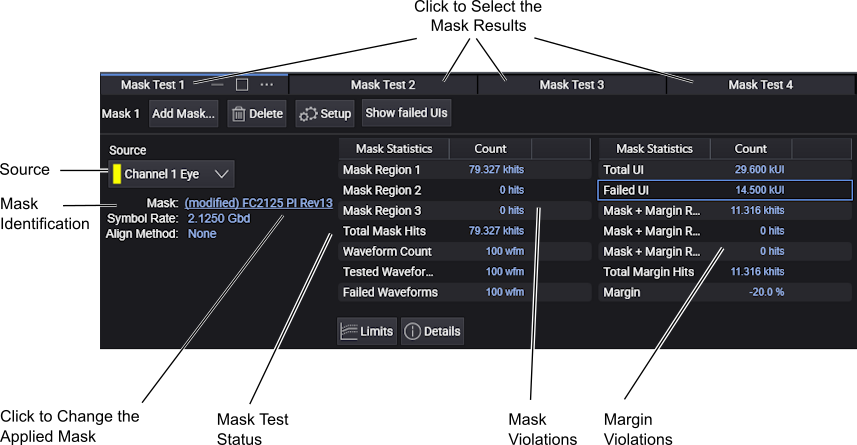
There can be up to 16 mask tests. If multiple mask tests are defined, the results for each will be in its own tab/panel.
The panel's mask identification area shows:
-
The waveform Source.
Use the drop-down list to select a different source.
-
The currently loaded Mask (and standard if identified in the mask file).
Click the upper Change Mask File... button to select a different mask file.
-
The Symbol Rate.
-
The Align Method used: NrzEye, EcMean, or NONE. NrzEye indicates that the mask's reference point is aligned to the first eye crossing on screen for non-return to zero (NRZ) measurements. EcMean indicates that the mask's reference point is aligned to the eye crossing mean of the rise and fall time at waveform average power at the first eye crossing point. This is currently applicable to 10 GbEthernet masks. NONE specifies no alignment takes place.
The mask test measurement results, status, and violations tables show:
-
The number of total, tested, and failed acquisition Waveforms.
-
The number of total and failed UI (unit intervals).
-
The number of Mask Hits for each mask region.
-
If mask margins are enabled, the Margin percent is displayed, and Margin Hits for each region is shown.
Margin Results
In the Mask Test Margin dialog box, if the mask margins are set to be automatically sized according to an entered hit ratio, then the panel shows both the entered Hit Ratio and the calculated percent of confidence (+/−%) of the margin setting for the entered hit ratio. These entries are shown in the above figure. The Hit Ratio sizes the margins so that:
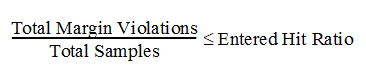
Where Total Samples is the number of samples in one UI and not the total samples acquired.
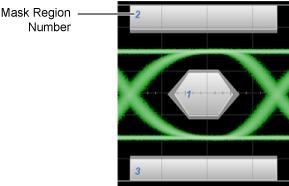
On the displayed mask, a blue number identifies each mask region listed in the results panel. (Note that the following picture is not from the same mask test as the above results table.)
For Positive Mask Margins
- Total Standard Mask Violations show the number of data points sampled in the mask regions (mask failures). This count does not include any point within the margin area
- Total Margin Mask Violations show the number of data points sampled in the mask margin regions (margin failures). This count does include any point within the standard mask area.
For Negative Mask Margins
- Total Standard Mask Violations show the combined number of data points sampled in the mask regions and mask margin regions (mask failures). This count does include points within the margin area.
- Total Margin Mask Violations show the number of data points sampled in the mask margin regions (margin failures). This count only includes points within the margin but not outside the margin area into the standard mask area.
Mask Limit Testing
To apply measurement limit testing to a mask measurement result, select the specific result and click Limits. The Measurements Limit Test dialog box opens. All values shown in the mask measurements results area (except for Align Method and Source) can be selected for limit testing. See Measurement Limits.
(To limit the number of waveforms or unit intervals (UI) that are mask tested, use the Limits tab in the Mask Test Setup dialog box. See Mask Test Limits.)