Zone Qualified Triggers
You can set up rectangular areas (zones) to further qualify the capture of a waveform. You can use up to eight zones to qualify a waveform and can use logical expressions to relate the zones across channels.
To set up zone qualified triggers:
-
First, set up a hardware-based trigger that lets you see waveform events that you would like to further qualify with zones. See Trigger Setup.
-
In the waveform window, select the "draw box" (or "zoom") mode:
-
Draw a box around the portion of a waveform you want to use for zone qualification, and release the mouse button.
-
In the pop-up menu, select New Trigger Zone, and then select the channel associated with the zone.
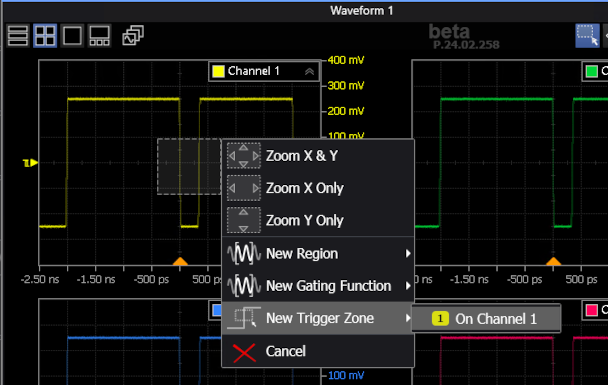
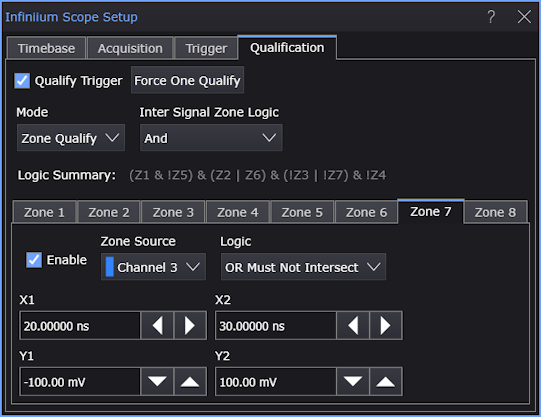
The Infiniium Scope Setup dialog box opens and the Zone Qualify controls let you further specify the zone.
For zone qualified triggers, you can consider acquisition points to be connected by lines. In other words, if two acquisition points exist outside a zone, but a line drawn between them would intersect the zone, that is considered an intersection. -
Continue adding zones by drawing boxes and selecting New Trigger Zone.
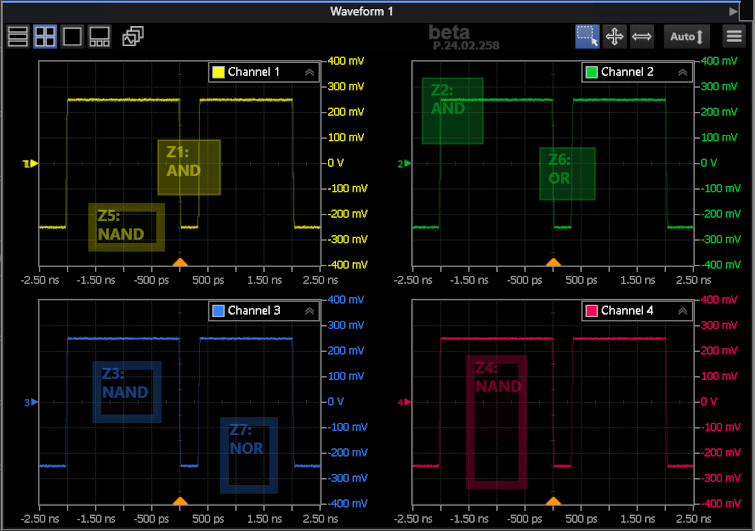
You can define up to eight zones in the zone qualified trigger. For example, this picture shows multiple defined zones:
-
Zone colors match the color of the waveforms they operate on.
-
Filled zones are "Must Intersect" zones, and unfilled zones are "Must Not Intersect" zones.
-
The logic of the zones when combined with other zones for the same waveform is displayed (AND, OR, NAND, NOR).
"Must Intersect" "Must Not Intersect" Zones for the same signal are "ANDed" AND NAND Zones for the same signal are "ORed" OR NOR -
You can use the mouse to size zones and move them. When hovering over a zone, the mouse cursor shape shows whether an edge or the whole zone will be selected.
When drawing zones, you do not need to have one zone on screen in order to draw another zone. For example, you can draw Zone 1 and move it off screen, and then draw Zone 2. Also, the zones do not have to be in the viewing area for the zone qualify to work.
-
-
Use the Zone Qualify controls to make other edits to the zone qualified trigger.
Double-clicking a zone opens the Infiniium Scope Setup dialog box, showing the Zone Qualify controls.
The Zone Qualify controls include:
-
Inter Signal Zone Logic — Specifies the logic used when combining the zones of different signals.
-
Logic Summary — Shows the complete zone qualified trigger logic using grouping parentheses and "&" (AND), "|" (OR), or "!" (NOT) symbols.
Each Zone tab has these controls:
-
Enable — Lets you enable or disable the zone.
-
Zone Source — Lets you change the signal on which the zone operates.
Functions are available as zone sources except when averaging functions or measurement trend functions are included in the function chain.
-
Logic — Lets you specify whether the zone is a "Must Intersect" zone or a "Must Not Intersect" zone and specify whether "AND" or "OR" logic is used when combining zones on the same signal.
-
X1, X2, Y1, Y2 — Lets you size the zone more precisely than using mouse drags.