Lesson 2. Creating a "Show Vars" User Measurement Script
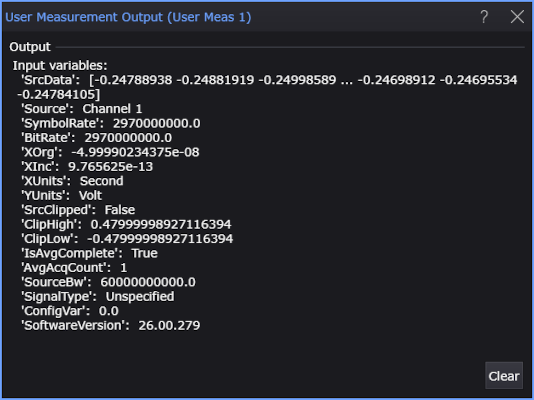
This Python example of a user measurement script simply shows the input variables that have been passed from Infiniium into Python. It illustrates this action and may be useful for troubleshooting. The variables are printed to Infiniium's Show dialog box and to the text file c:/Temp/Show_User_Measurement_Input_Vars.txt. After you've been successful with this example, try the Lesson 3. Creating a Pre-Emphasis User Measurement Script.
- Copy the following XML listing into a text editor. Name the file ShowMeasurementInputVars.xml and save it in Infiniium's user measurements folder (\Documents\Keysight\Infiniium\User Measurements). Later, when this XML file is imported into the User Measurement Setup dialog box, it identifies the ShowMeasurementInputVars.py script, populates the dialog box and creates the user measurement button.
ShowMeasurementInputVars.xml
Drag the mouse over this listing, enter Ctrl-C to copy, and paste it into your text editor.
- <?xml version="1.0" encoding="utf-8"?>
- <Measurement xmlns:xsd="http://www.w3.org/2001/XMLSchema"
- xmlns:xsi="http://www.w3.org/2001/XMLSchema-instance">
- <Script>ShowMeasurementInputVars.py</Script>
- <Name>Show Vars</Name>
- <Comments>Writes input variables and their values
- to the Show Output window and to the file:
- c:/Temp/Show_User_Measurement_Vars.txt
- </Comments>
- <ValidType>Wave</ValidType>
- <MeasurementType>1 Source</MeasurementType>
- <Variable Name="ConfigVar" Value="0.0" />
- </Measurement>
|
- Copy the following script into your text editor. Name your script file ShowMeasurementInputVars.py and save it in Infiniium's user measurements folder (\Documents\Keysight\Infiniium\User Measurements).
ShowMeasurementInputVars.py
Drag the mouse over this listing, enter Ctrl-C to copy, and paste it into your text editor.
import numpy as np

def algorithm(variables):

    # Print input variables to User Measurement Output window
    # and output to a file.
    print('Input variables:')
    fout = open('c:/Temp/Show_User_Measurement_Input_Vars.txt', 'wt')
    for var, value in variables.items():
        s = "  '{0}':  {1}".format(var, value)
        print(s)
        fout.write(s + '\n')
    fout.close()

    # Get input variables (including waveform or eye data).
    SrcData = variables['SrcData'] if 'SrcData' in variables else np.empty(0, dtype=np.float32)
    num_samples = len(SrcData)
    if num_samples == 0:
        return {'ErrorMsg': 'No data'}
    # Other input variables are:
    # 'Source' string
    # 'SymbolRate' float
    # 'BitRate' float
    # 'XOrg' float
    # 'XInc' float
    # 'XUnits' string
    # 'YUnits' string
    # 'SrcClipped' boolean
    # 'ClipHigh' float
    # 'ClipLow' float
    # 'IsAvgComplete' boolean
    # 'AvgAcqCount' integer
    # 'SourceBw' float
    # 'SignalType' string
    # 'HorizontalChange' boolean
    # 'VerticalChange' boolean
    # 'YMiddle' float
    # 'YDispRange' float
    # 'SoftwareVersion' string

    # Can also get up to four variables from XML file.

    # Calculate measurement results.
    Result = 4.2   # Calculated measurement result.
    Units = 'dB'
    Status = 'Correct'   # Or 'Invalid' or 'Questionable', for example.
                         # Shown in measurement Details.
    ErrorMsg = ''   # Reason status is not 'Correct', for example.
                    # Shown in measurement Details.

    # Output the measurement results.
    output_variables = {
        'Result': Result,
        'Units': Units,
        'Status': Status,
        'ErrorMsg': ErrorMsg
    }
    return output_variables

# When testing from the command line.
if __name__ == "__main__":
    data = np.array([1.1, 2.2, 3.3, 4.4, 5.5], dtype=np.float32)
    print(algorithm({'SrcData': data, 'XOrg': 0.1, 'XInc': 1.1}))
|
- Make a Single acquisition.
- Choose Measure > Measurements....
- At the bottom of the Add Measurements dialog box, click User Defined Wave Measurements....
- In the User Measurement Setup dialog box, select an available tab.
- Click Browse... and select your XML configuration file, ShowMeasurementInputVars.xml.
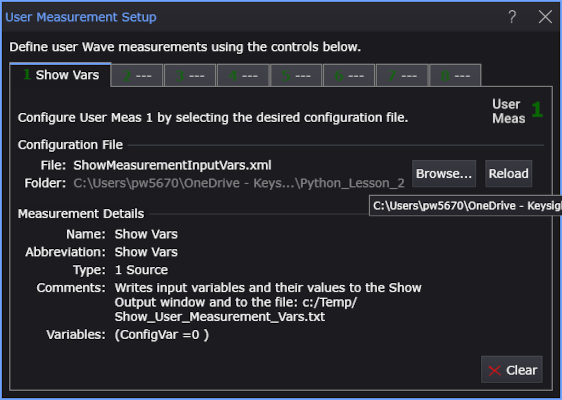
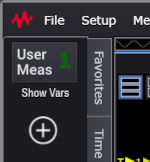
- Add the measurement. Click on your new Show Vars measurement button.
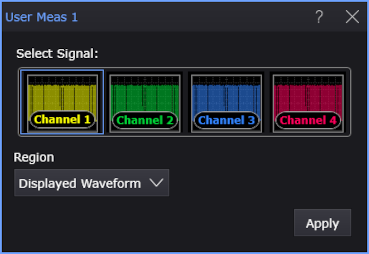
- In the User Meas dialog box, select the Signal and measurement Region; then, click Apply.
- In the Results content window, notice that the Show Vars measurement result is reported.
- Back in the User Measurement Setup dialog box, in the Show Vars measurement tab, click the Show Output... button. This button appears in the dialog box only after the measurement has been added. If the dialog box is already open, close it, and reopen it to see the Show Output... button.
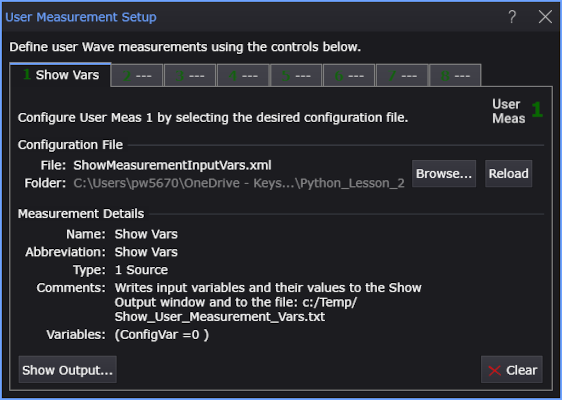
- Place Infiniium in Single mode to acquire one trace.
- Make a Single acquisition.
- In the displayed User Measurement Output dialog box, you should see the output of the print statements in your ShowMeasurementInputVarsd.py script. The output is also printed to the c:/Temp/Show_User_Measurement_Input_Vars.txt file.