Python Measurement Troubleshooting
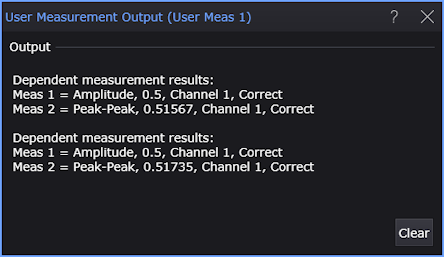
You can add print statements to your Python scripts as a troubleshooting aid. The output of the print statement is written to the User Measurement Output dialog box as shown in the following picture. Each time that the script is executed, which is once per measurement acquisition, the print statements are executed. It is often helpful to set Infiniium's data acquisition to Single mode and then click the Single button to control the output.
For an example of printing all input variables, see Lesson 2. Creating a "Show Vars" User Measurement Script.
The following script was used to write the results of two dependent measurements (Amplitude and Peak-Peak) in the above picture. This represent two waveform acquisitions.
def algorithm(variables):   # Argument "variables" is a dictionary from Infiniium that maps from variable name to value.
    …
    …
    …
    # Print to User Measurement Output window.
    i = 1
    print('\nDependent measurement results:')
    for meas in MeasurementData:
        print(f'Meas {i} = {meas['Name']}, {meas['Result']}, {meas['Source1']}, {meas['Status']}')
        i = i + 1
    …
    …
    …
To view the output
Assuming the measurement configuration XML file has already been loaded and the measurement has been added:
- Add print statements to your script.
- Choose Measure > Measurements....
- At the bottom of the Add Measurements dialog box, click User Defined Wave Measurements....
- In the User Measurement Setup dialog box, select the tab for your measurement.
- Click Reload.
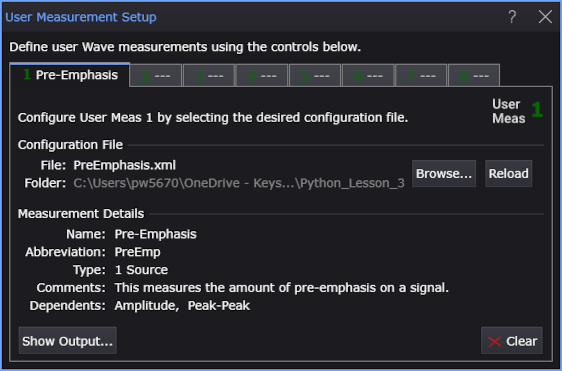
- Click the Show Output... button as seen in the following picture.
- You may need to perform Single acquisitions to see the print statement execution in the User Measurement Output dialog box.