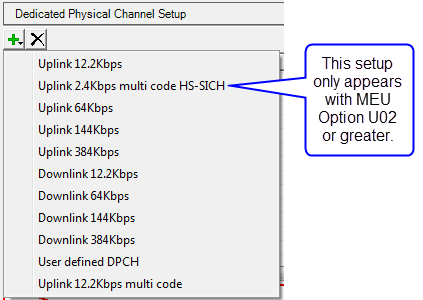
User Defined DPCH
The software provides a User Defined DPCH with selectable link direction,
timeslot, number of RUs, and number of DCHs (1 to 8).
-
To add a user defined DPCH channel, click Dedicated
Channel in the tree view to access the Dedicated Physical Channel Setup
window.
-
Click  in the parameter view and select User defined
DPCH from the
in the parameter view and select User defined
DPCH from the  list
of channels.
list
of channels.
Selecting as the dedicated physical channel automatically sets the state of HS-SICH to On.
-
Specify the name, link direction, number of timeslots,
RUs, and number of DCHs to be configured from the selection box
that appears. Clicking OK in the selection box displays the DPCH Setup
window.
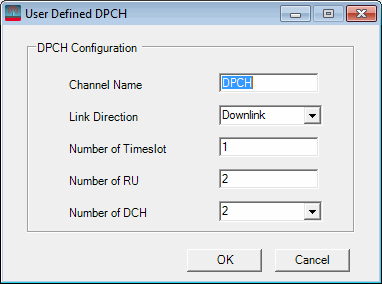
: Displays the default
channel name.
: Use the drop-down
menu to select the link direction of the channel.
: Enter the
number (1-6) of the timeslot for the channel.
: Enter the number
of RUs to be allocated for the channel.
: Enter the number
or use the drop-down menu to select the number of DCHs
(1-4) for the channel.
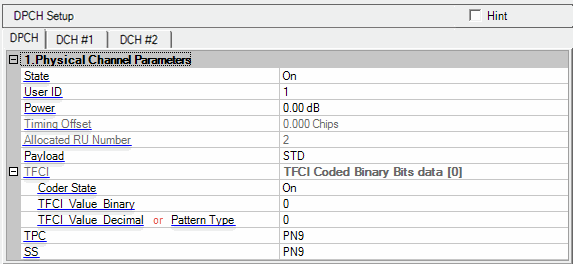
State
Choice: On, Off
Default: On
Set the state of the selected channel to either on
or off. You can double-click the cell to change the state or use  icon at the right of the cell to make your selection.
User ID
Range: 1 to 16
Enter a value to identify the user on this DPCH channel.
The User ID is used to set the user's midamble shift in all Resource Units.
As the User ID changed, the User ID in all of the RUs will be set to the
same value of User ID in DPCH. Meanwhile, each User ID (corresponding
to midamble shift) of the RU can be set separately in the Resource
Unit Setup.
Power
Range: –60 dB to 0 dB
Enter the channel power level relative to the other
channels. See Power
Settings for details.
Timing Offset
Range: –8 to 8 chips
Default: 0 chips
Enter a value to set the transmit timing offset for
the channel. If the OSR is equal to 8, 16, 24 or
32, the timing offset values increment by 0.125 chip; if the OSR is set
to other values, the timing offset values increment by 1 chip. Physical
channels summed in phase produce a high crest factor (high peak-to-average
ratio). Offsetting the timing can minimize the crest factor.
Timing Offset property is only valid for uplink timeslots. For downlink
timeslots, it is read-only. The switching point determines how timeslots
2 through 6 are allocated between uplink and downlink. Timeslots
before the switching point are allocated to the uplink; timeslots after
the switching point are allocated to the downlink.
Allocated RU number
This cell displays the allocated resource unit number.
This number depends on the selected data rate and cannot be edited.
Payload
Selections: STD | PN9 |
PN15 | Pattern | 0, 1 Text File
Default: STD
Click the cell and the icon at the far right
of the cell to access the data menu.
|
STD
|
select data as defined in the standard
|
|
PN9
|
select random sequence numbers
|
|
PN15
|
select random sequence numbers
|
|
Pattern
|
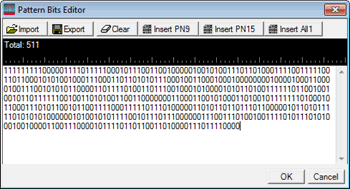
this selection activates the Pattern Bits cell, which opens the Pattern Bits Editor window. The editor allows you to define a custom bit pattern of up to 262144 bits in length. You can also import and export bit patterns. After you set the pattern, the number of bits and the first 8 bits of the pattern are displayed in the cell.
|
|
0, 1 Text File
|
select this to load a user-defined 0, 1 Text File as the data source.
When this is selected as the data type, two new cells are added to the
cell format.
-
Click  to expand the cell to access the User File
cell. to expand the cell to access the User File
cell.
-
Click  at the far right of the User File cell. An
Open window is displayed for navigating to and selecting the desired ASCII
file (*.txt). The Data Length cell is updated with the corresponding length. at the far right of the User File cell. An
Open window is displayed for navigating to and selecting the desired ASCII
file (*.txt). The Data Length cell is updated with the corresponding length.
|
TFCI
Range: 0000000000
to 1111111111 or pattern type
This cell displays the current bits of binary data
or the pattern type to be used for the TFCI data.
Click to set the coder state.
Coder State
Selections: On | Off
Default: On
Sets the coder state of TFCI.
|
On
|
The TFCI_Value_Decimal cell becomes active.
|
|
Off
|
The Pattern Type cell becomes active.
|
TFCI_Value_Binary
The binary format of the TFCI value. This cell is read only. The value must be entered in decimal format, using the TFCI_Value_Decimal cell.
TFCI_Value_Decimal
Enter a decimal value up to 1023. The binary equivalent appears in TFCI_Value_Binary. This cell is active only when the Coder State is set to On.
Pattern Type
Selections: PN9 |
PN15 | Pattern | 0, 1 Text File
Default: PN9
Set the data pattern for TFCI. Click the cell and the down-arrow
at the far right of the cell to access the data
menu. This cell is active only when the Coder State is set to Off.
|
PN9
|
select random sequence numbers
|
|
PN15
|
select random sequence numbers
|
|
Pattern
|
this selection activates the Pattern Bits cell, which opens the Pattern Bits Editor window. The editor allows you to define a custom bit pattern of up to 262144 bits in length. You can also import and export bit patterns. After you set the pattern, the number of bits and the first 8 bits of the pattern are displayed in the cell.
|
|
0, 1 Text File
|
select this to load a user-defined 0, 1 Text File as the data source.
When this is selected as the data type, two new cells are added to the
cell format.
-
Click to expand the cell to access the User File
cell.
-
Click at the far right of the User File cell. An
Open window is displayed for navigating to and selecting the desired ASCII
file (*.txt). The Data Length cell is updated with the corresponding length.
|
TPC
Selections: PN9 |
PN15 | Pattern | 0, 1 Text File
Default: PN9
Click the cell and the down-arrow
at the far right of the cell to access the data
menu.
|
PN9
|
select random sequence numbers
|
|
PN15
|
select random sequence numbers
|
|
Pattern
|
this selection activates the Pattern Bits cell, which opens the Pattern Bits Editor window. The editor allows you to define a custom bit pattern of up to 262144 bits in length. You can also import and export bit patterns. After you set the pattern, the number of bits and the first 8 bits of the pattern are displayed in the cell.
|
|
0, 1 Text File
|
select this to load a user-defined 0, 1 Text File as the data source.
When this is selected as the data type, two new cells are added to the
cell format.
-
Click to expand the cell to access the User File
cell.
-
Click at the far right of the User File cell. An
Open window is displayed for navigating to and selecting the desired ASCII
file (*.txt). The Data Length cell is updated with the corresponding length.
|
SS
Selections: PN9 |
PN15 | Pattern | 0, 1 Text File
Default: PN9
Click the cell and the down-arrow
at the far right of the cell to access the data
menu.
|
PN9
|
select random sequence numbers
|
|
PN15
|
select random sequence numbers
|
|
Pattern
|
this selection activates the Pattern Bits cell, which opens the Pattern Bits Editor window. The editor allows you to define a custom bit pattern of up to 262144 bits in length. You can also import and export bit patterns. After you set the pattern, the number of bits and the first 8 bits of the pattern are displayed in the cell.
|
|
0, 1 Text File
|
select this to load a user-defined 0, 1 Text File as the data source.
When this is selected as the data type, two new cells are added to the
cell format.
-
Click to expand the cell to access the User File
cell.
-
Click at the far right of the User File cell. An
Open window is displayed for navigating to and selecting the desired ASCII
file (*.txt). The Data Length cell is updated with the corresponding length.
|
Resource Unit Setup
The Resource
Unit Setup table enables you to configure the resource unit for each
channel.