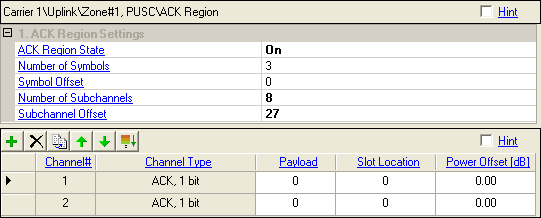
Double-click or use the drop-down menu to select the operating state of the ACK region. These settings are the same as the settings in Uplink Zone#, PUSC.
Specify the number of symbols for the ACK region. The maximum number is limited to the number of symbols of the parent zone.
Specify the Symbol Offset of the ACK region within the parent zone.
Specify the number of subchannels for the ACK region.
Specify the subchannel offset of the ACK region within the parent zone.
Use the button  to add a new ACK channel from. When a channel is added, the software displays
the ACK region plot in the frame
plot view if the ACK State is On.
to add a new ACK channel from. When a channel is added, the software displays
the ACK region plot in the frame
plot view if the ACK State is On.
Use the button  to delete the selected ACK channel. The channel to be deleted is indicated
by the
to delete the selected ACK channel. The channel to be deleted is indicated
by the  in the first column.
Use the button  to add a new ACK channel that has the same configuration as the currently
selected one (indicated by the in the first column).
to add a new ACK channel that has the same configuration as the currently
selected one (indicated by the in the first column).
Use the and
arrows  to reposition the currently selected ACK channel (indicated
by the in the first column).
to reposition the currently selected ACK channel (indicated
by the in the first column).
Use the button
 to align the channels and help prevent overlap.
Range: 1 to 16
Displays the ACK channel index number.
Specify the type of ACK channel. Each channel has an individual payload length.
ACK, 1 bit
Set the data contents of the channel.
Set the slot location of the channel.
Range: –40.00 to +9.00 dB
Set the amplitude offset in dB.