 to open the Configure DL-SCH window. The software
also displays this window whenever you add a new DL-SCH channel.
to open the Configure DL-SCH window. The software
also displays this window whenever you add a new DL-SCH channel.Before adding a DL-SCH channel as described below, delete the default DL-SCH in the Transport Channel node (or any configured DL-SCH that occupies resource blocks that your new DL-SCH will occupy). If you to add a new DL-SCH without deleting a conflicting DL-SCH, a "code conflicted" error appears in the Status Bar and the Status Window when you generate the waveform.
To edit an existing DL-SCH channel, select the channel and click the
DL-SCH Configuration button to open the Configure DL-SCH window. The software
also displays this window whenever you add a new DL-SCH channel.
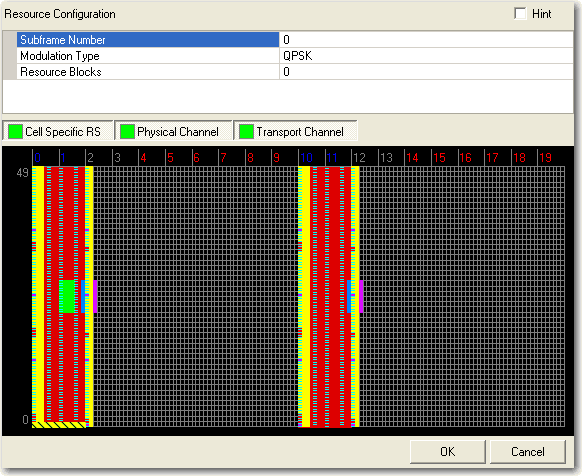
Figure 1. Configure DL-SCH window
Figure 1 shows the Configure DL-SCH window with the default settings after deleting the existing DL-SCH channel shown in Transport Channel. The currently configured DL-SCH is shown in yellow in the resource mapping graph at the bottom of the window.
Enter the subframe number(s) for the DL-SCH to occupy. You can enter multiple subframes, separated by commas (for example 1,3,5) or a range of subframes (for example 1-5).
Choices: QPSK |16QAM | 64QAM | 256QAM
Default: QPSK
Enter the number(s) of the resource block(s) for the DL-SCH to occupy in both slots of the subframe. You can enter multiple resource blocks, separated by commas (for example 1,3,5) or a range of resource blocks (for example 1-5). Your new configuration is displayed in yellow in the resource mapping graph at the bottom of the window.
Click to create your configured DL-SCH channel. The software automatically creates the appropriate PDSCH channels in the Physical Channel node.