This Transport Channel Uplink configuration has several different possible channel setups (e.g. DL-SCH and UCI). The screen shot below shows the parameter choices for a UL-SCH channel. In the N7625C Signal Studio software, click a different channel to view that channel's parameter choices. The links for all of the channel's parameters and their descriptions are listed in the table below.
Before adding a transport channel as described below, delete any existing transport channel, physical channel, or resource block collection that occupies the resource blocks that your new transport channel will occupy. If you add a new transport channel without first deleting a conflicting channel or resource block collection, a "code conflicted" error occurs when you generate the waveform.
To add an new transport channel, click the Add Channel button and select the transport channel type to add. The software adds the new channel above the currently selected channel in the list. The software assigns a channel identifying number to the new channel that corresponds to its position in the list and increments the identifying numbers of subsequent channels in the list.
When you select a channel to add, the software opens the Configure UL-SCH window or Configure UCI window depending on the selected channel that allows you to configure the newly added channel. Click OK in the respective window when you complete the configuration. The software then adds the new channel above the currently selected channel in the list and assigns a channel identifying number to the new channel that corresponds to its position in the list and increments the identifying numbers of subsequent channels in the list.
Similarly, if you delete a selected channel, the software adjusts the identifying number of the subsequent channels according to their new positions in the list.
You can make changes to an already configured UL-SCH or UCI channel by selecting the channel and clicking the UL-SCH Config button.
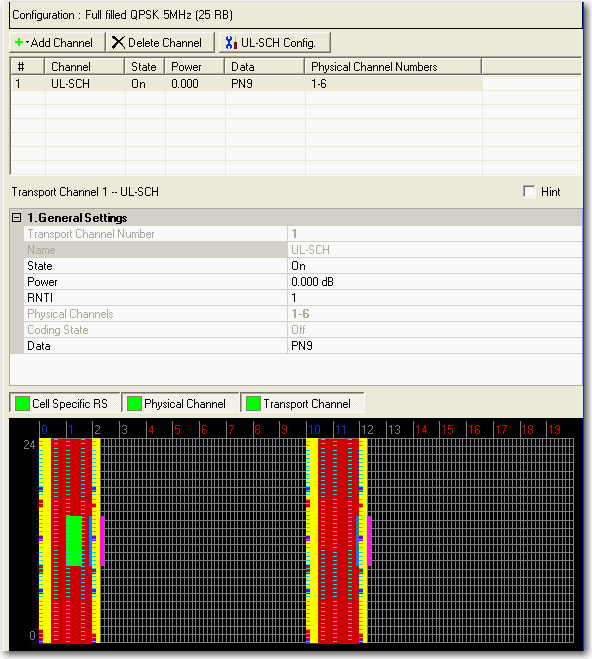
Displays the number of the selected transport channel.
UL-SCH = Uplink Shared Channel
Displays the name of the selected transport channel depending on the highlighted channel in the channel list.
Choice: Off | On
Default: On
Double-click or use the drop-down menu to turn the channel on or off.
Range: -60.000 to 20.000 dB
Default: 0.000 dB
Enter a power level in dB for the selected channel. See Power Settings (Uplink) for a description of how the software applies your power setting.
Range: 0 to 65535
Default: 0
Enter a value for the Radio Network Temporary Identifier (RNTI). See 3GPP TS 36.211.
Displays the number(s) of the physical channel(s) associated with the selected transport channel.
Displays the coding state (off or on).
This cell is displayed when UL-SCH is highlighted in the channel list.
Use the Data Source Selection dialog box to select , , or to use for the data.