Click the Download button on the software's tool bar.

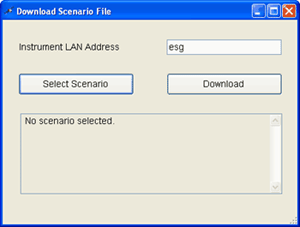
In the Download Scenario File dialog box that appears:
There are two ways to download scenario files to the signal generator: use the Download button in the software UI or FTP the file. This procedure assumes that a scenario file has already been created and resides on the PC.
Click the Download button on the software's tool bar.
In the Download Scenario File dialog box that appears:
In the Instrument LAN Address field, enter the IP address or hostname of the signal source.
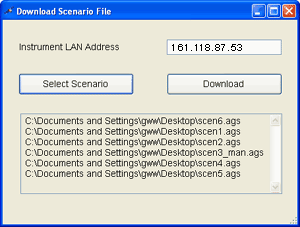
Click the Select Scenario button to launch the Open dialog box to navigate to and select the file(s) to download.
You can select a single file or multiple files to download. If selecting multiple files, all of the files must reside in the same directory. After selecting the file(s), the download dialog box displays the file name(s) to download.
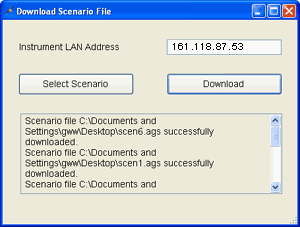
Click the Download button.
If multiple files were selected, the software downloads all of the files upon clicking the Download button. After completion of the file downloads, the download dialog box displays individual file download confirmations in a list below the buttons
Click the  in the upper right corner to close the Download Scenario File dialog box.
There are three ways to FTP files into the signal generator: FTP using Microsoft® Internet Explorer, the command window, or the signal generator's internal web server. When using the FTP method, download files to the signal generator's /USER/GPS directory. For information on using the FTP methods, refer the to the Signal Generators Programming Guide.
Microsoft is either a registered trademark or a trademark of Microsoft Corporation in the United States and/or other countries.