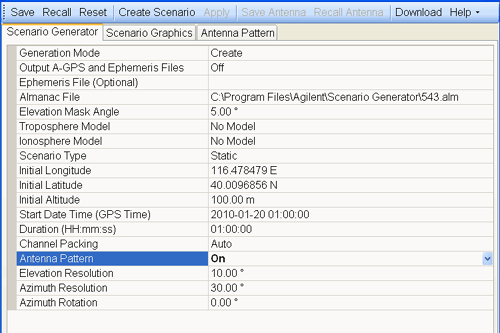
This procedure guides you through the settings to create a scenario using the Scenario Generator tab on the software user interface (UI):
If the software is not open, start the software by double clicking the desktop icon  or access the software through the PC start menu.
The software starts with Create as the default Generation Mode.
If working with assisted GPS (A-GPS), select On for the Output A-GPS and Ephemeris Files cell.
With the cell set to On, the software creates and outputs two additional files in a csv format: one file contains the A-GPS data and the other contains the ephemeris data. The software uses data from the selected almanac file to generate the two files.
If there is a need to use an ephemeris file, click the Ephemeris File (Optional) cell, and use the dialog box button  to launch the Open dialog box for navigating to and selecting the ephemeris file.
If no file is selected, the software uses data from the selected almanac file to create its own internal ephemeris file data. Ephemeris files are typically required to create specific scenarios required for some 3GPP conformance tests.
If you use an ephemeris file created with the Output A-GPS and Ephemeris Files cell, ensure that you use the modified version.
Click the Almanac File cell, and use the dialog box button to launch the Open dialog box for navigating to and selecting the almanac file.
|
|
The software only accepts this file in the Yuma format. You can obtain this required file from the URL: http://navcen.uscg.gov/gps/almanacs.htm and save it to your PC. |
Set the Elevation Mask Angle.
The software sets the mask from the horizon to the angle entered. This means that the software only recognizes satellites that appear above the mask value.
If desired, set the Troposhere Model to NATO or leave as No Model.
Some tests, such as in the 3GPP standards, require the NATO model selection.
If performing conformance tests for W-CDMA or cdma2000, select the respective Ionosphere Model:Klobuchar for WCDMA or Klobuchar for cdma2000. Otherwise leave the No Model selection.
Select the Scenario Type to either Static or Dynamic (moving GPS receiver).
If you select Dynamic, the software removes some settings (cells) that are requirements only for the Static selection.
Finish configuring the settings for either the Static or Dynamic scenario type selection.
Click the Create Scenario button to launch the Save As dialog box for selecting a location and saving the file.
|
|
If using manual channel packing and a satellite conflict exists (more than eight satellites), the software does not create the scenario until the conflict(s) are resolved. Instead the software displays a message and creates the Satellite Visibility view where you resolve the conflicts. After resolving the conflicts, click Done in the Satellite Visibility view to create the scenario file. |
Keep the file name to 23 characters or less. If you attempt to download a file with a name that contains more than 23 characters, the download will fail and the software displays an error message.
After creating the scenario, click on the Scenario Graphics tab to view the satellites used across the scenario for each channel.