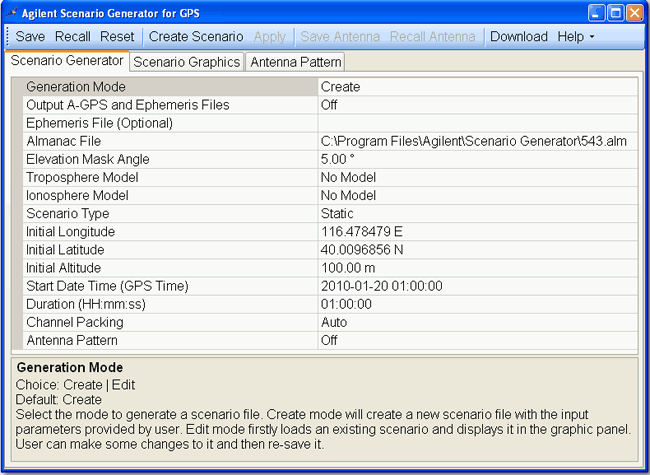
The figure below shows the Scenario Generator tab.
Click the links below for more information about each property.
|
|
Choice: Create | Edit
Default: Create
Couplings: Apply button is active when Generation Mode is Edit. Switching to Edit mode will cause a graphic tab update and log window update based on the selected scenario file for edit. Refer to Creating a Scenario or Editing a Scenario for more information.
|
Create |
This mode creates a new scenario file with the input parameters provided by the user. |
|
Edit |
This mode loads an existing scenario and displays it in the graphic panel. User can make changes to the scenario file and then re-save it. |
Choice: On | Off
Default: Off
Couplings: This property is active when Generation Mode is Create.
Indicates whether a A-GPS parameter file and matching ephemeris file will be created along with the scenario file.
|
|
The ephemeris file that is generated contains a header line in the first row. Delete this row if you want to use the ephemeris file as an input to the scenario generator software. |
Default: No file selected
Couplings: This property is active when Generation Mode is Create.
Select the ephemeris data file in comma-separated format for scenario creation. This property is optional for creating a scenario and can be left with no file selected.
|
|
If you use an ephemeris file created with the Output A-GPS and Ephemeris Files cell, before using it, you must modify the file by removing the first line (header line) of the file. To modify the file, use either a text editor or Microsoft® Excel. Ensure to resave the file in the same format, comma separated values (.csv). |
Default: C:\Program Files\Agilent\Scenario Generator\543.alm
Couplings: This property is active when Generation Mode is Create.
Select the almanac data file in YUMA format for scenario creation. The date of the almanac file should be close to the desired scenario start date for better satellite location accuracy. The software will display a warning message if the dates are more than four weeks apart.
Range: 0° - 30°
Default: 5.00°
Couplings: This property is active when Generation Mode is Create.
Enter the angle above the horizon which constitutes valid satellite data. Satellites below this angle will not be used. Increasing this angle will reduce the number of visible satellites in the generated scenario.
Choice: No Model | NATO
Default: No Model
Couplings: This property is active when Generation Mode is Create.
Select the troposphere model to be applied to satellite signals in the generated scenario.
Choice: No Model | Klobuchar for WCDMA | Klobuchar for cdma2000
Default: No Model
Couplings: This property is active when Ionosphere Model Klobuchar for WCDMA or Klobuchar for cdma2000 is selected. Alpha and Beta values for WCDMA are from 3GPP TS34.108 and values for cdma2000 are from 3GPP2 C.S0036-0 v2.0 Annex B section B.3.
Select the ionosphere model to be applied to satellite signals in the generated scenario.
Default: 4.6566129E-09, 1.4901161E-08, -5.96046E-08, -5.96046E-08, 79872, 65536, -65536, -393216
Couplings: This property is active when Ionosphere Model is Klobuchar for WCDMA or Klobuchar for cdma2000. Alpha and Beta values cannot be modified by the user and will be automatically updated along with the selected Ionosphere Model.
The table below displays the Alpha and Beta parameters for ionosphere model calculation. The format is Alpha[0], Alpha[1], Alpha[2], Alpha[3], Beta[0], Beta[1], Beta[2], Beta[3].
|
Klobuchar for WCDMA |
Klobuchar for cdma2000 |
||
|
Alpha[0] |
4.6566129E-09 |
Alpha[0] |
1.49011611938477E-08 |
|
Alpha[1] |
1.4901161E-08 |
Alpha[1] |
2.23517417907715E-08 |
|
Alpha[2] |
-5.96046E-08 |
Alpha[2] |
-1.19209289550781E-07 |
|
Alpha[3] |
-5.96046E-08 |
Alpha[3] |
-1.19209289550781E-07 |
|
Beta[0] |
79872 |
Beta[0] |
112640 |
|
Beta[1] |
65536 |
Beta[1] |
131072 |
|
Beta[2] |
-65536 |
Beta[2] |
-131072 |
|
Beta[3] |
-393216 |
Beta[3] |
-196608 |
Choice: Static | Dynamic
Default: Static
Couplings: This property is active when Generation Mode is Create.
Select the scenario type to be generated.
|
Static |
Scenario will be generated for a static GPS receiver with fixed longitude, latitude and altitude. |
|
Dynamic |
Scenario will be generated for a moving GPS receiver based on the provided trajectory data. |
Default: 116.478479 E
Couplings: This property is active when Scenario Type is Static.
Enter the initial longitude in degrees for the GPS receiver position to be simulated in a static scenario. Enter a positive number for East and negative number for West or a positive number with W or E appended.
Default: 40.0096856 N
Couplings: This property is active when Scenario Type is Static.
Enter the initial latitude in degrees for the GPS receiver position to be simulated in a static scenario. Enter a positive number for North and negative number for South or a positive number with N or S appended.
Range: -100 m to 10000 m
Default: 100.00 m
Couplings: This property is active when Scenario Type is Static.
Enter the initial altitude in meters for the GPS receiver position to be simulated in a static scenario.
Default: 2010-01-20 01:00:00
Couplings: This property is active when Generation Mode is Create.
Select the start date and GPS time for the scenario simulation. The start time will be rounded to the nearest 6-second boundary.
Range: 00:00:06 - 24:00:00
Default: 01:00:00
Couplings: This property is active when Scenario Type is Static. For a dynamic scenario, the duration is determined by the time length of input NMEA message file.
Enter the duration of the scenario to be created in <HH:mm:ss> format.
Choice: Auto | Manual
Default: Auto
Couplings: This property is active when Generation Mode is Create. When creating a scenario in Manual mode, a new tab with satellite visibility is displayed. Select the desired satellites to fill a maximum of 8 channels.
The ESG/PSG support a maximum of 8 satellite channels at a time. This property describes how to select satellites to fill the channels when there are more than 8 satellites available. Auto means that software will have channel packing done automatically. In Manual mode, select the satellites you want to use.
Choice: On | Off
Default: Off
Couplings: Properties Elevation Resolution, Azimuth Resolution and Azimuth Rotation are active when Antenna Pattern is On. Antenna Pattern is only applied to Static scenarios and will be disabled when generating Dynamic scenarios.
This property indicates whether the gain mask for an antenna pattern will be enabled for generated scenarios. The gain mask is configured through the sky-view map in the Antenna Pattern tab.
Range: 5° - 90°
Default: 10.00°
Couplings: When this value is changed, the gain mask for the antenna pattern will be rebuilt and reset to the default value (0 dB). Save the current antenna pattern settings before changing the elevation resolution value.
Enter the satellite elevation resolution for creating the gain mask of antenna pattern. With this value (ER), the whole elevation range [0° - 90°] will be divided into several blocks - [0° - ER], [ER - 2ER] ... [nER - 90°].
Range: 5° - 90°
Default: 30.00°
Couplings: When this value is changed, the gain mask for the antenna pattern will be rebuilt and reset to the default value (0 dB). Save the current antenna pattern settings before changing the elevation resolution value.
Enter the satellite azimuth resolution for creating the gain mask of an antenna pattern. With this value (AR), the whole azimuth range [0° - 360°] will be divided into several blocks - [0° - AR], [ER - 2AR] ... [mAR - 360°].
Range: 0° - 360°
Default: 0°
Couplings: When this value is changed, the sky-view map on the Antenna Pattern tab will be updated to reflect the rotation.
Enter the rotation of configuring antenna pattern from the base pattern, in which 0° azimuth points to the north.
Range: 1Hz - 5Hz message rates
Default: C:\Program Files\Agilent\Scenario Generator\Circle.gga
Couplings: This property is active when Scenario Type is Dynamic. When a new NMEA file is selected, Start Date Time will be updated according to the content of the file.
Select a NMEA message file for dynamic scenario creation, which contains RMC/GGA messages generated by a GPS receiver.
The NMEA file must contain the $GPGGA messages. The GGA messages are necessary because they contain the longitude, latitude, and altitude (location) information along with the time information. The start time and duration for the dynamic scenario will be based on the time information in the NMEA message file.
Optionally, the file may also contain $GPRMC messages. RMC messages also contain the date information (which is not in the GGA messages), and if any RMC messages are present, then the scenario generator will use the date in the first RMC message that it finds as the start date of the scenario. If no RMC messages are in the NMEA file, the user needs to specify the start date.
|
|
The NMEA file cannot consist of RMC messages only. RMC messages lack the altitude information, so the scenario generator cannot use them for the location information. |
Default: C:\Program Files\Agilent\Scenario Generator\Beijing.ags
Couplings: This property is active when Generation Mode is Edit.
Select an existing scenario file for editing. After loading a scenario, the Scenario Graphics tab will be updated to display the contents of the scenario.
|
|
There is no linkage between a file that may have just been created in the scenario generation mode and the active scenario file in the Edit mode. |
Choice: Delete Channel | Apply Power Offset | Equalize Satellite Powers | Trim
Default: Delete Channel
Couplings: This property is active when Generation Mode is Edit. Each time the selected scenario is edited, the graphic panel will update and a new record will be appended to the edit log.
Select an edit operation to be applied to the scenario file.
|
Delete Channel |
This mode deletes a satellite channel from the scenario with the specified channel index. A Satellite Channel is a basic resource unit in a scenario for playing satellite data. During scenario playback, a channel could either be blank (no satellite data), or transmitting data from a satellite with specified SV ID. And at certain time, it may make a transition to another satellite as defined in the scenario. The channel plot in the Scenario Graphics tab displays the color coding to show which SV IDs (PRNs) are assigned to each channel versus time. |
|
Apply Power Offset |
This mode adds an offset to the power level during some portion in the scenario. The Start and Stop properties specify the time range over which power level will be adjusted. Multiple power offsets can be applied to the same channel as long as the time spans do not overlap. Click Apply after each change has been made. |
|
Equalize Satellite Power |
This mode sets the power levels of all satellites in the scenario to the same value. |
|
Trim |
This mode removes the satellite data from the scenario outside of the time range specified by Start and Stop. |
Range: 1 - 8
Default: 1
Couplings: This property is active when Generation Mode is Edit and Edit Mode is Delete Channel or Apply Power Offset.
Enter the index of the satellite channel on which the edit operation will be performed.
Range: 0 - duration of scenario
Default: 0
Couplings: This property is active when Generation Mode is Edit and Edit Mode is Apply Power Offset or Trim. The Start time in scenario cannot be larger than Stop time.
Enter the start time in the scenario in seconds for a specific edit operation, with a resolution of 0.6 second.
Range: 0 - duration of scenario
Default: 3600
Couplings: This property is active when Generation Mode is Edit and Edit Mode is Apply Power Offset or Trim. The Stop time in scenario cannot be less than Start time.
Enter the stop position in the scenario in seconds for a specific edit operation, with a resolution of 0.6 second.
Range: -40 dB to 0 dB
Default: 0.00
Couplings: This property is active when Generation Mode is Edit and Edit Mode is Apply Power Offset.
Enter the power offset to be applied to a specific satellite channel. Adjust this offset value to control the relative power levels among satellite channels.
Choice: On | Off
Default: Off
Couplings: This property is active when Generation Mode is Edit.
This property indicates whether the edit log will be saved to a text file along with the scenario. The log file will have the same path and file name as the scenario file but a *.log file extension.
Click this button to save project settings.
|
|
The antenna pattern must be saved separately using the Save Antenna button. |
Click this button to recall project settings.
Click this button to reset project settings to the default values.
Couplings: This button is active when Generation Mode is Create. Refer to the tutorial Creating a Scenario for more information.
Clicking this button will bring up a dialog asking for the file path and name, and then the software will create the scenario file. When the scenario is successfully created, the graphic panel in the Scenario Graphics tab will be updated to display the content of satellite channels in the scenario. If an error occurs, a message will be displayed.
Couplings: This button is active when Generation Mode is Edit.
Clicking this button will bring up a dialog asking user to specify the file path and name and then save the edited file. When scenario file is saved, there will be a record of the saved scenario appended to the log window.
Couplings: This button is active when Generation Mode is Edit. When an edit operation is done, it will become inactive. When changes are made to the related parameters (see table below), it becomes active again.
Clicking this button will perform the edit operation to the selected scenario as specified by Edit Mode and related parameters. When the operation is done, the graphics panel in the Scenario Graphics tab will be updated to reflect the changes made to the scenario. The information will be appended to the log window as well. If any error occurs, an error message will be displayed.
|
Edit Mode |
Related Parameter |
Sample log text |
|
Delete Channel |
Source Channel |
Delete channel 1 |
|
Apply Power Offset |
Source Channel Start Stop Power Offset |
Apply power scale of -10 dB to channel 1 from 0 to 3600 seconds |
|
Equalize Satellite Power |
n/a |
Set power of all satellites to equal values. |
|
Trim |
Start Stop |
Trim scenario – keep time range from 0 to 1800 seconds |
Description is in the Antenna Pattern topic.
Description is in the Antenna Pattern topic.
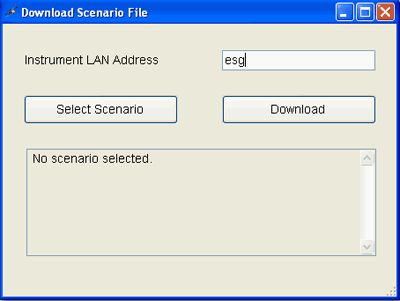
Click this button to download the selected scenario to the target instrument.
|
Instrument LAN Address |
Provide the instrument LAN address. |
|
Select Scenario |
Allows the user to select one or more scenario files within the same directory for download. |
|
Download |
Transfers selected files to the GPS folder in the ESG/PSG. |
Refer to the tutorial Downloading a Scenario for more information.
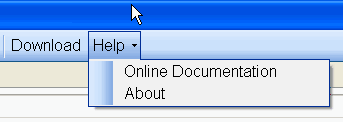
Click this button to view the online documentation. The online documentation opens in a separate window.
Click this button to view the software revision.